How do I set up my Roku® Premiere?
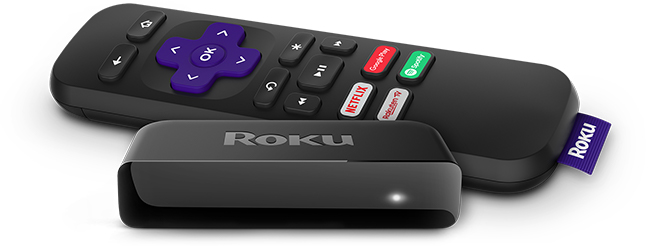
Note: Roku Premiere model 3920 replaces Roku Premiere model 4620. If you need help setting up model 4620, refer to the general setup instructions for any model player.
Will Roku Premiere work with my TV?
Roku Premiere will work with any television with an HDMI® connection. However, you will not be able to take advantage of 4K resolution without a 4K-compatible TV, or HDR without an HDR-compatible TV. A compatible television is not the only requirement to stream movies and TV shows in 4K or HDR; learn more about setting up your Roku player for 4K Ultra HD or setting up your Roku player for HDR.
We recommend using a High Speed HDMI Cable if your TV only supports 720p and 1080p, or a Premium High Speed HDMI Cable if your TV also supports 4K and/or HDR.
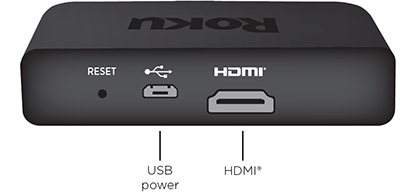
Setting up your Roku Premiere
- Review the Quick Start Guide below, or follow along with the tutorial video:
Roku Premiere Quick Start Guide (model 3920) - If desired, attach your your Roku Premiere using the adhesive strip.
- Use your TV remote to power on your television and select the input where you connected your Roku Premiere. You should see the Roku logo on the TV screen as your player powers on. Help is available if you do not see any picture on your TV.
- Slide open the battery cover on the back side of your remote and insert batteries. Help is available if you have problems with your remote control.
On-screen setup and activation
- Choose a language
- The first screen you see will allow you to choose a language. All text and dialog within the Roku interface will be displayed in the selected language.
- Scroll up and down the list and press the OK button
 on your Roku remote to choose a language.
Note: It is the responsibility of the channel publisher to translate their channel and some channels may not support your chosen language.
- Connect your Roku Premiere to your network and the internet
- Choose your wireless network from the list of available networks and enter your password. This is most often the same network you use to connect your computer or smartphone to the internet. If you do not see your network, select Scan again to see all networks. For more assistance, see help finding your wireless network and password.
- If you want to see your password as you type, choose Show password. This can help prevent entering the wrong password. Remember, passwords are case-sensitive. Use the shift button
 on the on-screen keyboard to enter a capital letter.
 - Once you enter your password and select Connect, your Roku Premiere will automatically connect to the internet. Alternatively, you can get more help if you are unable to connect to your wireless network.
- Wait for your Roku Premiere to download the latest software
- Once connected to the internet, your Roku Premiere will download the latest version of Roku OS software and then reboot.
- Once connected to the internet, your Roku Premiere will download the latest version of Roku OS software and then reboot.
- Set the display type
- Select Auto detect display type and your Roku Premiere will analyze the HDMI connection and determine the supported video resolutions. To have your Roku Premiere automatically choose the best display resolution so you don’t have to manually configure the settings, choose Ok, go to automatic. To change the display type at a later time, go to Settings > Display type.
- If support for 4K or HDR is not detected and you are using a 4K-compatible TV or an HDR-compatible TV, make sure all HDMI cables are firmly attached and all connections support HDCP 2.2. For more help, review the steps for 4K setup or HDR setup.
- Create a Roku account and activate your Roku device
- To activate your Roku device, it must be linked to a Roku account. Your Roku account stores information on which devices you own, and which channels you have installed, as well as your preferences and settings.
- Note: There is NEVER a charge to create a Roku account.
- Note: There is NEVER a charge to create a Roku account.
- When prompted on screen, enter a valid email address to use for your Roku account, and then switch to your computer or smartphone to activate and link your Roku device. Be aware that it may take a few moments to receive the activation email from Roku. If you do not see it in your email inbox, be sure to check your spam (or junk) folder. If you cannot get your Roku device activated, learn how to resolve linking issues.
- Note: Roku does not require an activation fee, or charge for support of any kind. Learn how to avoid fraudulent websites.
- Note: Roku does not require an activation fee, or charge for support of any kind. Learn how to avoid fraudulent websites.
- To activate your Roku device, it must be linked to a Roku account. Your Roku account stores information on which devices you own, and which channels you have installed, as well as your preferences and settings.
- You are done!
- With all steps complete, your Roku player is ready to use.
- Choose a language
Tips: You can personalize your Roku Premiere by changing your theme or screensaver. You can use the Roku Channel Store to add new streaming channels, games, and other apps.
Why is the image not in HDR or the picture quality poor when watching HDR content?
When you specifically watch an HDR movie or TV show on your HDR-capable Roku device, you may notice the image is not displayed in HDR, or the picture quality is poor. If you encounter this behavior, you may need to update the software on your HDR-capable TV. You can typically find instructions how to do this along with the latest software on the TV manufacturer’s website. Once you confirm that your TV is running the latest software, check that it is properly configured to enable HDR on the specific input to which your Roku player is connected. Some TVs that support HDR do not enable this feature by default.
Last updated at 3/3/2026 1:21:53 AM
Was this article helpful?
Related articles
Need more help?
