Before you can enjoy an enhanced listening experience, you must first connect your Roku® wireless speakers to a Roku host device such as a Roku TV™ system, Roku Streambar®, Roku Streambar Pro, or Roku Smart Soundbar. This is done through a discovery process called pairing which sets up a secure wireless connection with your speakers. Because this pairing information is retained even when your devices are powered off, it is typically only necessary to pair your Roku wireless speakers one time.

Note: For help with a Roku TV Wireless Soundbar go to: How to resolve pairing issue with a Roku TV Wireless Soundbar
Once paired, your Roku wireless speakers add full, rich stereo sound to a Roku TV system, or immersive surround sound to a Roku Streambar, Roku Streambar Pro, or Roku Smart Soundbar. Roku wireless speakers are available in three varieties:
| Product | Model | Included Remotes |
|---|---|---|
| Roku Wireless Speakers | 9020R2 | None |
| Roku TV Wireless Speakers | 9030 | Roku TV Voice Remote Roku Touch™ tabletop remote |
| onn.™ • Roku Wireless Surround Speakers | 9040 | None |
This article helps you troubleshoot problems you may encounter during the pairing process with any model and provides steps you can take to find a solution.
Note:
- Roku wireless speakers only work with a Roku TV system, Roku Streambar, Roku Streambar Pro, or Roku Smart Soundbar. They will not work with a Roku Streambar SE, other TVs, sound systems, or Roku streaming players. Learn how to determine if you have a Roku TV.
- Roku wireless speakers cannot be paired to your Roku TV system when a Roku Streambar, Roku Streambar Pro, or Roku Smart Soundbar is connected. Instead, they can be paired to a Roku Streambar, Roku Streambar Pro, or Roku Smart Soundbar as wireless surround speakers.
- When Roku wireless speakers are connected to your Roku TV system, the speakers inside the TV are disabled.
Why am I unable to put my Roku host device in pairing mode?
After you plug power cables into your Roku wireless speakers, you will hear instructions asking you to put your Roku host device in pairing mode with the following steps:
- Make sure your Roku host device is powered on.
- Press and hold Home
 on your existing Roku remote for 5 seconds
 - Select Wireless speakers and confirm
Once your Roku host device is in pairing mode, you will see a screen like the following:
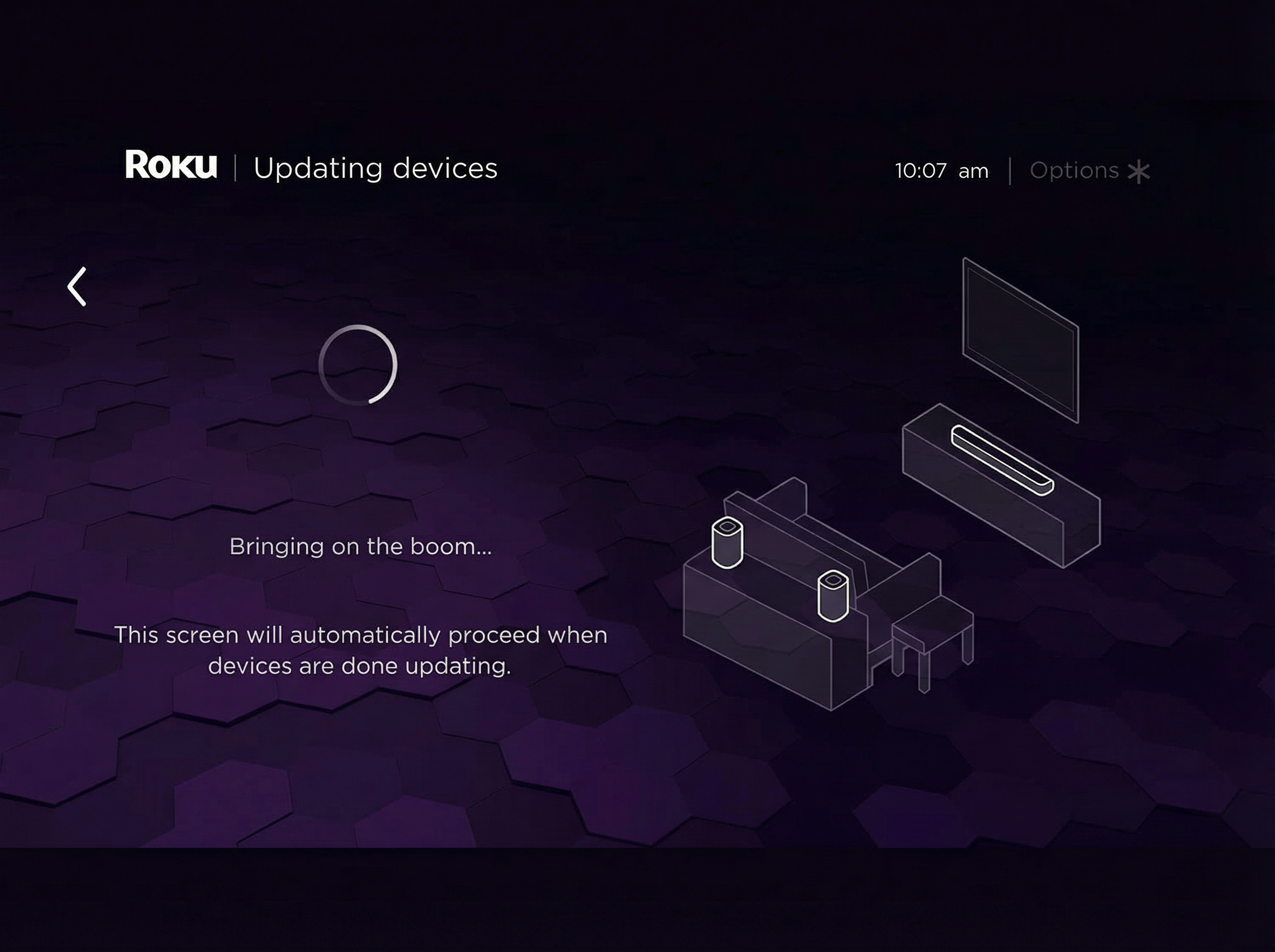
If your Roku host device does not enter pairing mode, review the suggestions below:
- Use the existing remote: You must use your existing Roku remote to enter pairing mode. Be sure to point it directly at the TV screen.
- Install fresh batteries: Replace the existing batteries in your Roku remote with new matching batteries.
- Check the software version: Your Roku host device must be running Roku OS 9.2.6 or higher to work with Roku wireless speakers. If you have not done so yet, check the software version especially if your device has been offline recently.
- Manually enter pairing menu: If the instructions recited by your speakers are not working, try putting your Roku host device in pairing mode from the settings menu. Go to Settings > Remotes & devices > Set up a new device > Wireless speakers.
Once your Roku host device is in pairing mode, it will connect your wireless speakers one at a time moving through the setup process automatically.
If you want to review the entire pairing process, read the detailed article about setting up your Roku wireless speakers.
Why are my speakers not found?
When your Roku host device is searching for your wireless speakers, it may not be able to find one or both speakers if:
- A speaker is not powered on: When you connect the power cable, each speaker powers on and automatically enters pairing mode, and remains in pairing mode until it connects to your Roku host device. To check if a speaker is powered on and in pairing mode, look for a status LED on the back of the speaker that flashes repeatedly as pairing instructions are repeated every 3 minutes. If you do not see light from the LED, check that the power outlet is working and try reconnecting the power cable.
- The speakers are too far from your Roku host device: Your wireless speakers are designed to be placed within 30 feet of your Roku host device. Try pairing your wireless speakers again after moving them closer.
- There is wireless interference: Avoid installing your wireless speakers near other wireless devices like your wireless router or a microwave. It is best to have direct line of sight from each speaker to your Roku host device with no electronics, metal, or concrete obstructing the path. Move the speakers and try pairing them again.
- A speaker is paired to another Roku host device: Press and hold the Reset button on the back of the speaker for 10 seconds, and then listen for audible instructions to try pairing again.
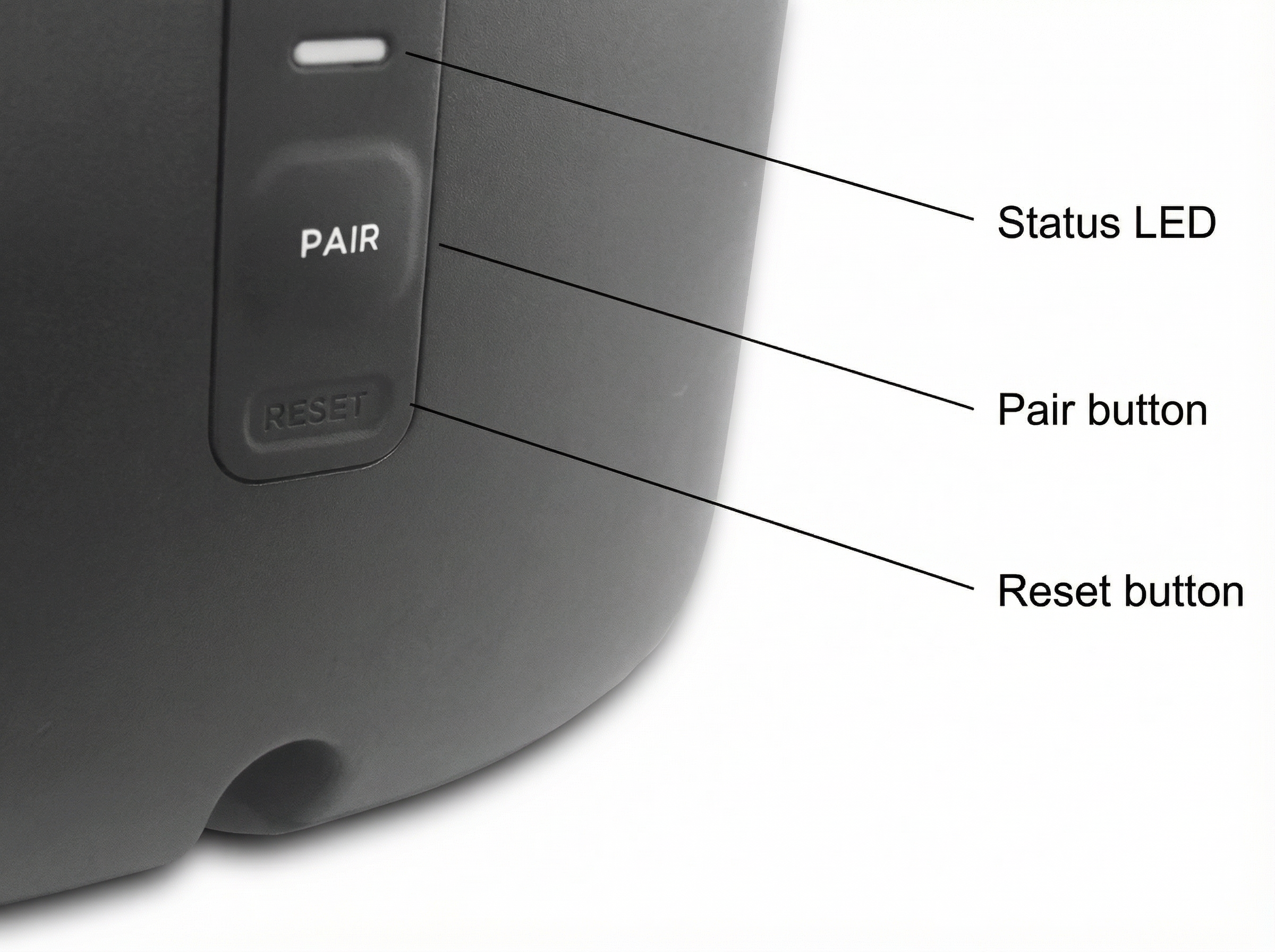
If you do not see a flashing status LED or hear the pairing instructions, try resetting the speaker again making sure to hold the Reset button for 10 seconds. Pressing the Reset button for a short time will only restart the speaker. It will not factory reset the speaker.
Why are my speakers not updating?
When your Roku host device is updating the software for each speaker, it may encounter issues if:
- The internet is disconnected: Each speaker must receive a unique update, meaning an internet connection is necessary for the duration of the pairing process. Check the connection, and when your Roku host device is connected to the internet again, restart the pairing process. If the behavior continues, review the tips for improving the wireless connection.
- Pairing mode was exited: Review the instructions for setting up your Roku wireless speakers, and when ready, restart the pairing process making sure to wait until it completes.
Why is there no sound during speaker assignment?
After your speakers are paired, a sound will play from one speaker as you assign a location based on where you hear the sound when facing the TV screen. Next, you will confirm you hear sound playing from the other speaker as you finish configuring your speakers for stereo sound (when paired with a Roku TV system) or surround sound (when paired with a Roku Streambar, Roku Streambar Pro, or Roku Smart Soundbar). If you do not hear sound during this step, you can select I don't hear the sound to see the following message:
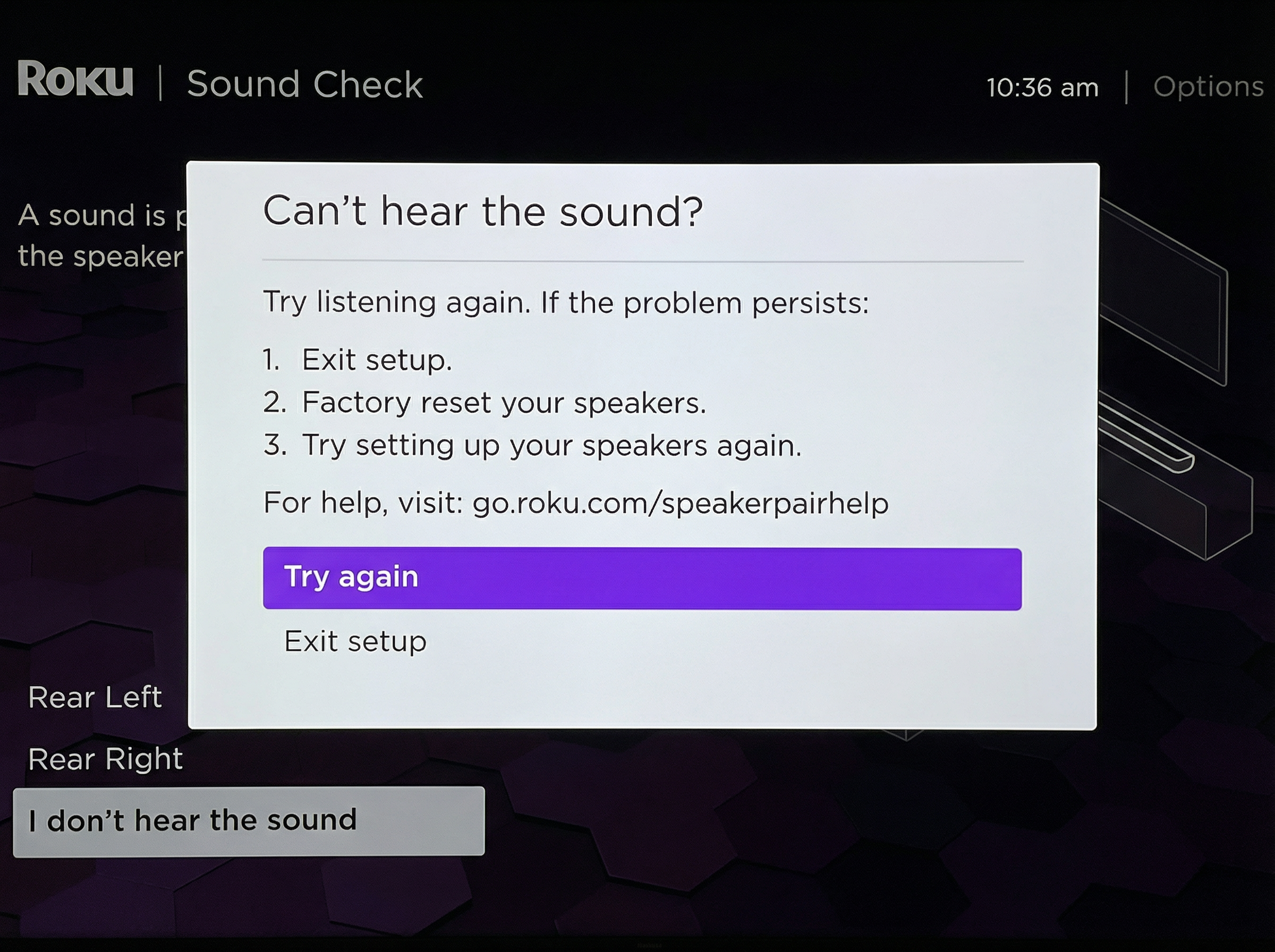
If you do not hear the 'placement sounds' after your speakers are paired, select Try again to listen again. If the behavior continues, select Exit setup and your speakers will be factory reset automatically. After you see the flashing status LED and hear the pairing instructions, try again to set up your Roku wireless speakers.
Tip: If you discover that you accidentally selected the wrong values and it is difficult to physically move the speakers to the correct location, you can factory reset the speakers and go through the setup process again.
What can I pair with Roku wireless speakers?
Can I pair more than two wireless speakers to my Roku TV system?
No. You can only pair two wireless speakers to your Roku TV. If you are replacing the speakers, you can factory reset the speakers that are currently paired, and then pair the new speakers.
Can I pair Roku wireless speakers to my Streambar or smart soundbar?
Yes. You can pair Roku wireless speakers to your Roku Streambar, Roku Streambar Pro, or Roku Smart Soundbar as surround speakers letting you enjoy an amazing, immersive audio experience with the built-in streaming player, and external devices such as a gaming console, Blu-ray™ player, and cable set-top box. However, you cannot pair Roku wireless speakers to a Roku Streambar SE.
Can I pair Roku wireless speakers to my Roku TV system when my Streambar or smart soundbar is also connected?
No. When your Roku Streambar SE, Roku Streambar, Roku Streambar Pro, or Roku Smart Soundbar is connected to your Roku TV, you cannot pair Roku wireless speakers. Instead, you can pair your Streambar, Streambar Pro, or smart soundbar as the rear left and rear right surround speakers.
Last updated at 6/24/2026 9:30:15 PM
Was this article helpful?
Related articles
Need more help?
