How to use the Quick Launch button on your Roku Voice Remote Pro (2nd edition)
 on your Roku® Voice Remote Pro (2nd edition) can be used to assign fast access to your favorite apps, settings, and voice commands. You can easily setup the convenient controls using the on-screen prompts.
This article provides instructions on how to change Quick Launch shortcuts and use shortcuts like Search and Wireless Headphones.
Does my remote have a Quick Launch button?
The Roku® Voice Remote Pro (2nd edition) and Roku Enhanced Voice Remote has a Quick Launch button. If you have a Roku Voice Remote Pro, visit the article with instructions on how to create and use personal shortcuts instead.
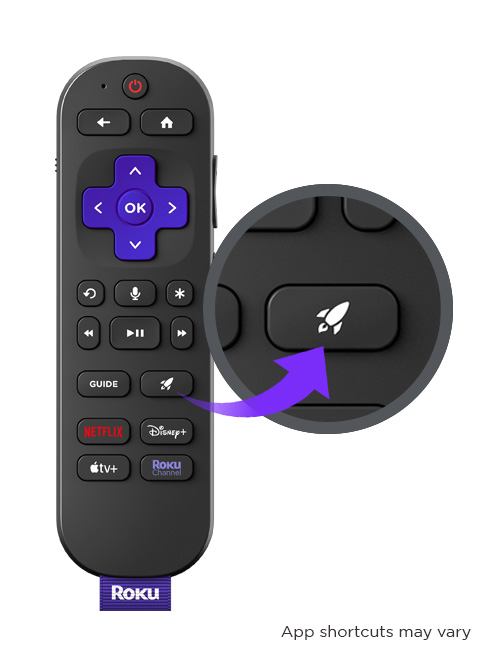
How to change a Quick Launch shortcut
The first two shortcuts are pre-assigned and can be changed at any time with the following steps.
- Press the Quick Launch button to open the shortcut overlay
- Select the first or second shortcut and then press and hold the Quick Launch button for 5 seconds
- The on-screen menu will display several shortcut options for you to choose from
- Select a shortcut option and press OK
 to assign it
 - If prompted, follow the on-screen steps to set up your shortcut
- Your Quick Launch shortcut is now assigned and ready to use
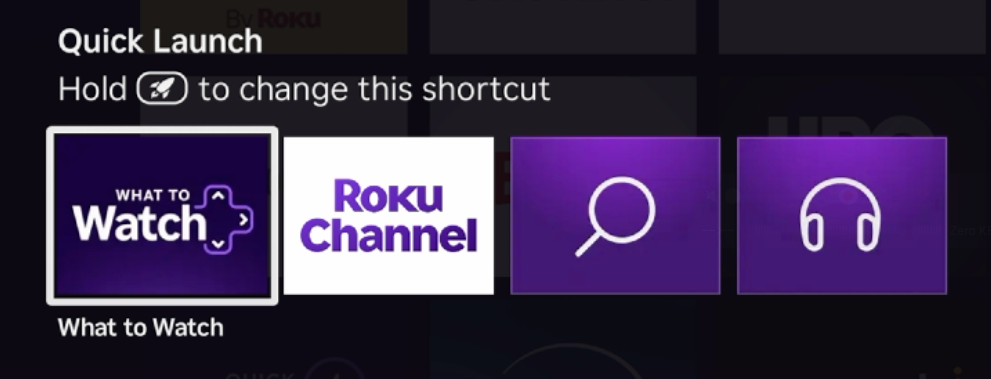
What Quick Launch shortcuts are available?
You can choose from the following Quick Launch shortcuts.
- What to Watch: Launch the What to Watch zone to get personalized recommendations and continue watching
- Search: Search for your favorite movies and TV shows
- Sports: Launch Sports zone to watch your favorite games, highlights, movies and more
- Roku Channel: Launch The Roku Channel
- Apps: Launch your favorite app
- Sleep Timer: If you have a Roku TV™ system, sleep timer lets you power off the TV screen after a designated amount of time.
- Closed Captions: Turn on closed captioning
- Voice Command or Last voice command: Save a voice command for specific tasks like searching for a movie or TV series, or playing a musical artist or genre
How to create a Quick Launch shortcut from a voice command
A personal shortcut can be created from any push-to-talk or hands-free voice command you can use with your Roku device. Personal shortcuts are commonly used to save a voice request to play music, launch video content, or change TV volume.
You can try different voice commands like the ones below.
- "Action movies"
- "Documentaries on Netflix"
- "Volume 20"
- "Play jazz music on Spotify"
To save a voice command as a personal shortcut, follow the steps below. After you issue a voice command, you have several minutes to create a personal shortcut. After that time, you will have to issue the voice command again in order to save it as a personal shortcut.
- Issue a voice command
- Push-to-talk: Press and hold the Voice
 button and say the command
 - Hands-free: Make sure the slider on the side of the remote is green and say "Hey Roku..." followed by the command
- Push-to-talk: Press and hold the Voice
- After your Roku device has performed the voice command, press the Quick Launch button to open the shortcut menu
- Select the first or second shortcut and then press and hold the Quick Launch button for 5 seconds
- Select Last voice command

Tip: For more details about voice control of your music and where you can find audio content, see how to listen to music with voice commands.
How to use the Search and Wireless Headphones shortcuts
The Search and Wireless Headphones shortcuts are fixed and cannot be changed.
Press the Quick Launch button to see the shortcut menu and then select Search to access the Roku Search screenor select Wireless Headphones to connect previously paired headphones, or pair new headphones.
Note: Connecting wireless headphones requires a compatible Roku streaming device. If the Wireless Headphones shortcut is not listed, then your device is not compatible. Learn more about how to use Bluetooth headphones for Headphone Mode.
How to fix Quick Launch button issues
If the Quick Launch menu does not appear, make sure your Roku streaming device is running Roku OS 13.0 or higher. Learn how to update the software on your streaming device.
Tip: Your Roku device will automatically check for updates. If new software or app updates are available then your Roku device will download and install them automatically.
Last updated at 2/19/2026 7:59:38 PM
Was this article helpful?
Related articles
Need more help?
