How to create a personal shortcut on your Roku voice remote
If your Roku® voice remote has a pair of personal shortcut buttons, you can program each one to perform an often-used command with the single press of a button. This convenient, one-touch control can be easily set up from the on-screen prompts or by saving a voice command using the instructions provided in this article.
This article provides instructions on how to use and set up personal shortcuts from the on-screen prompts or by saving a voice command. If you have a Roku Voice Remote Pro (2nd edition), learn how to use the Quick Launch button instead.Does my remote have personal shortcuts?
The following Roku voice remotes have personal shortcut buttons:
- Roku Voice Remote®Roku Voice Remote
- Roku voice remote included with:
- Roku Ultra (models 4670, 4800, and 4802)
- Roku Streaming Stick®Roku Streaming Stick (model 3821)
- Roku Streambar®Roku Streambar (model 9101R2)
- Roku Plus Series TV
- Roku Touch™ tabletop remote
If you are not sure which Roku voice remote you own, look for personal shortcut buttons labeled 1 and 2 as seen below.
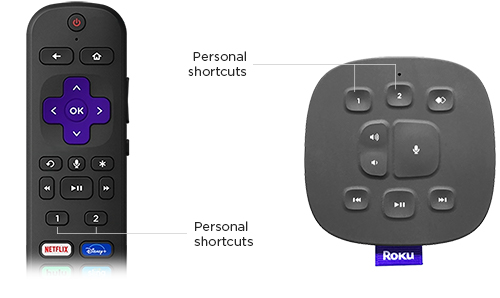
How to create or modify a personal shortcut
To get started, quickly press one of the personal shortcut buttons to see on-screen instructions for creating your first shortcut. If you want to modify an existing personal shortcut, you can use the same steps outlined below.
- Press and hold the 1 or 2 button for 5 seconds.
- The onscreen menu will display several shortcut options:
- App: Launch your favorite app (e.g., Netflix or Hulu)
- The Roku Channel: Launch The Roku Channel
- Live TV Guide: Launch Live TV Guide to quickly start browsing live streaming TV channels
- Apps: Launch your favorite app (e.g., Prime Video or Disney+)
- Sleep timer: If you have a Roku TV™ system, sleep timer lets you power off the TV screen after a designated amount of time
- Closed Captions: Turn on closed captioning
- Voice command (or Last voice command): Save a voice command for specific tasks like searching for a movie or TV series, or playing a musical artist or genre. See the following section for more details.
- Highlight the desired shortcut option and press OK
 to set it.
A personal shortcut is now assigned to the button. Simply press it any time you want your Roku device to perform the command. You can reassign personal shortcut buttons with the steps above as often as you like.
Creating a personal shortcut from a voice command
A personal shortcut can be created from any push-to-talk or hands-free voice command you can use with your Roku device. Feel free to experiment with voice commands similar to:
- “show me comedies”
- "play classical music"
- “show me dramas on Netflix”
- “play On Repeat playlist on Spotify”
After you issue a voice command, you have several minutes to create a personal shortcut. After that time, you will have to issue the voice command again in order to save it as a personal shortcut. To save a voice command as a personal shortcut, follow the steps below.
- Issue a voice command
- Push-to-talk: Press and hold the Voice button
 and say the command.
 - Hands-free: Make sure the slider on the side of the remote is 'green' and say "Hey Roku..." followed by the command.
- Push-to-talk: Press and hold the Voice button
- After your Roku device has executed the voice command, press and hold the 1 or 2 button for 5 seconds
- Select Last voice command
Personal shortcuts are commonly used to save a voice request to listen to music, live radio, or a podcast on Pandora, Spotify, iHeartRadio, and TuneIn. For more details about voice control of your music and where you can find audio content, see how to listen to music with voice commands.
Read a more comprehensive overview of the types of voice commands you can use to interact with your Roku devices.
Creating a personal shortcut when your TV screen is off
If your compatible Roku voice remote is paired to a Roku TV system screen and you are trying to create a personal shortcut when the TV screen is off, you must make sure Fast TV Start is enabled. If this feature is disabled, your Roku remote will not be able to communicate with your TV when the screen is off. To understand how you can interact with your TV when the screen is off, read the detailed article about enabling Fast TV Start.
Last updated at 3/3/2026 1:34:32 AM
Was this article helpful?
Related articles
Need more help?

Chat with us
Get help from our support bot or connect to an advisor.