How to set up your Roku TV
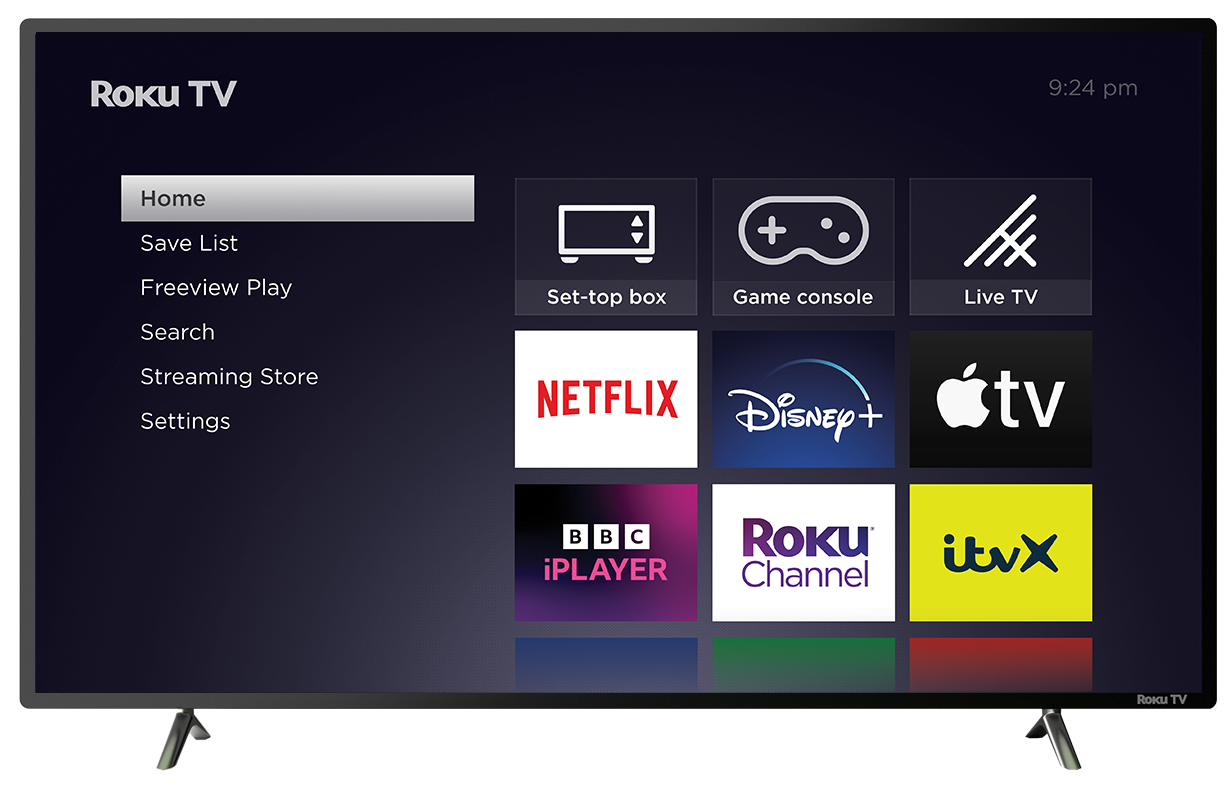
Roku TV is a smart TV with built-in TV display, a simple, intuitive interface and the ability to stream content over the internet, watch live TV with an antenna, and access connected devices like a cable set-top box or game console. An easy-to-use remote and the free mobile app let you control your Roku TV and search for movies, shows and more across top streaming services and broadcast TV in your area. The addition of powerful features like Live TV Pause and Smart Guide make Roku TV a compelling smart TV experience.
Before you can start using your new Roku TV, you need to unpack it, attach the included base or wall mount (not included), make connections, and then complete the Guided Setup wizard. This article provides a short overview of the Guided Setup.
For details on unpacking and attaching the base, read the quick start guide that was included in your Roku TV box. For in-depth instructions when making connections, completing the Guided Setup, using features, or configuring settings; refer to the:

Requirements
To enjoy streaming content, you will need a wired or wireless internet connection and a Roku account.

Note: There is NEVER a charge to create a Roku account.
If you choose not to connect your Roku TV to the internet and use it as a traditional TV (non-smart), connect one or more viewing sources, such as an antenna, cable or satellite box, game console, or Blu-ray player.
Guided Setup
- Insert batteries in the remote control
Turn on the TV
- The standby indicator light below the TV screen should be ON, indicating that the TV has power.
- Press the Power button
 on your Roku TV remote control. The standby indicator light will go OFF, and a moment later, you will see the TV’s startup screen. After a short wait, the first Guided Setup screen appears.
- Choose a language
- When your Roku TV powers on, the first screen will allow you to choose a language. All text and dialog within the Roku application will be displayed in the selected language.
- Scroll up and down the list and press the OK button
 on your Roku TV remote to choose a language.
 - Note: It is the responsibility of the channel publisher to translate their channel and some channels may not support your chosen language.
- Select home use
- Unless you are setting up your Roku TV for use as a store display, select Set up for home use.
- Connect your Roku TV to your network and the internet
- Choose your wireless network from the list of available networks and enter your password. This is most often the same network you use to connect your computer or smartphone to the internet. If at first you do not see your network, select Scan again to see all networks. For more assistance, see help finding your wireless network and password.
- If you want to see your password as you type, choose Show password. Remember, passwords are case-sensitive. Use the shift button
 on the on-screen keyboard to enter a capital letter.
 - Once you enter your password and select Connect, your Roku TV will automatically connect to your network and the internet. Alternatively, you can get more help if you are unable to connect to your wireless network or the internet.
- Download the latest software
- Once connected to the internet, your Roku TV will download the latest version of Roku OS software and then reboot.
- Create a Roku account and activate your Roku TV
- To activate your Roku TV, it must be linked to a Roku account. Your Roku account stores information on which devices you own, and which channels you have installed, as well as your preferences and settings.
- Note: There is NEVER a charge to create a Roku account.
- When prompted on screen, enter a valid email address to use for your Roku account, and then switch to your computer or smartphone to activate and link your Roku TV. Be aware that it may take a few moments to receive the activation email from Roku. If you do not see it in your email inbox, be sure to check your spam (or junk) folder. If you cannot get your Roku TV activated, learn how to resolve linking issues.
- Note: Roku does not require an activation fee, or charge for support of any kind. Learn how to avoid fraudulent websites.
- To activate your Roku TV, it must be linked to a Roku account. Your Roku account stores information on which devices you own, and which channels you have installed, as well as your preferences and settings.
Connect your devices
At this point, Guided Setup should be on the Let’s connect your devices screen.
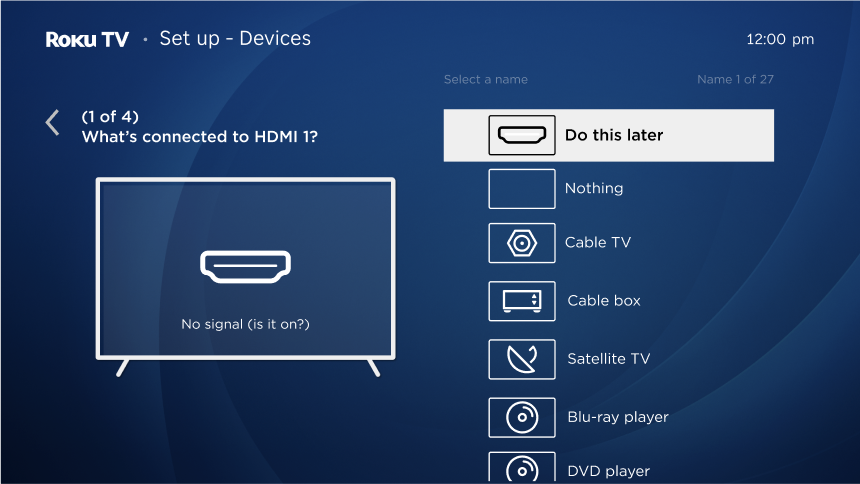
- Connect your devices, such as your cable box, game console, Blu-ray or DVD player, or VCR. If you are using your Roku TV with a soundbar or home theater receiver, connect these as well. Refer to the quick start guide for details.
- (Optional) Turn on all of your connected devices. Your Roku TV can detect certain kinds of devices, so it prompts you to turn them on before proceeding. When you’re ready, select Everything is plugged in and turned on, and then follow the simple prompts to complete this step for each input. Press the OK button
 , and then press the OK button again to confirm that everything is plugged in and turned on.
 - Guided Setup asks you to assign a name and icon to the device connected to the first input. You can select from a preselected drop down menu or select Set custom name & icon to customize the input name and choose from an icon menu. After a few seconds, the screen also displays a small window showing the program playing on the device connected to the input, if any. Use the UP and DOWN arrow buttons to scroll through the list, and then press the OK button to make your selection.
Tip: Select nothing if you are not using the input and you want to hide it so that it does not appear on the Home screen.
- Repeat this step for each input until you reach the All done screen.
- (Optional) To set up live TV, first connect your aerial antenna.
- Select Yes, set up live TV and choose Antenna to begin a channel scan.
- If you want to add free Internet channels with Freely, select Yes when prompted.
- You’re finished!
You’re now ready to start watching your favorite shows.
Tip: You can personalize your Roku TV by changing your theme or screensaver. You can use the Roku Channel Store to add new streaming channels, games, and other apps.
How do I add premium sound with a Roku Streambar®?
A Roku Streambar connects directly to your Roku TV, letting you stream movies and TV shows over the internet with exceptional, big-picture sound. You can also enjoy the same amazing sound from your TV's built-in tuner and any device connected to your TV, such as a Blu-ray™ player, game console, or cable set-top box. Just attach the included Premium High Speed HDMI Cable, connect your Roku Streambar to the internet, and complete the easy setup process. You will be listening to powerful sound from all your entertainment sources in no time.
For more information, read the detailed article about the Roku Streambar.
Last updated at 3/17/2026 9:46:28 AM
Was this article helpful?
Related articles
Need more help?
