When using an aerial or connecting cable TV without a set-top box, add a 16GB USB flash drive to your Roku TV and pause live digital broadcast television using Live TV Pause. If you forget to pause and miss an important scene, your Roku TV allows you to rewind and catch up.
How does it work?
Live TV Pause is only available on the Live TV input of your Roku TV and requires a dedicated USB 2.0 compatible flash drive with at least 16GB of storage for recording the video. As soon as you tune to a digital channel, Live TV Pause begins recording live television.
To pause the program, press the Play/Pause button  on your Roku TV remote control. Even if you do not pause, you can press the Rewind button
  at any time to rewind the current channel up to 90 minutes, or to the point where you first tuned to that channel. When you tune to another channel, leave the Live TV input, or power off the TV, the place where you paused the program will be lost.
After being paused for 90 minutes, playback begins automatically.
USB Flash Drive Requirements
Live TV Pause requires a USB 2.0 compatible flash drive with at least 16GB of storage. 16GB is the minimum size required to hold 90 minutes of paused TV. USB drives larger than 16GB will not increase the amount of pause time.
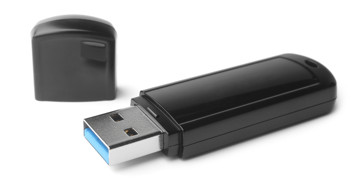
WARNING: Live TV Pause will reformat the USB drive and everything on the drive will be erased. Later, if you wish to use the drive for something other than Live TV Pause it will need to be reformatted. During reformatting the drive will be tested to ensure that it can read and write fast enough to support live video recording.
Notes
- If your Roku TV has a single USB port, then you will need to alternate USB drives to use Live TV Pause and play personal media (photos, music, and video).
- If your Roku TV has multiple USB ports, only one USB port can be used for Live TV Pause. When formatting, only the USB drive for Live TV Pause should be connected to any of USB ports. After formatting completes, you can insert a different USB drive into another USB port for playing personal media.
- The USB drive is used only to pause live digital broadcast television and cannot be used to store recorded programs for future use, or for transferring to another device.
Enabling Live TV Pause
Plug the USB drive into a USB port on the back or side of your Roku TV. If your Roku TV has more than one USB port, remove any USB drives being used for another application, such as Roku Media Player. After the USB drive is inserted, you will be prompted to reformat it. A message may prompt you to launch a media player, select Don’t launch.
To enable Live TV Pause:
- If not already completed, set up the Live TV input on your Roku TV. On completion you will be prompted to Set up Live TV Pause.
- If the Live TV input is already setup, press the Home button
 on your Roku TV remote and then perform a or b:
 - Highlight the Live TV input, press the Star
 button to bring up the options menu and select Set up Live TV Pause.
 - Select the Live TV input to watch live television, press Play/Pause and choose Set up Live TV Pause.
- Highlight the Live TV input, press the Star
- Follow the on-screen instructions to complete setup.
Disabling Live TV Pause
Unplugging the USB drive will automatically disable Live TV Pause.
Troubleshooting Live TV Pause
You can get help if the video is blocky or blacks out when using Live TV Pause or the paused video is lost after the screensaver appears.
Last updated at 5/20/2026 5:03:41 PM
Was this article helpful?
Related articles
Need more help?
