Roku voice remotes incorporate the functionality of voice commands to deliver instructions to your Roku streaming devices seamlessly. Voice commands can also do more than turn on the app and turn the TV screen on/off. You can also control music without waking up the screen, switch between devices, or tune into local broadcast TV channels. Roku Voice lets you ask questions about movies, TV shows, and actors, helping you explore what to watch and learn more about content.

Notes:
- Voice search and voice control is supported in English, German, Portuguese, French, and Spanish. To change the language on your streaming device, go to Settings > System > Language.
- Voice search and voice control is supported in Argentina, Brazil, Canada, Chile, Columbia, Costa Rica, El Salvador, Germany, Guatemala, Honduras, Ireland, Mexico, Nicaragua, Panama, Peru, the United Kingdom, the United States, and Uruguay.
- Content discovery about movies, shows, and actors with Roku Voice is currently available in the United States only in English.
What you need to use voice commands
Before you can take advantage of the latest enhancements to voice search and voice control, make sure your compatible Roku streaming device is running Roku OS 9.4 or higher, and you have one of the following control devices:
- Roku Voice Remote
- Roku Enhanced Voice Remote
- Roku Voice Remote Pro
- Roku Touch™ tabletop remote
- Roku mobile app for iOS® and Android™
To learn more about which streaming devices support voice, or to determine if your existing remote has voice capabilities, read about what you need to use voice commands with your streaming device.
How to issue a voice command
There are two types of voice commands supported on a Roku streaming device running Roku OS 10.0 or higher – push-to-talk voice and hands-free voice. Before you can use either type, you must first make sure your Roku voice remote is paired to your streaming device. Failing to pair your remote not only prevents advanced features like voice control from working, but it may also cause button presses to fail periodically.
Note: Any Roku voice remote supports push-to-talk voice, but only select models such as the Roku Voice Remote Pro support hands-free voice. For help identifying your remote, visit the detailed article that outlines the various types of Roku voice remotes.
Push-to-talk voice instructions
Your Roku voice remote has a voice button with either a microphone icon  (on newer remotes) or a magnifying glass icon
  (on older remotes).
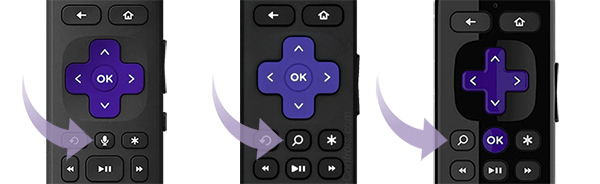
To issue a push-to-talk voice command, simply press and hold the voice button and say a command like "search for comedies", "turn it up", or "launch The Roku Channel". As soon as you release the button, your streaming device will carry out your request and deliver you to the Roku Search screen or elsewhere within the Roku interface.
For best results, try speaking in a conversational tone at normal volume. There is no reason to speak any slower or louder than normal, or overpronounce syllables or words.
Note:
- When using a handheld remote, hold it 2 to 3 inches from your mouth when saying a voice command.
- With a tabletop remote, you should be no more than 2 to 3 feet away.
- With push-to-talk voice, your Roku voice remote is only "listening" when the button is being pressed. You must press and hold to successfully issue a voice command.
Hands-free voice instructions
In addition to push-to-talk voice, your Roku Voice Remote Pro (2nd Edition) supports hands-free voice which listens for your commands without the need for you to push a button or even handle your remote.
To turn on hands-free voice, simply move the slider on the side of your remote to green.
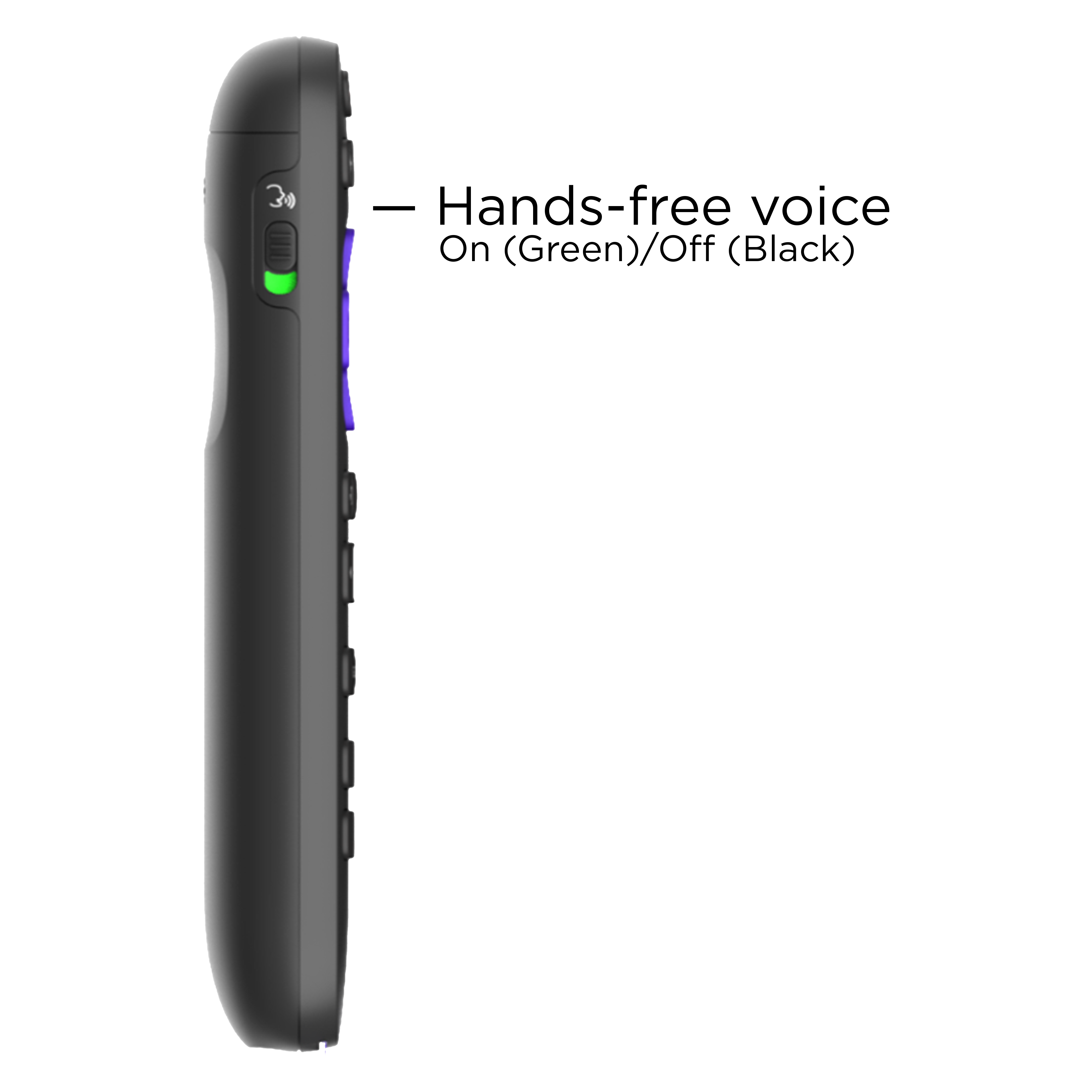
With hands-free voice turned on, try saying "Hey Roku..." with your remote nearby and add a command like "pause" or "turn up the volume."
Practice other commands like "Hey Roku, show me the news", "Hey Roku, turn captions on," or "Hey Roku, play classic rock."
Any command you can use with push-to-talk voice also works with hands-free voice. Just remember to start with "Hey Roku...". You may find quick actions like "Hey Roku, pause" or "Hey Roku, turn off the TV" are more useful than some others. If you need to browse content or navigate an app, for example, having your remote in hand may be easier.
For the best hands-free experience, try using a conversational tone at normal volume. Do not speak slower or louder than normal and do not overpronounce syllables or words. Speak naturally with a clear and direct "Hey Roku..." and follow the additional guidelines below:
- Speak in the direction of your remote, not your TV.
- Keep your remote nearer to you than it is to your television. Otherwise, your remote may not hear you over TV noise.
- Try keeping your remote close to you, within 10 to 12 feet at the most.
Using voice with the Roku mobile app
The Roku mobile app is a free application for iOS and Android devices that can be used with any Roku streaming player or Roku TV. Not only does it let you use your voice to speak commands, but you can also stream content direct from The Roku Channel, share personal photos and videos on your TV, listen to movies and shows privately on your headphones, discover new content to watch, and more, all from your smartphone. Learn how to install the Roku mobile app now.
After you download and install the Roku mobile app, you can use voice commands by accessing the Remote screen or going directly to Search using the instructions below.
Remote screen
- Tap Remote
 from the bottom navigation bar
 - Tap the Voice button on the bottom of the screen
Search
- Tap the Search box from the top navigation bar
- Tap the Voice icon in the search box
Speak into your mobile device at a normal volume, and then tap the middle of the screen when finished speaking or simply wait a moment.
Note: The first time you use voice, the Roku mobile app will ask to access the microphone. You must grant permission to use voice controls.
After your query is processed, the mobile app will carry out your request, either presenting you with a list of search results on your mobile device or updating your Roku streaming device.
When a feature called Fast TV Start is enabled you can listen to music, live radio, podcasts, and more on Pandora, TuneIn, or iHeartRadio when the screen on your Roku TV system is off, or wake your TV using voice commands with your Roku voice remote. If you have a compatible Roku device connected to your TV, you can also stream audio via Bluetooth from a smartphone, tablet, or computer when the TV screen is off.
Ask questions about movies, shows, and actors
Roku Voice makes it faster and easier to discover what to watch by letting you ask questions about movies, TV shows, and actors. Instead of just searching by title, you can ask things like “What is Oppenheimer about?”, “What's Barbie about?", and “How are the reviews?” and see answers displayed with content tiles you can explore.
Roku Voice also understands follow-up questions, so you can continue the conversation without starting over. For example, after asking “Is Coraline a good movie?” you can follow up with “Is it suitable for teenagers?” to refine your results. To get started, press and hold the microphone button on your Roku voice remote or use the mic button in the Roku mobile app and speak clearly.What to do if a voice command is not recognized
If your spoken phrase is not captured correctly, follow the on-screen prompts to try again. Make sure you are speaking naturally – there is no need to speak any slower or louder than you do in a normal conversation. Also try not to over-pronounce syllables or words. A clear and direct command works best.
With push-to-talk voice, try holding your handheld remote 2 to 3 inches from your mouth. If you have a tabletop remote, you should be no more than 2 to 3 feet away.
When using hands-free voice, speak in the direction of your remote and not your TV, and keep your remote nearer to you (within 10 to 12 feet) than it is to your television. You want it hearing you over noise from your TV. Also, be sure to use a clear and direct"Hey Roku...". For examples, check out the tutorial video about using hands-free voice commands.If voice searches are not working to your satisfaction, remember that you can also use Roku Search with the on-screen keyboard.
Tip: If you notice a long delay from when you say "Hey Roku" to when your voice command is recognized, try turning on Fast Start in the Power menu.
Last updated at 8/17/2026 9:19:46 PM
Was this article helpful?
Related articles
Need more help?
