There are two ways to record on Roku, and both save recordings in the cloud, not on your device.
- Cloud DVR for Roku Live TV (US): record live channels from an eligible Roku Subscription and watch them later (see below).
- Third-party channel DVR: some streaming channels include their own cloud DVR with a paid subscription, including Sling TV, Hulu + Live TV, YouTube TV, fuboTV, and Philo.
How do I record live TV with Cloud DVR?
Cloud DVR for Roku Live TV lets you record live and linear programs from an eligible Roku Subscription and stream them back later.
Record
Record a program or a whole series. While watching a show you want to record, press OK > Record. You can also record from the Live TV guide (Star * > Record) or the show details page (Recording options). You can also record eligible programming from within a tile in Roku Channel by pressing Star *.
Schedule a future recording. Highlight an upcoming program or future episode, then press Star * > Record. It gets a Scheduled badge and drops into the Upcoming recordings row. Choose Record all episodes on a series to auto-schedule future airings.
Choose Record (this program) or Record all episodes. Works for now-airing and upcoming programs (upcoming shows a Scheduled badge).
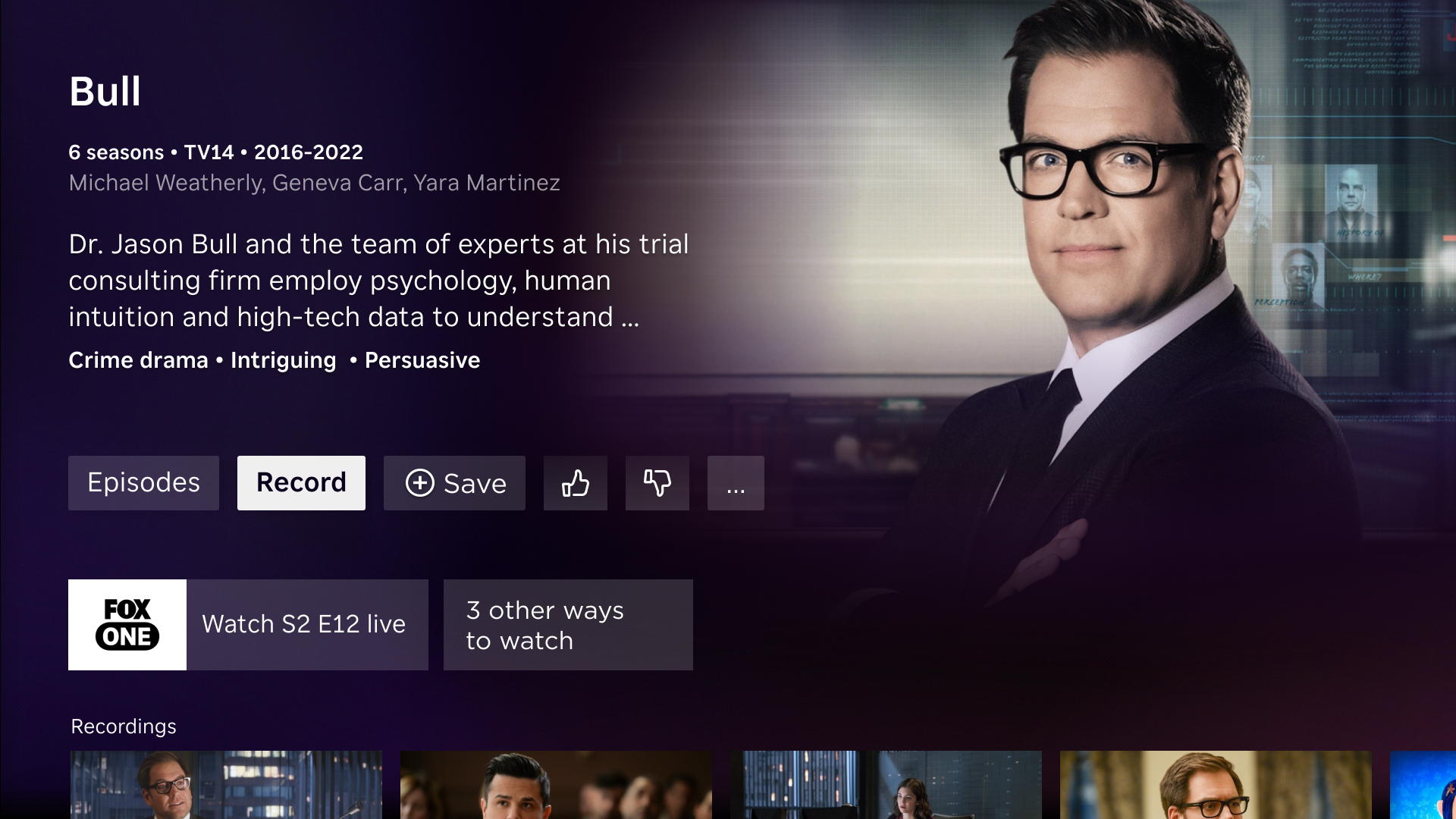
Change or remove recordings
Stop or cancel. Open Recording options and pick Stop recording (in progress), Cancel recording (scheduled), or Stop recording all episodes (series).
Delete. Open the recording > Recording options (or Star * on the tile) > Delete recording.
If a show is currently airing, you will see a badge showing either REC (recording now), Recorded, Scheduled, or Expiring.
Watch
Find & play a recording. On the Home Screen, navigate to Recordings, or select the app (such as Fox One on Roku Channel) then navigate to Watch recordings, or press Star * while highlighting the program in Live TV.
For a series, pick an episode in the Episodes list, then select Watch recording.
Control playback. Press Star * to pause, rewind, and fast-forward. Use Watch from beginning (Start Over) or Jump to live to watch while the show is airing.
Catch up with Lookback. Select Missed a show? Catch it here! on an eligible channel and select a recently aired program.
What is available to record with Cloud DVR?
- Currently, Fox One is the only supported Subscription on Roku Channel that extends Cloud DVR features.
- You can record live programs only; on-demand titles can’t be recorded.
- Recording depends on the provider’s rights, so some programs may not be recordable.
What is Lookback?
Lookback lets you catch up on programs that recently aired on an eligible live channel, even if you didn’t record them. Select a past program from the channel to start watching.
- The catch-up window is set by the provider (about 72 hours). After that, the program is no longer available.
- You can’t fast-forward through ads during Lookback.
Are there similar features offered on my Roku device?
- Pause, rewind, and Start Over on live channels: on eligible Roku Subscriptions and free live channels you can pause and rewind live TV, then start a program over from the beginning. See How to record and pause live TV.
- Live over-the-air broadcast TV pause: When using an antenna or connecting cable TV without a set-top box, add a 16GB USB flash drive to your Roku TV and pause live digital broadcast television for up to 90 minutes using Live TV Pause. If you forget to pause and miss an important scene, your Roku TV allows you to rewind and catch up.
You can use the Roku device comparison chart to determine which current products include a USB port.
Last updated on 9/1/2026 11:33:38 PM
Was this article helpful?
Need more help?
