Your Roku TV™ Wireless Soundbar connects to your Roku TV system for full, rich sound, giving you a cinematic experience from streaming apps, over-the-air TV from an antenna, and external devices like a Blu-ray™ player, or cable or satellite set-top box. This article helps you troubleshoot audio playback issues with your wireless soundbar such as those described below:
- No audio is heard
- Significant volume differences
- Audio clicks or pops
- Audio drops or stops intermittently
- Audio synchronization issues (e.g., audio/video out of sync)
Note: A Roku TV Wireless Soundbar only works with a Roku TV system. It will not work with other TVs or Roku streaming players. Learn how to determine if you have a Roku TV system.
No audio is heard
When you initially set up your Roku TV Wireless Soundbar, the speakers built into your TV are automatically disabled (meaning you will only hear audio from your wireless soundbar). If you do hear audio from your TV's built-in speakers, you can assume that your wireless soundbar is disconnected. If this is the case, you should first check that the power cable is securely attached and the status LED on the front of the soundbar is on and not flashing.
If the status LED is flashing, your Roku TV Wireless Soundbar is not paired to your TV and you should try again to set up your wireless soundbar.
When your wireless soundbar is powered on and the status LED is on (and not flashing), open the Settings menu on your TV as described below to confirm your soundbar is connected.
- Press Home
 on your TV remote
 - Scroll and select Settings
- Select Remotes and devices to open the Remote and devices menu
- Select Speakers
On this screen, you will see Wireless Soundbar when your wireless soundbar is connected to your TV.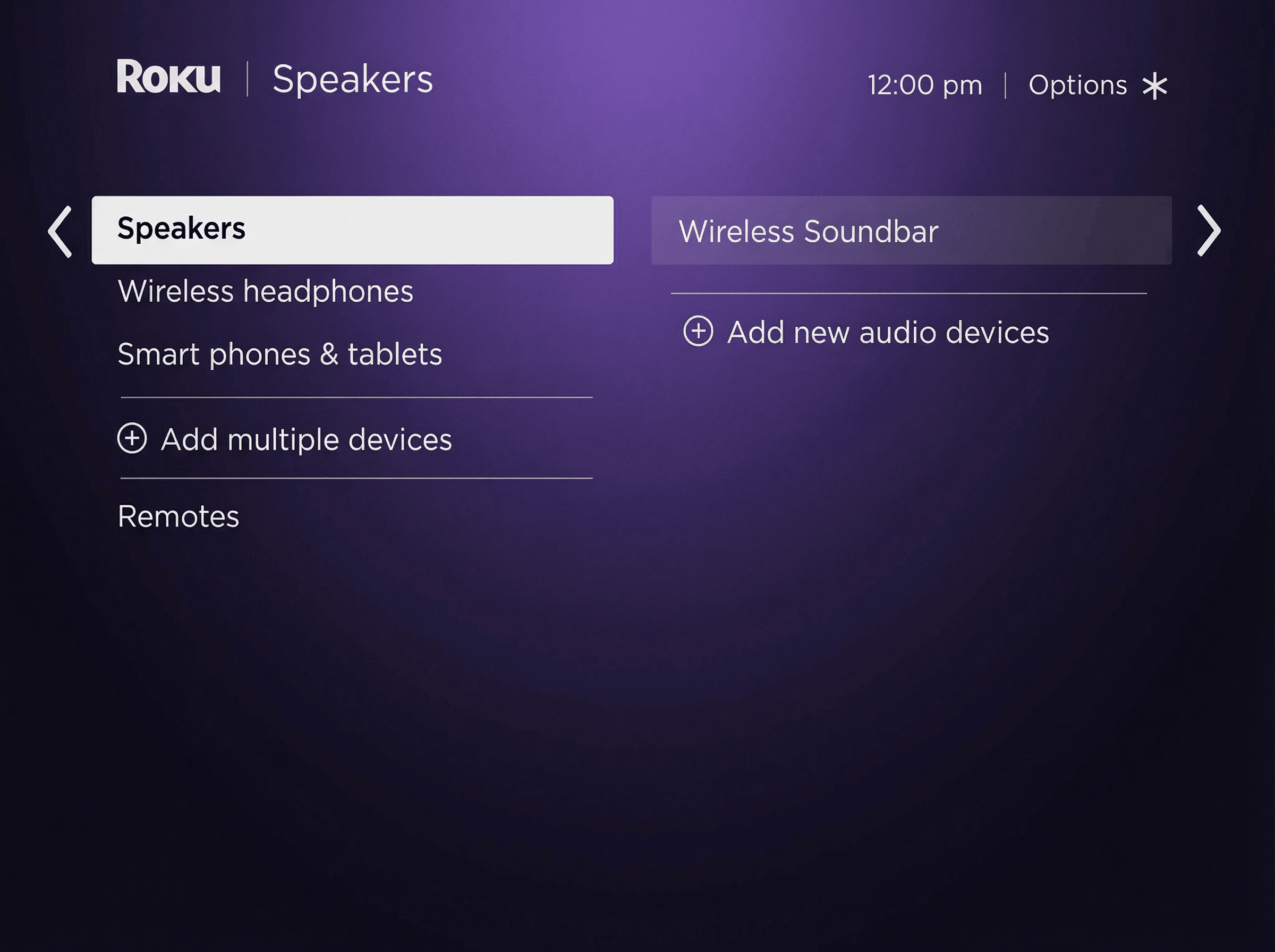
You can select it to view information such as serial number and software version, along with options to reset sound settings or factory reset the soundbar.
If your soundbar appears, but you still hear audio from your TV's built-in speakers, go to Settings > Audio > Audio output and check that Auto or Wireless soundbar is selected.
If your wireless soundbar does not appear, try the following:
- Disconnect the power cable
- Move your soundbar closer to your TV
- Power the soundbar back on and try again
If the behavior continues, factory reset your wireless soundbar and try setting it up again. If your wireless soundbar fails to pair, learn what you can do to resolve pairing issues.
Significant volume differences
Movies and television shows can have a wide range of sounds but using the volume modes lets you enjoy a more even listening experience. Switch to Automatic Volume Leveling to hear more consistent audio levels across various types of entertainment, making it less jarring when a commercial comes on or while switching apps. Use Night Mode to lower the volume level for louder scenes and boost it for quieter ones, letting you watch late-night TV without disturbing others.
You can enable volume modes from the options menu by pressing Star during video playback. For more help, read the detailed article about using volume modes on your Roku device.
Where to begin troubleshooting other audio issues
When troubleshooting other audio playback issues such as clicks, pops, audio drops, intermittent stops/starts, or synchronization issues; you should first determine if the behavior only happens when playing a particular movie, TV show, or other piece of content.
- Stop playback of the title that you are watching when the audio issue is heard.
- Try playing a different title from the same app (e.g., Pandora, The Roku Channel, Hulu) or external device (e.g., cable set-top box, Blu-ray player, game console).
If the behavior does not continue when playing the second title, the audio issue is specific to the original title. Contact the service provider to report the problem, or try replacing the media content (e.g., DVD, Blu-ray disc, video game disc). If the audio issue is present when playing both titles, continue to the next steps:
- Press Home on your Roku remote
- Launch an app. If you were watching a streaming app when you heard the audio issue, be sure to launch a different app.
- Try playing any title
If you no longer hear the audio issue, the behavior is specific to the original app or external device. You may need to remove the app and add it back to your TV, or reconfigure or replace the external device.
If you hear the audio issue when playing content from more than one app, or from an app and an external device, test that the behavior is isolated to your Roku wireless soundbar using the steps below.
- Unplug the power cable from your wireless soundbar to power it off. You can also go to Settings > Audio > Soundbar to temporarily disable your wireless soundbar.
- Open the app you used for testing in step 4 above and try playing the same title from step 5. You should now only hear audio from the built-in speakers in your TV.
If you continue to hear the audio issue, try powering off your TV and test again after it powers back on. If the audio issue only occurs when sound is coming from your Roku TV Wireless Soundbar, move to the next section to continue troubleshooting.
Fixing other audio issues (clicks, pops, audio drops, intermittent stops/starts, sync issues)
Once you isolate an audio issue to your Roku TV Wireless Soundbar using the steps in the previous section, try the suggestions below to help resolve the problem.
Check for a software update
Use the steps below to check for a software update for your Roku host device and wireless soundbar.
- Press Home on your TV remote
- Scroll and select Settings
- Select System
- Select System update
- Select Check now
Your TV will download and install any software updates and restart automatically when finished. For more information, read about updating the software on your TV.
- Press Home
Restart your TV and wireless soundbar
Restart both your TV and wireless soundbar by unplugging their power cables, or your can use the instructions below.
- TV
- Press Home on your TV remote
- Scroll and select Settings
- Select System
- Select Power
- Select System restart
- Press Home
- Roku TV Wireless Soundbar
- Press and release the Reset button on the back of the soundbar
- TV
Advanced network configuration
These suggestions are provided if you are comfortable working with your networking equipment. You will likely need to use your computer or mobile device to sign into an admin tool on your router*. If you cannot locate the username and password and believe they have not been changed (remember that passwords are typically case-sensitive), the default values may be listed on the manufacturer’s website or user manual, or possibly on the bottom of the router. If you need help configuring your router or other network equipment, refer to the user manual or contact the manufacturer.
- Connect to the 5GHz wireless network: If your router supports 5GHz, make sure it is enabled in the router settings and try connecting to the 5GHz wireless network (e.g., MyNetwork_5GHz).
Change the wireless channel: When your router automatically selects a wireless channel, it can lead to intermittent or slow connectivity due to undetected interference from other wireless devices. Try disabling this automatic setting on your router and choose a wireless channel manually.
- Tip: To help you find uncongested wireless channels in your home, you can download a wireless analyzer app on your mobile device. Visit the app store for your mobile device to find a wireless network analyzer.
If your TV is already connected to the 5GHz wireless network and you still hear an audio playback issue, try configuring your router to use a different 5GHz channel. If your router only supports 2.4GHz, try using wireless channels 1, 6, or 11 which are the preferred channels in North America. Each time you change the wireless channel, you will likely need to apply/save changes before you are prompted to restart the router.
- Move the router farther away: If your router is close to your TV, try moving it a little farther away. This may seem counter-intuitive but having the router too close to the TV may cause the wireless signal to degrade.
*A note on terminology:
To access your network and ultimately the internet, you will typically connect to a device called a router but it may also be referred to as a wireless router, wireless access point, home gateway or cable modem. In some cases, your internet service provider (ISP) may have provided you with a single integrated device that includes a cable modem and a router, or you may have purchased a stand-alone router from a company such as Linksys, NETGEAR, ASUS, Belkin or D-Link. In this article, the term router is used as a generic term to refer to the network device that your Roku device must connect to access the internet. For more information refer to the documentation provided by your ISP or router manufacturer.
Last updated at 6/24/2026 8:37:19 PM
Was this article helpful?
Related articles
Need more help?
