How to fix missing cameras, doorbells, or event thumbnails in the Roku Cameras App
The Roku Cameras app lets you view a live video stream from any of your Roku Smart Home cameras and video doorbells on your TV. When you launch the app on your Roku® streaming player or Roku TV™ system, each camera and doorbell is listed on the left side of the screen. If you have a Roku Smart Home subscription, you can watch event recordings from cameras and also view thumbnails showing the most recent motion event.
If your smart home cameras, doorbells, or event thumbnails are missing from the cameras app, this may be caused by:
- Motion event recording turned off
- Roku Smart Home devices and Roku streaming devices linked to different accounts
- Camera feeds disabled on your streaming device
How to turn on motion event recording
If event thumbnails are not being displayed, make sure motion detection is turned on for your Roku Smart Home cameras and doorbells. Motion detection is turned on and off independently for each camera and video doorbell.
Use the following steps to check that motion detection is turned on.
- Open the Roku Smart Home mobile app
- Tap Home
 from the navigation bar
 - Select the affected camera or doorbell
- Tap Settings
 in the corner
 - Select Event recording
- Toggle Detect motion, Motion detection, or Motion events to On

Note: The motion recording setting name may be different based on your specific device.
How to find your email address
If your Roku Smart Home cameras and doorbell are missing from the app entirely, make sure your smart home devices are linked to the same Roku account as your Roku streaming devices. If a different email address was used to set either set of devices, your streaming devices will not be able to display your camera feeds.
Use the instructions below to check what email address you used to set up your devices.
How to find your email address in the smart home mobile app
Use the following steps to find your email address in the Roku Smart Home mobile app.
- Open the Roku Smart Home mobile app
- Tap Account
 from the navigation bar
 - Tap Account to view the email address
How to find your email address on a streaming device
Use the following steps to find your email address on your Roku streaming device.
- Press Home
 on your Roku remote
 - Select Settings
- Select System
- Select About to see the email address
If the email addresses do not match, you can factory reset your smart home devices or perform a factory reset on your streaming devices and set them up again using the same email address as the other set of devices.
Turn on camera and doorbell notifications on your TV
If you aren't receiving camera or doorbell notifications on your TV, make sure they are turned on by following the steps below.
- Press Home on your Roku remote
- Press OK
 or press right on the directional pad to access your app list and select the Roku Cameras app
 - Press left on the directional pad to open the menu, and navigate to Settings
- Select Notifications then select Package
- Press up and down on the directional pad to toggle notifications On
- Press OK to confirm your changes
Note: The Roku Cameras app on streaming players and TVs only provides package delivery and doorbell press notifications. To receive pet, person, and car notifications, use the Roku Smart Home mobile app.
How to change camera feed settings
When the Roku Cameras app is open on your Roku streaming device, it is possible to turn off the camera feeds. When this happens, you will see the following message: "Looking for your cameras? To see your camera and video doorbells here, make sure that notifications and camera feed(s) are turned on for this Roku device. Sign in to my.roku.com to manage your settings."
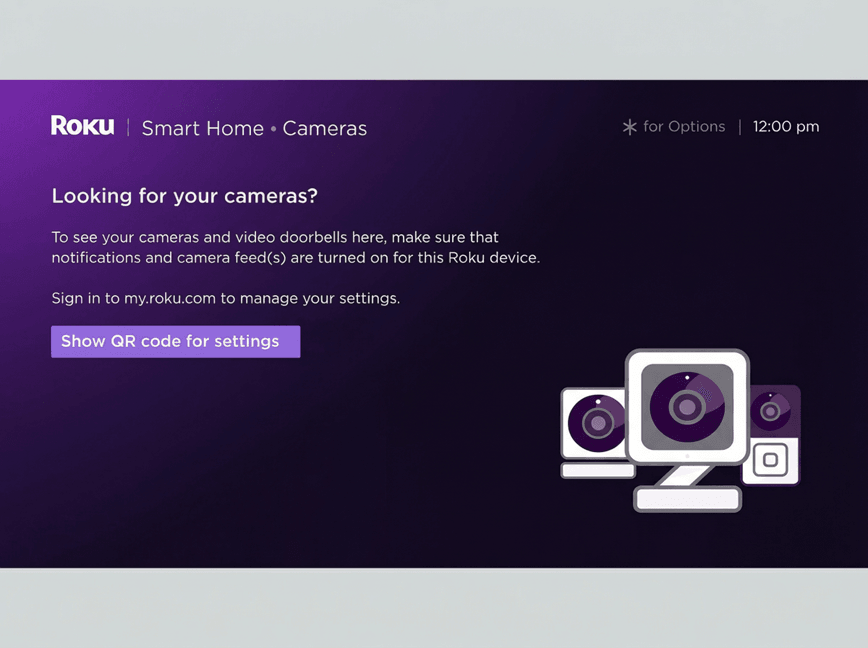
If this happens and you want to see the camera feeds again, you must sign in to your Roku account and turn them back on using the following instructions.
- Go to my.roku.com on your computer or smartphone
- Sign into your Roku account if prompted. Learn what to do if you forgot your email address or password.
- Select TV settings for Roku Smart Home
- Check Allow camera feed for the affected streaming device
Last updated at 2/25/2026 10:00:54 PM
Was this article helpful?
Related articles
Need more help?

Chat with us
Get help from our support bot or connect to an advisor.