How to use Backdrops on your Roku streaming devices
Roku Backdrops lets you turn your TV into a work of art. Choose from Roku’s collections of famous classics, museum artwork, abstract designs, and more, or upload your own images. You can even share collections with friends and family. Backdrops is completely free.
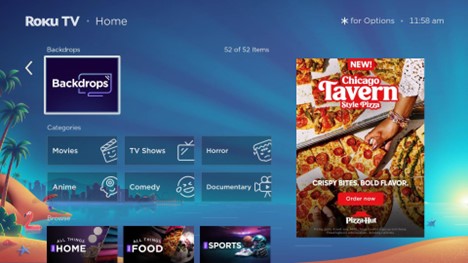
Enable Roku Backdrops
- Go to Settings > Home Screen Menu > Backdrops > Open Backdrops app.
- If you don’t see it, search for Backdrops in the Streaming Store
- You must enable Backdrops before it will display art
Set a Backdrop collection or image
To set a collection:
- Open the Backdrops app
- Choose a collection (e.g., Claude Monet)
- Click Set as Backdrop to make it your collection
- Click Start Backdrops to display the collection
To set a single image:
- Click the image you want
- Click Start Backdrops
- To keep a single image displayed, open the Backdrops Options menu and set Image Duration > Don’t Change
Using Backdrops
Start Backdrops in five ways:
- Remote Power Button: Quick press to start. Long press to turn off the TV. Works only with Roku TVs.
- From a Collection:Backdrops App > Collections > Start Backdrop
- From a Single Image:Backdrops App > Image > Start Backdrop
- Auto Start:Home > Settings > System > Power > Auto Power Savings
- Voice Commands: Press mic or say “Hey Roku” > “Start Backdrops” / “Stop Backdrops”
Create a My Favorites album
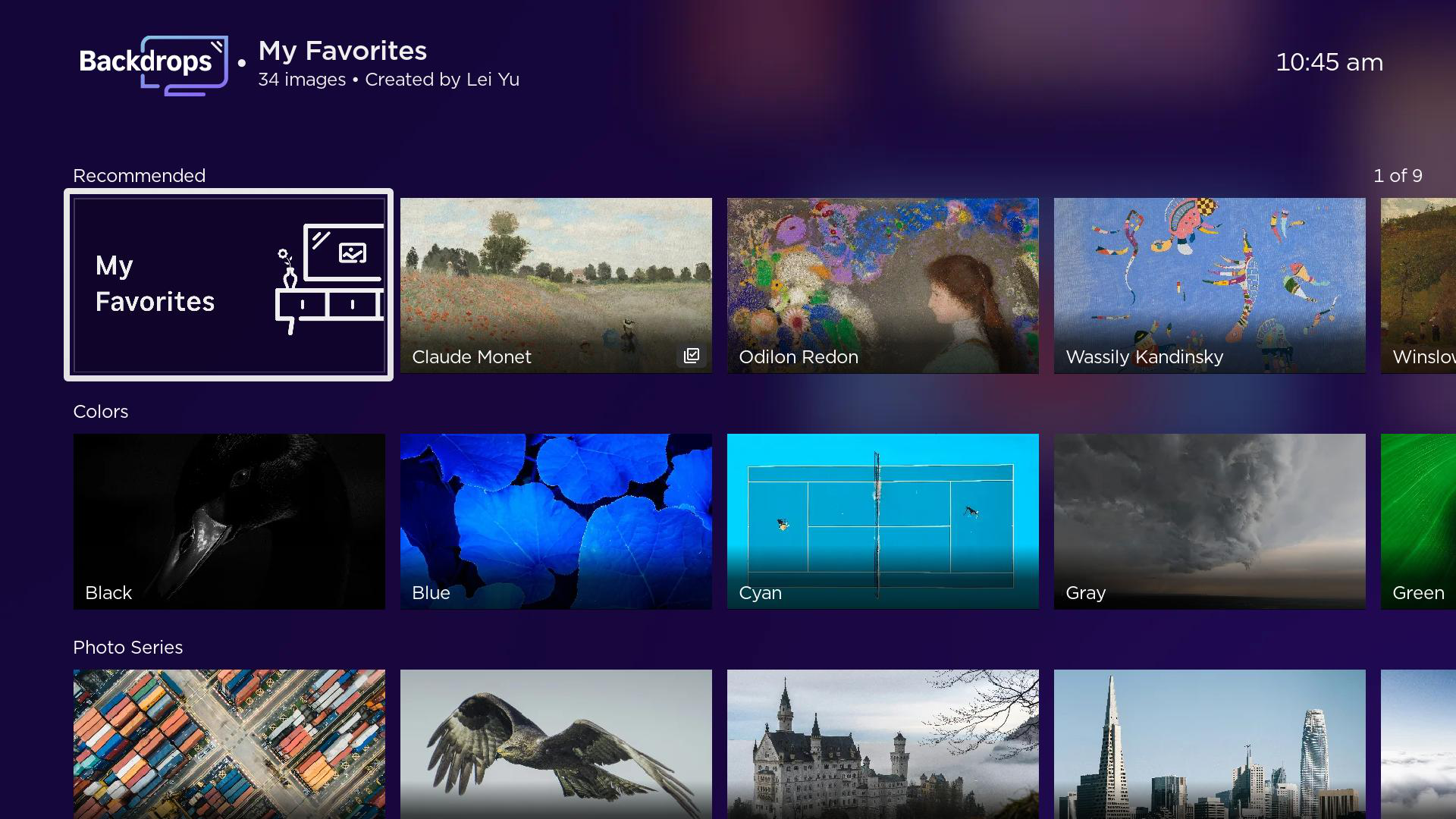
- Add images or collections to My Favorites:
- Entire collection: Collection page > Add all to My Favorites
- Single image: Image page > Add to My Favorites
- View your favorites: Backdrops App > Recommended row > My Favorites
Upload your own photos
- From the Home screen on your Roku device, select the Backdrops App > Add your photos
- Select Upload photos
- Scan the QR code from your mobile device and follow the onscreen instructions
- Use your Roku.com account to sign into backdrops.roku.com

Note: You can create up to 10 albums in your Backdrops Roku account and upload 20 photos at a time (up to 100 photos to each album) in JPG, PNG, HEIC, and WEBP formats. An album may not allow 100 photos if the storage limit for the Roku account has been exceeded.
Using Google Photos:
- Go to the Backdrops App > Connect Google Photos
- Scan QR code from your mobile device and follow onscreen instructions
- Use your Roku.com account to sign into backdrops.roku.com
Note: Manage Google Photos albums in the Google Photos app, not on the Backdrops website.
Choose album to display
- Open Backdrops on your Roku device
- Use the Directional pad to browse through albums and choose the one you want to display.
Note: You cannot choose multiple albums for Backdrops display.
Customize Backdrops
Open Backdrops then click Settings  to adjust:
- Enable/Disable Backdrops
- Brightness
- Image duration
- Daily stop time
While displaying Backdrops, press the options button on your remote to change the same settings.
Daily Stop Timer
Turns off Backdrops at a set time. Does not affect Sleep Timer.
Turn off Backdrops
How do I turn off the TV instead of starting Backdrops?
Press and hold the Power button on your remote for 3 seconds. This will shut the TV off completely instead of launching Backdrops.
How do I disable Backdrops?
- Open the Backdrops app
- Select the gear icon
- Open Backdrops Preferences
- Select Backdrops (Enabled)
- Choose Disabled
Troubleshooting & FAQ
Backdrops won’t auto-start:
- Go to Home > Settings > System > Power > enable Auto Power Saving
Remote power button not starting Backdrops:
- This feature only works with Roku TVs. Not supported on streaming sticks plugged into a TV.
Which collection is active?
- Check for the check mark on the collection or go to Backdrops App > Settings > Backdrops
TV won’t turn off with remote:
- Try re-pairing your remote. Otherwise, use the TV’s physical power button or Roku app.
Sharing collections:
- Go to Google Photos and share the albums. For help see Getting started with Google Photos. You can also go to backdrops.roku.com and share your uploaded albums as well.
Voice commands:
- “Start Backdrops” / “Stop Backdrops”
OLED TV concerns:
- Backdrops has burn-in protection. Images rotate every 5 minutes if OLED is detected. Warnings appear if you select “Don’t Change"
Slow loading or images not displaying:
- Ensure stable internet connection. Contact Roku support if problems persist.
Last updated at 3/3/2026 2:30:43 AM
Was this article helpful?
Related articles
Need more help?

Chat with us
Get help from our support bot or connect to an advisor.