How to use rules to automate your Roku Smart Home devices
The Roku® Smart Home mobile app lets you use rules to automate your Roku Smart Home experience and do things like create a shortcut button that powers off your smart lights at bedtime, schedule a smart plug to turn on the coffee maker each day at 6:00AM, or trigger a smart bulb to light up when a camera detects motion.
This article provides more details about the types rules and helps you create and edit them to get more from your Roku Smart Home devices.
What types of rules are available?
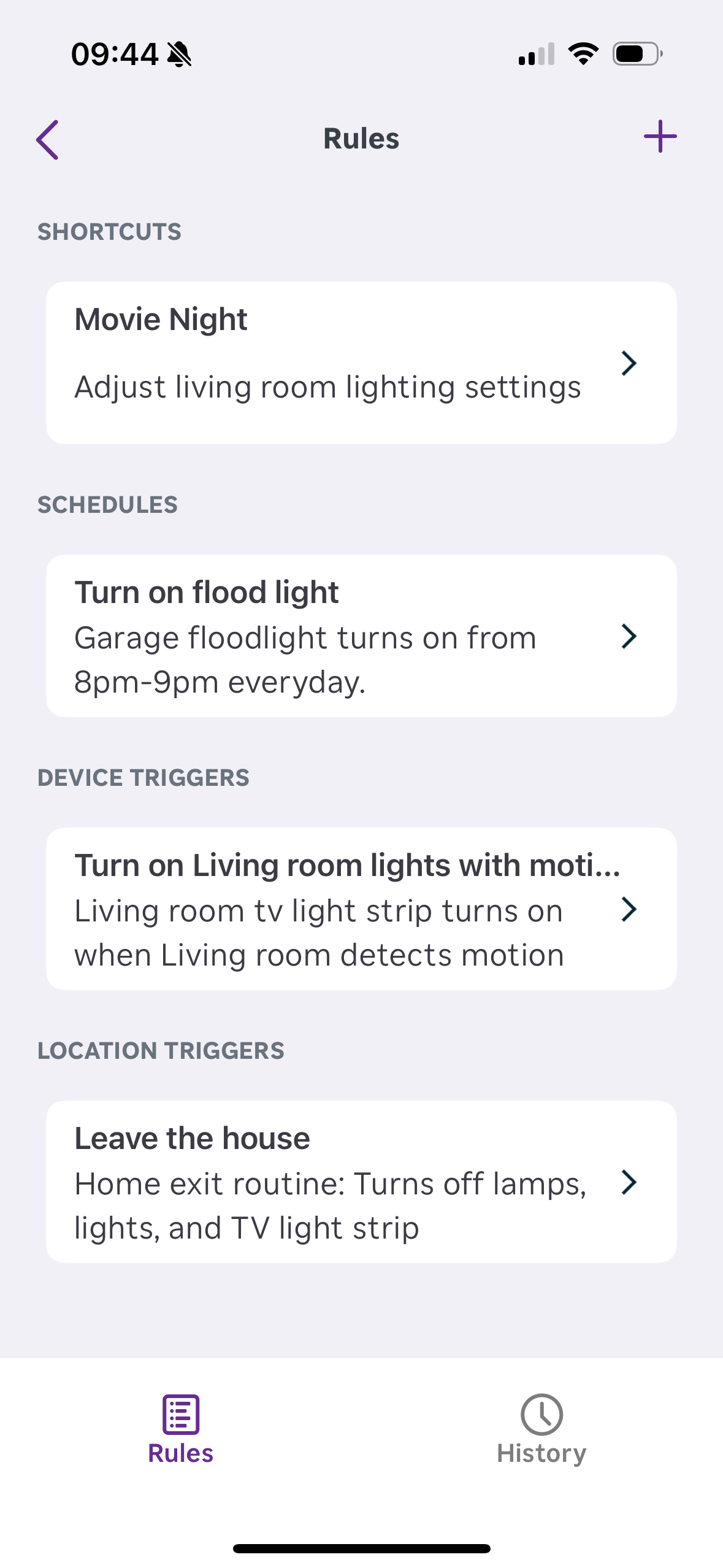
There are four types of rules you can create in the Roku Smart Home mobile app for iOS® and Android™.
- Shortcuts: Perform an action on one or more smart home devices with the single tap of a button.
- Schedules: Control a smart home device based on the time and day. If you want to create a monitoring schedule for your Roku home monitoring system, learn how to use home monitoring rules.
- Device triggers: Allow an action on one smart home device to trigger an action on another.
- Location triggers: Set up an action to happen when you enter or exit a location.
Create a rule
To begin creating a rule, launch the Roku Smart Home app and open the Home screen or the Settings page for an individual device or a device group.
Home screen
- Open the Home
 screen
 - Tap the plus sign
 from the navigation bar
 - Select Add rule
Choose one of the rule types:
- Shortcut
- Schedule
- Device trigger
- Location trigger
Skip to the appropriate section below to continue
Settings page
- Open the Home screen
- Select an individual device or group and tap Settings

- Select Rules
- Tap the plus sign to create a rule
Choose one of the rule types:
- Shortcut
- Schedule
- Device trigger
- Location trigger
Skip to the appropriate section below to continue
Define a shortcut
Shortcut buttons appear at the top of the Home screen letting you perform one or more actions with a simple tap of your finger. You can assign actions to a single smart home device or create a group and assign them to multiple devices. Below are a few examples to help get you started.
- Power on/off all your smart plugs during the holidays
- Turn motion detection on or off for your smart camera
- Quickly engage an intruder siren
- Access quick replies on your video doorbell
- Restart all your smart cameras
Use the instructions below to complete your new rule and define a shortcut.
- Perform the steps from the "Create a rule" section and choose Shortcut
- Tap the default icon if you wish to change it
- Enter a name or description (e.g., "turn on cameras", "motion on")
Tap Add action and select a notifications option, or a device or group
- Unmute notifications: Notifications for all devices will be turned on
- Mute notifications: Notifications for all devices will be turned off
- Individual device: Choose an action for the device and tap Save
- Group: Choose an action for all devices in the group and tap Save
Repeat step 4 to add more actions
When you are finished, tap Save
Set a schedule
Schedules let you choose the days of the week and define a start time and end time when an action occurs for an individual device or an entire device group. Here are a few examples to get you started.
- Turn off motion detection during the hours you are routinely at home
- Power on your smart lights in the evening when you get home from work
- Set a smart plug to turn on/off a lamp at certain times a day
- Turn on your floodlight camera every night from sunset to sunrise
Use the following steps to finish your new rule and set a schedule.
- Perform the steps from the "Create a rule" section and choose Schedule
- Enter a name (e.g., "notifications off while sleeping", "floodlight at night") and tap Save
- Specify a Start time and an End time (if desired), and the days when the schedule repeats
Tap Add action and select a notifications option, or a device or group
- Unmute notifications: Notifications for all devices will be turned on
- Mute notifications: Notifications for all devices will be turned off
- Individual device: Choose an action for the device and tap Save
- Group: Choose an action for all devices in the group and tap Save
Repeat step 4 to add more actions
When you are finished, tap Save

Note: Toggle actions such as on/off run at the start time with the inverse at the end time. Single actions like restarting a camera only run at the start time.
Assign a device trigger
When multiple smart home devices are connected, you can define an action on one device that triggers a different action on one ore more other devices. You can find a handful of examples below to help get you started.
- Power on your smart lights when an outdoor camera detects motion in the backyard
- Turn off a smart light bulb after a motion sensor has been clear for five minutes
- Play a loud siren on all your smart cameras when a smoke alarm is detected
- Turn on a floodlight when your video doorbell is pressed
- Upload a short video to the cloud when a camera detects motion
Use the steps below to complete your new rule and assign a device trigger.
- Perform the steps from the "Create a rule" section and choose Device trigger
- Enter a name (e.g., "motion turns on lights", "doorbell floods") and tap Save
- Under Triggers, tap Add and select a device to trigger the rule
- Select the trigger action and tap Save
Under Actions, tap Add action and select a notifications option, or a device or group
- Unmute notifications: Notifications for all devices will be turned on
- Mute notifications: Notifications for all devices will be turned off
- Individual device: Choose an action for the device and tap Save
- Group: Choose an action for all devices in the group and tap Save
Repeat step 5 to add more actions
To choose when the rule is active, tap the Time button and specify Start time, End time, and the days of the week
When you are finished, tap Save
Set up a location trigger
Define a location and set the trigger area from 500 feet to 2 miles, and then assign actions to your smart home devices based on whether you arrive at the location or leave it. Here are some examples to give you an idea how to use location triggers.
- Enable motion detection on your cameras when you leave home
- Set a smart outlet to warm up dinner in the crock pot when you leave work
- Power on a group of security cameras when you exit your home
- Turn on your floodlights when you arrive home after sunset
Use the following instructions to finish your new rule and set up a location trigger.
- Perform the steps from the "Create a rule" section and select Location trigger
- Enter a name (e.g., "lights on when home", "warm up dinner") and tap Save
- Under Trigger, tap When I enter or When I exit
Select Set location under Location and:
- Enter your address
- Define the trigger area by dragging the edge of the circle
- Tap Save
Under Actions, tap Add action and select a notifications option, or a device, or group
- Unmute notifications: Notifications for all devices will be turned on
- Mute notifications: Notifications for all devices will be turned off
- Individual device: Choose an action for the device and tap Save
- Group: Choose an action for all devices in the group and tap Save
Repeat step 5 to add more actions
To choose when the rule is active, tap the Time button and specify Start time, End time, and the days of the week
When you are finished, tap Save
How to change a rule
To change an existing rule, open the Home screen and follow the steps below.
- Tap the pencil icon
 from the navigation bar
 - Select Edit rules
Select the rule and make your changes
- To add an action, tap Add action
- To delete an action, tap the red circle
- To reorder actions, tap and hold the 3 lines
 and move the action
 - To delete the rule, tap Delete rule
About rule summaries
The Roku Smart Home App makes it easy to understand your automation rules with clear summaries. When you view the Rules menu, you can quickly see what your rule does at a glance.
Last updated at 3/13/2026 6:13:16 PM
Was this article helpful?
Related articles
Need more help?
