How to find TV listings using Live TV Channel Guide
If you have an HDTV antenna connected to your Roku TV, you can use Live TV Channel Guide to browse both live streaming content and "over-the-air" programs broadcasting in your area. With Live TV Channel Guide, your TV listings are combined into a single channel grid, letting you quickly find your favorite free, live TV.
- Note:
- Using Live TV Channel Guide to find live streaming TV listings is only supported in the United States. Using it to find "over-the-air" TV listings is supported in the United Kingdom and the United States.
- Your Roku device must be connected to your network and the internet for Live TV Channel Guide to help you find live streaming TV listings. Without the connection, Live TV Channel Guide will also not display detailed information about "over-the-air" programs, but you can still view a basic channel list.
- Live TV Channel Guide is not available for your cable TV subscription. This includes the connection from a set-top box, or a direct connection to the Live TV input (on your Roku TV).
What information is provided by Live TV Channel Guide?
After you launch Live TV Channel Guide on your Roku® streaming player or Roku TV, your screen is filled with details about the program you are currently watching, along with a grid listing available channels and the content showing on channel.
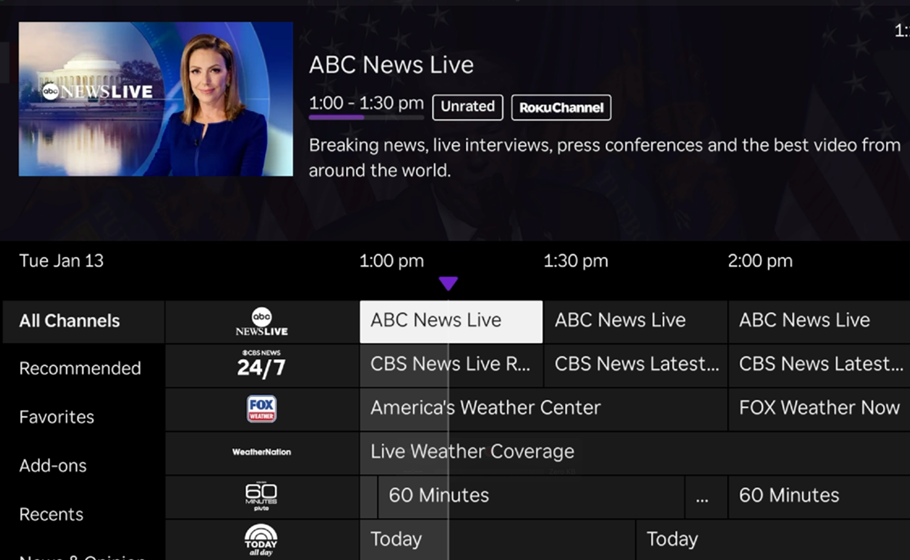
Move up and down the grid to view different channels or left and right to browse upcoming programs as far as 7 days in advance. As you highlight each title, details change to include a description of the program, TV rating, and closed captioning.
How to access Live TV Channel Guide
You can open Live TV Channel Guide directly from the Live TV row in The Roku Channel, or you can access it any time you are watching a live streaming TV channel or an "over-the-air" channel (if you have an HDTV antenna connected to your Roku TV and the Live TV input has been set up). When you are watching a program, press left on the directional pad to open the channel guide. The directional pad is plus-shaped and is in the center of your Roku remote.
When Live TV Channel Guide opens, the movie or show you are currently watching will be highlighted in the grid. If you browse programs in the future, pressing replay on your Roku remote returns you to the current day and time in the grid.
Change Live TV Channel Guide to only show "over-the-air" TV listings
Live TV Channel Guide shows you information about programs from over 165 live streaming TV channels on The Roku Channel, and when you set up an HDTV antenna on your Roku TV it also shows you information for "over-the-air" movies and TV shows broadcasting in your area. If you wish to only see TV listings for "over-the-air" channels, you can hide all the streaming TV channels from Live TV Channel Guide using the steps below.
- Press Home
 on your Roku TV remote
 - Scroll and select Settings
- Select TV inputs
- Select Live TV
- Select Hide streaming TV channels
- Check the box next to Hide all
When you want to see information for streaming TV channels in Live TV Channel Guide again, repeat the steps and uncheck the box.
If you do not have an HDTV antenna connected to your Roku TV, you can hide the Live TV input from the channel grid by highlighting it, pressing Star on your Roku TV remote, and then selecting Remove input.
Watch a show you just missed, or watch more episodes of the same show
When browsing "over-the-air" channels in Live TV Channel Guide on your Roku TV, some programs may display a More Ways to Watch indicator designated with a purple asterisk, or star, as seen below.
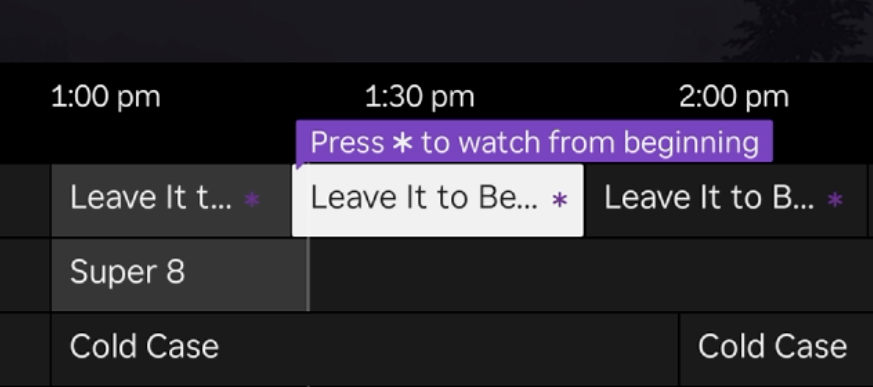
When you highlight an "over-the-air" program displaying the More Ways to Watch indicator, press Star on your Roku TV remote to learn how to stream the show from the beginning, find more episodes of the show, or browse similar shows. Learn more about More Ways to Watch.
- Note:
- A More Ways to Watch indicator will not appear when browsing content from live streaming TV channels on The Roku Channel.
- Not all shows on an "over-the-air" channel will display a More Ways to Watch indicator.
- If you disable Smart TV experience or never enable it on your Roku TV, More Ways to Watch indicators will not appear for "over-the-air" channels in Live TV Channel Guide.
Why is Live TV Channel Guide listing "over-the-air" channels from another area?
If you have an antenna connected to your Roku TV and the list of "over-the-air" channels you see in Live TV Channel Guide does not match your area, try entering your zip code in the Settings menu on your Roku TV using the steps below.
- Press Home on your Roku TV remote
- Scroll and select Settings
- Select System
- Select Zip code and enter your zip code
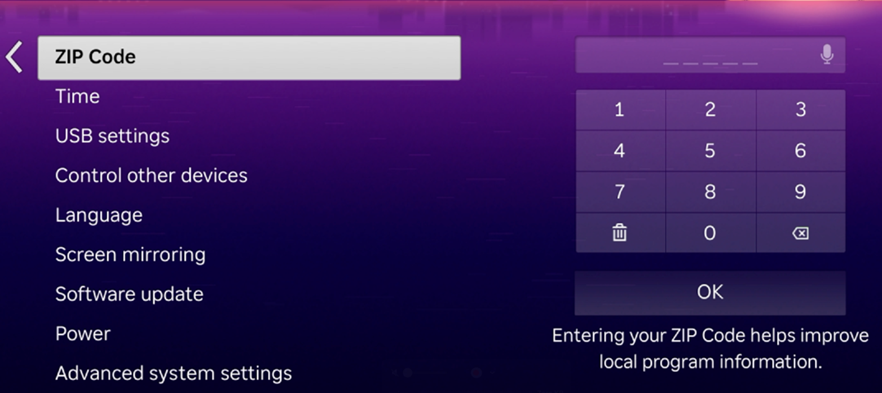
- Press OK to update the zip code
IMPORTANT: After you enter your zip code, you need to set up the Live TV input again and let your Roku TV re-scan the "over-the-air" channels.
Last updated at 2/19/2026 7:05:49 PM
Was this article helpful?
Related articles
Need more help?
