Why is my Roku Smart Home device not connecting to the app during setup?
When setting up your Roku Smart Home device, it must connect to the internet. Most devices use Wi-Fi, while some (like the Roku Home Monitoring System SE) can also use Ethernet. The Roku Smart Home app transfers settings from your phone or tablet securely. Some Smart Home devices require scanning a QR code in the app; others use Bluetooth® to complete set up.
Common errors include:
- “Connection failed”
- “Hub not found”
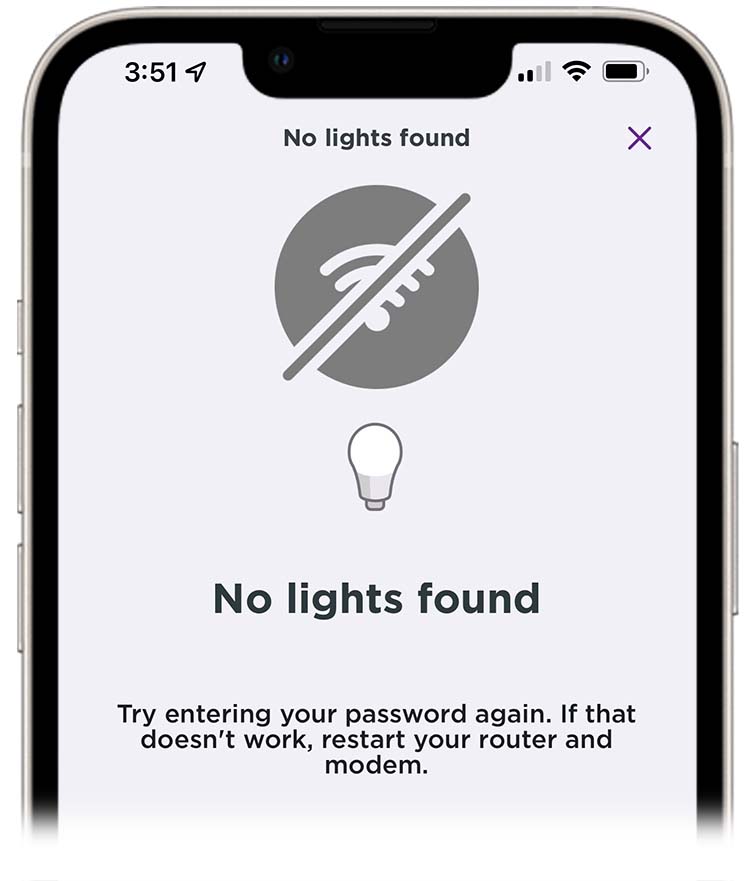
- “No lights/plugs found”
- Endless loading spinner in the app
Follow the steps below to solve connection problems.
- Check Wi-Fi and Bluetooth
- Open your phone/tablet settings
- Make sure Wi-Fi is enabled for wireless devices
- Enable Bluetooth if your device requires it
- If unsure, check with your device manufacturer
- Test Internet connection
- Open a browser and visit www.roku.com
- If it doesn’t load, your network may be down
- Contact your ISP or restart your router. Some routers require unplugging and replugging, while others have a reset button. If you continue to experience Internet issues, contact your service provider.
- Confirm device power and status
- Ensure the device is powered on
- If it has a status light, it should match the app instructions
- If not, follow factory reset instructions
- Install and reinstall the app
- Remove the Roku Smart Home app from your device and then re-install it. Begin the setup process again to see if you can connect.
- Verify wired connections (Ethernet)
- Ensure the Ethernet cable is securely connected to both your Smart Home device and router.
- Apple devices (iOS 16+)
- Make sure your device is running iOS 16 or higher
- Next, go to Settings > Smart Home > Local Network
- Enable access so the app can detect your device
- Disable VPNs
- VPNs can block your device from connecting. Turn off any VPN on your phone/tablet while using the Roku Smart Home app.
- Check Wi-Fi band
- Many routers broadcast both 2.4GHz and 5GHz networks
- Connect smart home devices to the 2.4GHz network
Roku camera issues
If you are having trouble connecting to the app with a camera, such as the Roku Battery Camera, follow these steps or try camera-specific troubleshooting solutions.
- Restart from app Settings by scrolling down and tapping Restart, or unplug/re-plug your camera.
- The Outdoor SE camera has a power switch under the back cover—slide the switch OFF, wait 30 seconds, then switch it back ON.
- To restart the Roku Battery Camera, press the Setup button three times.
- Restart the Floodlight Camera by locating the breaker switch that controls power to your camera. Switch in OFF, wait for 30 seconds, then switch it back ON.
Last updated at 3/5/2026 7:15:07 PM
Was this article helpful?
Related articles
Need more help?
