How to set up your Roku Wire-free Video Doorbell and Chime SE
- 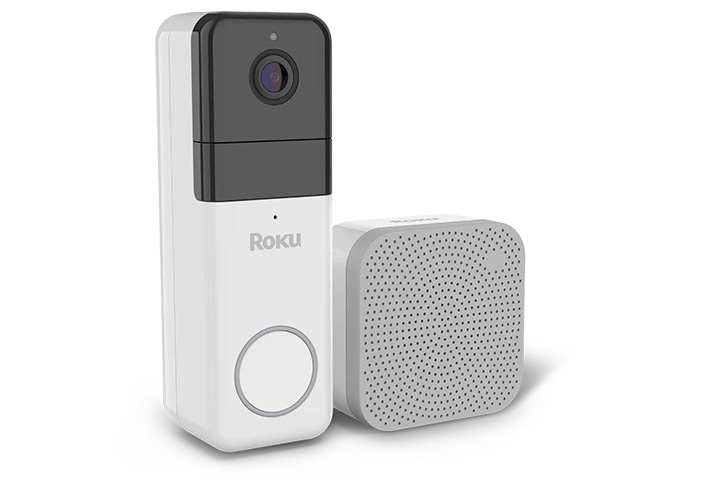
Your Roku® Wire-free Video Doorbell & Chime SE delivers a crisp, Full HD image in any light with color night vision, offers simultaneous 2-way communication to answer the door from anywhere, and a chime to hear the doorbell ring load and clear. Plus, if you purchase a Roku Smart Home Subscription, you also get secure cloud storage, instant recordings when motion and sound is detected, and intelligent person, pet, and object detection.
Your video doorbell and chime include everything you need to get started including mounting hardware. Simply download and install the free Roku Smart Home app and use it to connect your video doorbell to your wireless network. You will be viewing the live video stream, receiving alerts, and personalizing settings in no time.
What you need for setup
In addition to your Roku Wire-free Video Doorbell & Chime SE and included hardware, you will need the following:
- Power: Your wire-free video doorbell is powered by internal, non-removable, lithium-ion batteries. If you want to wirelessly install your video doorbell, connect your doorbell to power using the included USB charging cable for 4 hours for a full charge. Although your video doorbell is designed to be used wirelessly, it can be hardwired and connected to the existing doorbell wiring that provides 16-24V/10VA.
- Smartphone or tablet: You will need to download and install the Roku Smart Home app on your iOS® or Android™ mobile device to set up and control your video doorbell and chime.
- Phillips screwdriver: You will need a Phillips screwdriver to install and mount your video doorbell.
Before you begin, familiarize yourself with your video doorbell and chime including the location of the status light on each device. It is also important to make note of the MAC address which is required should you need to contact Roku Customer Support.
Where to install your video doorbell and chime
Your video doorbell can be installed wire-free, or hardwired, to replace an old mechanical doorbell with many uses, including:
- See who's there: Set your doorbell to record video any time motion or sound is detected
- Hear alerts: Use your chime to hear personalized alerts even when you are not near the door
- Talk to visitors: Use 2-way communication to talk to a visitor without leaving your home
For optimal camera viewing, it should be no higher than 78 inches. The old doorbell location is likely at good height, but it is smart to check that this is roughly at chest level, or about 48 inches.
To get accurate notifications, choose a location that avoids direct sunlight, high traffic roads, and dense brush. After you identify the location of your old wired doorbell, be sure to the camera's view is unobstructed.
Getting started
Your video doorbell is designed to be used wirelessly, but it can also be hardwired to replace your current doorbell. If you have an existing doorbell, you can either replace it, disconnect it, or keep it fully operational.
When you are ready, refer to the steps below to connect your video doorbell to power depending on if you would like to hardwire your video doorbell or use your video doorbell wirelessly, and disconnect your existing doorbell.
Hardwired
If you would like to replace your current doorbell and hardwire your video doorbell, refer to setup instructions for the Roku Video Doorbell and Chime. If you are not comfortable working with electrical wiring, you may want to hire a licensed electrician.Wireless
If you would like to install your video doorbell wire-free, you must first charge your video doorbell.
- Lift the rubber cover for the MicroUSB port on the back of your doorbell.
- Insert the provided MicroUSB charging cable into the doorbell and then insert the USB end into an adapter (not included) and into a power outlet.

Note: Your video doorbell is powered by an internal, non-removable, lithium-ion batteries. It takes about 4 hours to charge from 0-100%. The battery life is 3-6 months with normal use, and you should recharge the doorbell using the included USB cable.
To recharge your wire-free video doorbell, follow these steps:
- Loosen the security screw at the bottom of the doorbell using the provided screwdriver.
- Remove the backplate of your doorbell by sliding the backplate down then pulling it away.
- On the back of the doorbell, open the black rubber flap labeled MicroUSB.
- Insert the provided MicroUSB charging cable into the doorbell and then insert the USB end into an adapter (not included) and into a power outlet.
Disconnect existing hardwired doorbell
If you would like to disconnect your existing doorbell and only use your wire-free video doorbell, you must disconnect the wires in your chime box.
- Locate the breaker switch that controls power to your doorbell.
- Flip the switch to the OFF position.
- Locate your chime box, remove the cover, and take a photo of the wiring.
- Make note of how many wires you see.
- If your home has one doorbell, there should be two wires
- If your home has two doorbells, there should be three wires
- With the power still off, use your screwdriver to disconnect the wires.
- Once disconnected, connect the wires together using the provided fuse wire.
- Cover the wires with the provided wire caps.
- Add the cover back to your chime box.
For more information, you can view the tutorial video below, check out the Quick Start Guide, or follow along with the remaining steps in this article.
Quick Start Guide

What does the status light mean?
It is important to understand what the status light means as you power on your video doorbell and chime and continue with the setup process.
Doorbell | Status |
|---|---|
WHITE - Solid | Charging |
BLUE - Solid | Fully charged |
Chime | Status |
|---|---|
RED - Flashing | Connecting to doorbell |
YELLOW- Flashing | Waiting for connections |
BLUE - Flashing | Connected to network |
BLUE - Solid | Connected |
Install the smart home app
The Roku Smart Home mobile app is a free application for iOS and Android that lets you set up, configure, and control your Roku home monitoring system, cameras, video doorbells, plugs, bulbs, and light strips. You can download the smart home app from the appropriate link below.


Connect your wire-free video doorbell and chime
Launch the Roku Smart Home app and create a new Roku account, or enter the username and password for your existing account. After you sign in, perform the steps below to connect your video doorbell and chime.
- Add your video doorbell
- Tap the plus sign from the navigation bar and select Add device
- Select Cameras & doorbells and choose Wire-free Video Doorbell
- With your video doorbell fully charged, press and hold the power button for 5 seconds on the back of your doorbell
- Confirm the LED light around the doorbell button lights up blue and listen "Ready to connect."
- If you hear nothing, press the Reset button on the back of your wire-free video doorbell. Listen for the phrase "Ready to Connect."
- Add your chime
- Plug your chime into a standard power outlet midway between your Wi-Fi router and doorbell
- Reset your chime by pressing and holding the Reset button on the side and listen for "Reset successfully."
- The LED light on the chime flashes yellow and listen for "Ready to connect."
- Keep your phone near your video doorbell as the Roku Smart Home app searches for your doorbell - make sure the LED light on your doorbell is flashing blue. If it’s not, press and hold the power button again on the back of the doorbell
- Connect to Wi-Fi
- Your wireless network should be listed in the Wi-Fi network name pull-down
- Enter your password and tap Next
- Install your doorbell
- Wired:
- If you prefer to replace your hardwired doorbell, refer to setup instructions for the Roku Video Doorbell and Chime
- Wireless:
- To install your video door on flat surface, use the provided screws and attach the back plate to the wall. You can also use the provided adhesive tap if you do not want to make holes on your surface. To install your video doorbell in a corner, use the provided screws and corner kit
- Securely attach your video doorbell to the back plate or corner kit
- Using the included T8 screw driver, drive and tighten the security screw into the bottom of your video doorbell to keep it in place
- Wired:
- Finish setup
- Name your video doorbell and tap Finish
With the Wi-Fi connection, your video doorbell can record videos to the cloud with your Smart Home Subscription. You also get instant recordings when motion and sound is detected, and intelligent person, pet, and object detection. Learn more about the premiere features available with your Smart Home Subscription.
Using your wire-free video doorbell and chime
And when you want to learn even more, check out some of the other great features your Roku Wire-free Video Doorbell SE offers.
Last updated at 2/26/2026 6:36:36 PM
Was this article helpful?
Related articles
Need more help?

Chat with us
Get help from our support bot or connect to an advisor.