How to set up your Roku Ultra
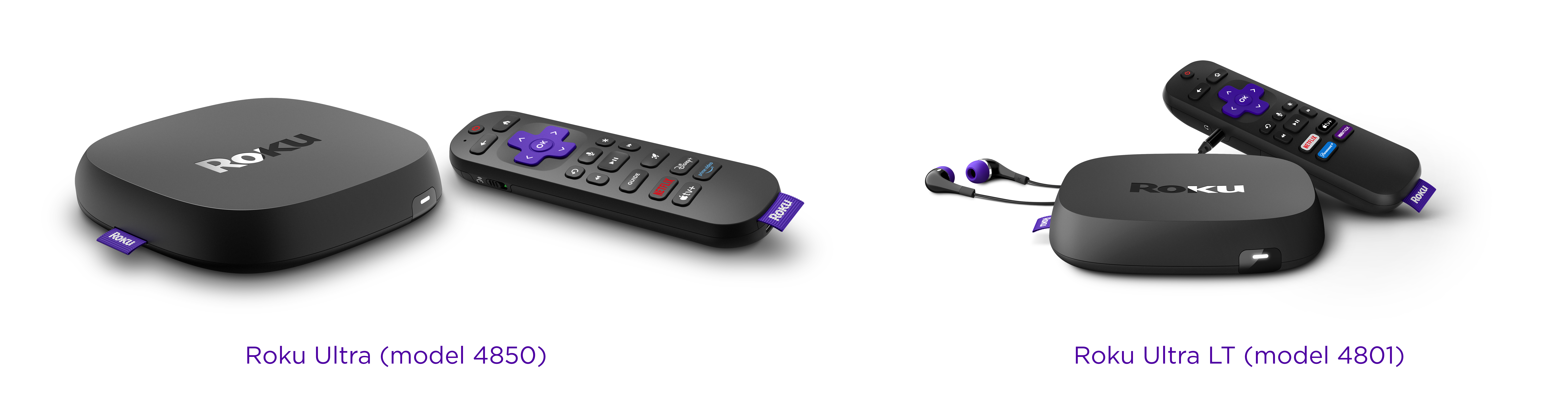
Download the Quick Start Guide
Unbox and connect
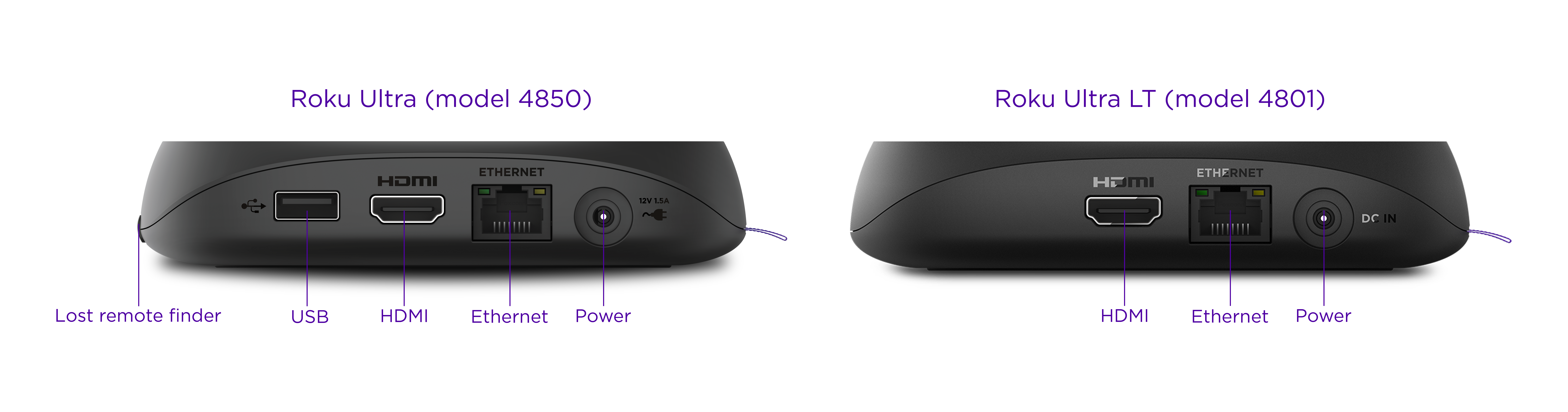
What you’ll need:
- Roku Ultra
- Power cable (included)
- HDMI cable (included)
- TV with an HDMI port
- Internet connection (Wi-Fi or wired)
Steps:
- Plug the HDMI cable from Roku player to your TV.
- Plug in the power cable.
- Turn on your TV.
- Press your TV’s Input or Source button until you see the Roku welcome screen.

Note: If you don't see the Roku home screen, try switching to another HDMI port on your TV.
Pair your Roku remote
Your Voice Remote Pro should pair automatically when you first turn on the Roku player.
If it doesn’t:
- Hold the pairing button on the back of the remote or inside the battery compartment for about 5 seconds. If your remote does not have a pairing button, press and hold the Back
 andHome
 buttons for 5 seconds, or until you see the status light begin to flash.
 - Follow the on-screen instructions.
Note: If the remote still doesn’t work, unplug the Roku for 10 seconds, plug it back in, then try again. See this page for help.
Connect to the internet
You’ll be prompted to connect at the start.
For Wi-Fi:
- Choose your Wi-Fi network name from the list.
- Enter your password (you can choose “Show password” to see it).
- Press Connect.
For wired (Ethernet):
- Plug an internet cable into the Roku and you’re done.
If you cannot connect, restart your router or try a different network. Learn how to troubleshoot Wi-Fi.
Install updates
Once you’re online, your device may download software updates automatically. This can take a few minutes. Let it finish before moving on.
Set up your display (4K / HDR)
If you have a 4K or HDR TV, Roku will detect and set this up for you.
- It will pick the best resolution automatically. If you want to change the display type later, go to Home on your Roku player and select Settings > Display Type.
- Use the included HDMI cable as it supports high-quality video.
- Verify your TV supports HDCP 2.2 for full 4K/HDR performance.
- Learn how to set up 4K/HDR with other devices plugged in —such as an audio receiver — and troubleshoot settings.
Note: If the setup skips this step, it means your Roku Ultra automatically found the correct settings.
Set up your remote to control TV power & volume
Roku will ask if you want the remote to control your TV’s power and volume.
If you agree:
- Choose Check remote settings on screen.
- Follow the instructions.
If you skip now, you can do later:
- Settings > Remotes & devices > Remotes > [your remote] > Set up remote for TV control.
Note: On some TVs, the remote may only control volume, not power. If you still can't use your Roku remote to control your TV, follow the instructions to turn on CEC on your TV.
Create/sign in to your Roku account & activate the device
You’ll either need to create a free Roku account or connect an existing account to finish setup.
- Enter your email using the remote (or voice if supported).
- Open the activation link sent to your email (or scan the QR code). Press Star
 on your remote if you need to try again.
 - Follow the on-screen instructions to link your Roku device.
- Add your streaming apps and enjoy!
- View this page for help activating your account.
Creating a Roku account is always free. Beware of impersonator websites and scams.
Troubleshooting
Why does my TV show “No Signal” when I connect my Roku Ultra?
Either the HDMI cable isn’t fully plugged in, or you’re on the wrong TV input. Switch the TV’s Input/Source until you see the Roku screen.
My remote won’t pair or respond. What do I do?
Hold the pairing button (on the back or inside the battery cover) or Home and back buttons on the remote for 5 seconds, then wait for the on-screen pairing confirmation. If it still doesn’t work, unplug your Roku device for 10 seconds, plug it back in, and try pairing again.
The picture isn’t 4K or HDR, even though I have a 4K TV.
Make sure you use the HDMI cable that came with your Roku player. If you need a replacement, you can purchase one in the Roku accessories store. Check your TV’s HDMI port supports 4K/HDR and is enabled for it. Sometimes TVs default to a lower resolution.It says my Roku device isn’t connected to the Internet. What’s wrong?
First check your Wi-Fi password and network. If other devices work fine, try unplugging the Roku player > wait 10 seconds > plug it back in. If you see error codes like 009, this means your Roku player is connected to Wi-Fi but can’t reach the Internet. View this page for help with troubleshooting your connection.
Last updated at 3/3/2026 1:22:12 AM
Was this article helpful?
Related articles
Need more help?

Chat with us
Get help from our support bot or connect to an advisor.