How to set up your Roku Express 4K+
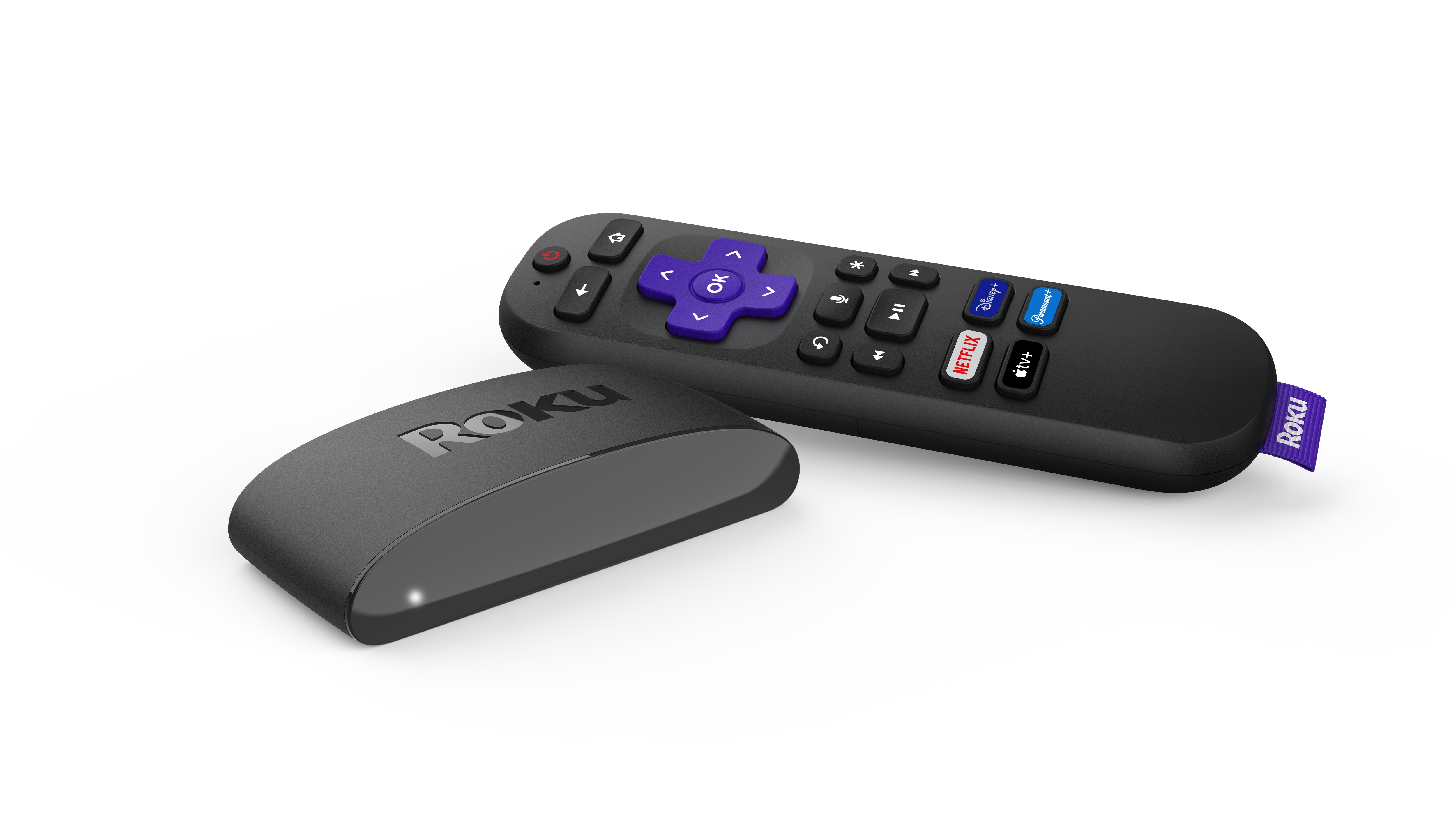
Will Roku Express 4K+ work with my TV?
Yes, it will work with any TV that has an HDMI® port.
- To enjoy 4K or HDR, your TV must support those formats
- Use the Premium High-Speed HDMI Cable included for best results
What's in the box
- Roku Express 4K+ player
- Roku voice remote with TV controls
- Premium High-Speed HDMI® cable
- Power adapter & USB power cable
- Adhesive strip (optional for mounting)
Setup steps
Download the Quick Start Guide:
1. Connect to your TV
- Plug the Roku Express 4K+ into your TV’s HDMI port
- Connect the USB power cable to the device and plug it into a wall outlet
- Use your TV Remote to select the correct HDMI input by pressing Input or Source. The Roku logo should appear.
- (Optional) Secure your player to a surface using the included adhesive strip
2. On-screen setup
- Choose a language: Select your preferred language with the remote
- Connect to the internet:
- Wired: Use a compatible Ethernet adapter in the micro USB port
- Wireless: Choose your Wi-Fi network and enter the password. If you do not see your network, select Scan again to see all networks. See troubleshooting tips if you can't connect.
- Download updates: Your Roku player will install the latest software and restart
- Display settings: Roku auto-detects the best resolution for your TV (HD, 4K, HDR). You can also change the display type later.
3. Set up your remote
- Pull the tab on your Roku remote to automatically pair it with your TV
- This lets you control power, volume, and mute directly from the Roku remote
4. Create & activate your Roku account
- Enter your email address on screen. You’ll receive an activation link (check spam/junk if you don’t see it). If you cannot activate your device, learn how to resolve linking issues.
- ...Or scan the QR code on your TV screen with your phone’s camera. Follow the link to create or sign in to your Roku account and finish setup.

Note: Roku never charges activation or support fees. If you see such requests online, they are scams. Learn how to protect yourself from online scams.
Troubleshooting
No picture on TV
- Confirm your player is firmly connected to the HDMI port
- Use the TV remote to select the correct HDMI input
- If still no picture, try a different HDMI cable or port
Red light on Roku player
- Solid red: This means the player is overheating. Unplug it, wait a few minutes, and place it in a cooler spot before restarting. Learn more about how to prevent overheating.
- Flashing red: Device isn’t getting enough power. Use the included power adapter instead of plugging into your TV’s USB port.
Internet or Wi-Fi problems
- Make sure you’re connecting to the correct Wi-Fi network and entering the password exactly (case-sensitive)
- If the network doesn’t appear, select Scan again
- Restart your router and modem, then try connecting again
- For wired connections, confirm the Ethernet adapter is securely attached
Remote not controlling TV power or volume
- Go to Settings > Remotes & devices then select your remote. Set it up again by clicking Set up remote for TV control.
- Some TVs may only support volume control, not power. Contact your TV's manufacturer for help.
Poor HDR or 4K picture quality
- Update your TV’s software. For help, contact the manufacturer.
- Make sure HDR is enabled for the HDMI input connected to your Roku player (some TVs require this setting to be turned on manually)
- Only use the included Premium High-Speed HDMI cable. If lost, you can purchase one in the Roku accessories store.
- For help, see this article on setting up HDR with your Roku device
Activation issues
- If you don’t receive the activation email, check your spam or junk folder
- If still missing, press the Star
 button on your Roku remote while on the activation screen to resend the email
 - You can also choose the QR code option and scan it with your phone
Enjoy your Roku player!
Once setup is complete, you’re ready to stream. Personalize your Roku by changing your theme or screensaver, and add new apps from the Streaming Store.
Last updated at 3/3/2026 2:17:09 AM
Was this article helpful?
Related articles
Need more help?
