How to use the Roku mobile app to control your Roku streaming device without a remote
The Roku® mobile app is a free application for iOS® and Android™ devices that turns your mobile device into a control center for your Roku streaming player or Roku TV™ system. The Remote feature of the mobile app allows you to use your phone or tablet as a Roku remote.
To use a Roku remote on your phone, you must first install the Roku mobile app, sign in to the mobile app, and then connect the mobile app to your Roku streaming device.
How to use the Roku mobile app as a remote
- Open the Roku mobile app and select Remote
 to access the remote.
 - You can use the Roku mobile app as a remote to control your Roku TV system or streaming player with the following buttons:

Note: The remote opens automatically anytime you launch an app from the mobile app.
- Private
 : Tap to activate Headphone Mode and keep the sound to yourself.
 - Guide
 : Tap to open Live TV Channel Guide and view upcoming TV schedules when using the Live TV input on your TV.
 - Microphone
 : Tap to open the voice search and control screen. For more help, review example voice commands you can use with your Roku device.
 - Options
 : Tap to open the options menu with various special functions.
 - Play/Pause
 : Tap to see playback controls including 10-second instant replay, play/pause, rewind, and fast forward.
 - Keyboard
 : Tap to open the keyboard on your mobile device.
 - Channels
 : Tap to open controls for the Live TV input on your TV, letting you enter specific channel numbers.
 - Volume Up/Volume Down/Mute
 /
/ : Tap to control the volume output on the Roku device.
 - Power
 : Tap to turn the Roku device on/off.
Note: Some of the controls listed above may not be available depending on which Roku device you’re using.
Use the Roku Mobile App with a Roku Streaming player
Go to Settings > System > Control other devices > Enable TV power and TV volume
Note: You may not be able to use the Roku Mobile App to turn the TV on if you're using a Roku streaming device powered by USB.
How to change between traditional and swipe remote
You can configure the remote to move up, down, right, and left in one of two ways – Traditional or Swipe. To change between them, tap Settings and choose the Remote type.
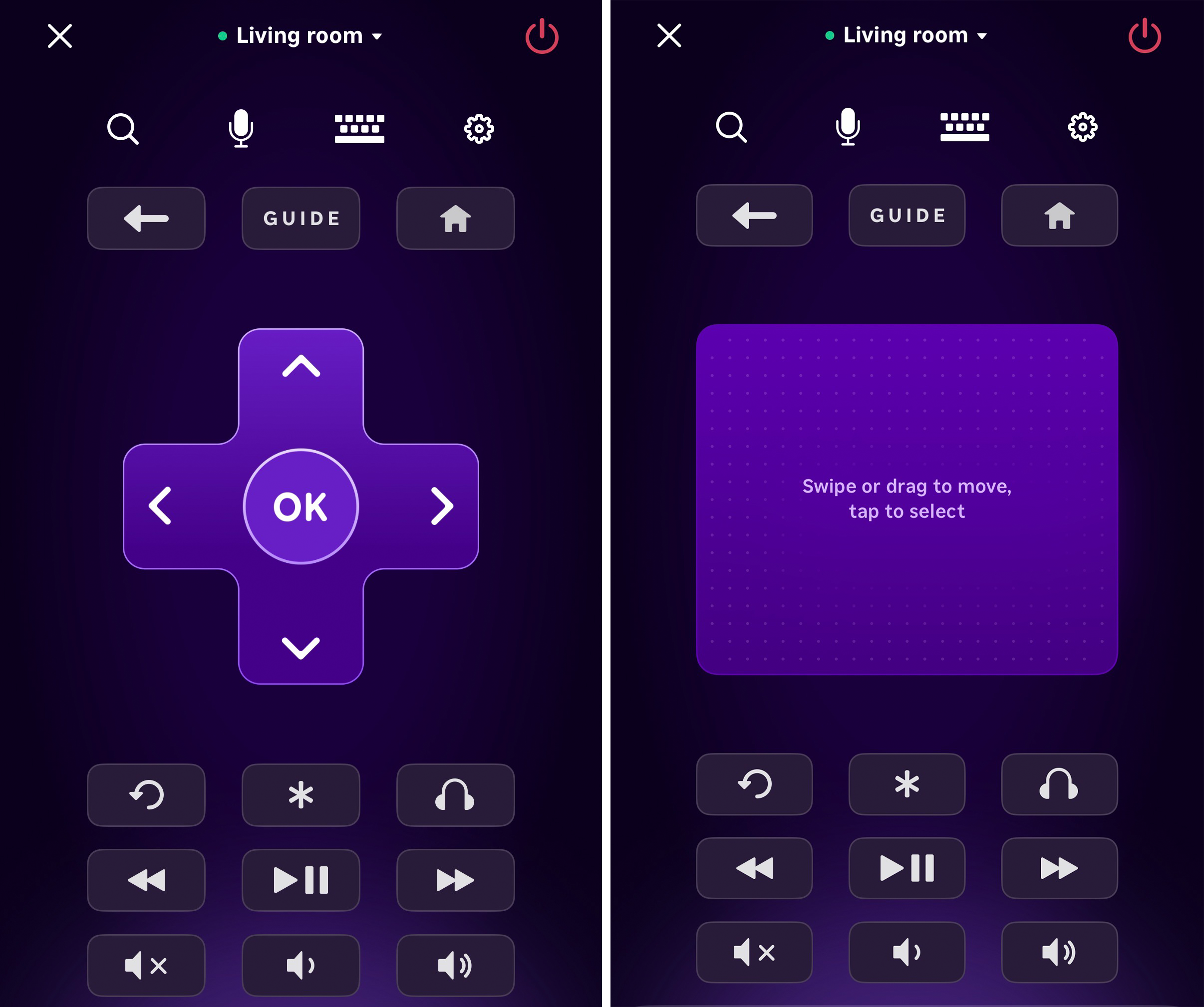
- Traditional - Mimics the physical Roku remote, where each button press on the app replicates the corresponding button on the Roku remote.
- Swipe - Uses finger gestures in a designated area to control your Roku device. For example, swiping left mimics pressing the left directional button on the Roku remote. Tap the highlighted area on the screen to make a selection.
Troubleshoot Roku mobile app issues
How to fix error "Unable to sign in, device incompatible"
on Android:
Update the Google Play Store™
- Make sure the Play Store app is up to date:
- Open the Google Play Store app
- Tap on your profile icon in the top right
- Go to Settings > About
- If there’s an update available tap "Update Play Store"
Restart Your Device
Restarting the device can help refresh your device and downloads from the Google Play Store.
Clear Google Play Store cache
- Go to Settings > Apps > Google Play Store
- Select Storage & Cache and tap on Clear Cache
Ensure Google Play services are updated
- Open the Play Store and search for "Google Play services"
- Click the Update button if present to install the latest version
Verify the app is installed from the Google Play Store
What you see on screen may differ from the steps below based on your device.
- Tap and hold the Roku app
- Tap App Info in the pop-up
- Scroll down to the bottom of the screen to the Store section. In the app details, verify it says “App installed from Google Play Store”
on iOS:
The Roku mobile app requires iOS 14.0 or newer. If your iOS phone or tablet is running an older version or is jailbroken, it may not be compatible with the Roku mobile app. Contact Apple support for further support.Why won't my mobile device pair with my Roku player? I have lost my remote
If your Roku device isn’t connected to the Internet—such as after a reset or if you are setting it up for the first time—the mobile app cannot detect your device, and you will not be able to use it as a remote.
Why doesn't the Roku mobile app control my TV when I'm using a Roku streaming player?
When you’re using a Roku streaming player (not a Roku TV), the Roku mobile app controls the player, not the TV. If the app isn’t controlling your TV’s power or volume, try the following steps:
- Enable HDMI-CEC on your TV
HDMI-CEC allows your Roku player to control basic TV functions like power and volume. The exact steps vary by TV manufacturer, so check your TV’s settings or follow the instructions in the CEC setup guide. Check Roku device control settings
On your Roku streaming player, go to: Settings > System > Control other devices and make sure 1-Touch Play, TV power, and TV volume are all turned on. Learn more about setting up CEC control with your Roku player.
I'm seeing an error that says I can't access the Roku Mobile App. Why?
Because of new state laws, we’ve updated our app access policy. If the Google Play Store or App Store lists you as under 18, you won’t be able to access the Roku Mobile App.
Last updated at 3/23/2026 4:19:02 PM
Was this article helpful?
Related articles
Need more help?
