If there's a charge you don't recognize on your Roku account
If you see charges on your Roku® account or bill you don’t recognize, try these steps before contacting Roku Support.
Note: Roku never charges for Roku accounts or for customer support services.
Check if your free trial turned into a subscription
Free trials for streaming apps automatically turn into paid subscriptions that are billed on a recurring basis. To avoid charges, turn off auto-renew to cancel the subscription on or before the last day of your free trial at my.roku.com/subscriptions or on your Roku device. For help, see Manage or cancel subscriptions on Roku.
Turn off auto-renew on your Roku device
- Press the Home button on your Roku remote.
- Use your remote's arrow buttons to highlight the app you want to cancel.
- Press the Star button on your remote.
- Select Manage subscription to view the renewal date and access more options.
- To cancel a subscription, select Turn off auto-renew. Your subscription will be active until the end of the billing cycle.
Unrecognized charges from Disney+, Hulu, or Sling TV? Here’s who to contact
If you have a subscription to Disney+, Hulu, or Sling TV, contact the provider directly for help:
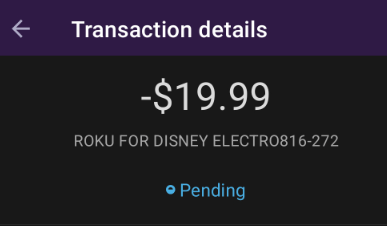
You may see the charge appear as ROKU FOR DISNEY ELECTRO followed by a series of numbers as shown below:
Confirm if the charge is from Roku
On your billing statement, Roku charges will appear as “Roku,” “Roku for ____,” or “The Roku Channel.” Update billing or cancel these subscriptions through my.roku.com/subscriptions
Sometimes, the name on your bill might be different from the streaming service you know. This can happen if the bill shows the parent company’s name instead. For example:
- “Roku for CBS Interactive” = Paramount+
- “Roku for Warner Media Global Digital Services LLC” = HBO Max
- “Roku for AMC Networks” = Shudder
- “Roku for Starz” = Starz
- “The Roku Channel” = Premium Subscriptions on The Roku Channel

Note: The Roku Channel is always free. However, if you subscribe to a Premium Subscription through The Roku Channel (like AMC+), you’ll see a charge from “The Roku Channel.”
If “Roku” is not shown in the charge
If you see a charge that just says something like Paramount+ or Starz, this means you subscribed directly through that provider. Contact them to manage or cancel your subscription.
Check for multiple Roku devices, accounts, or emails
If you don’t see the charge in your purchase history, check whether you have multiple Roku devices or Roku accounts. It’s possible that you or someone in your household signed up for a subscription or made a purchase using a different Roku account with a different email.
To check which email is linked to your Roku device, go to Settings > System > About.
Tip: Roku recommends using the same account on all your devices. This makes it easier to track charges, manage subscriptions, and share subscriptions across your Roku devices.
Make sure no one made a purchase without your knowledge
A family member or roommate who uses your Roku might have made a purchase without you realizing it.
Tip: If you share your Roku with others, set up a PIN to help prevent unwanted purchases in the future.
$1.00 charge on your credit or debit card
You might see a $1.00 charge on your credit or debit card. This is a temporary hold Roku uses to make sure your payment method is valid. It’s a common anti-fraud practice and not an actual charge. The $1.00 will be refunded to your account.
More resources on Roku charges
If you have more questions about Roku charges, check these resources for help:
- View your Roku payment history and charges
- Update your Roku payment method
- Manage or cancel a subscription managed through Roku
Last updated at 2/19/2026 4:39:11 PM
Was this article helpful?
Related articles
Need more help?
