How to set up your Roku Touch™ tabletop remote
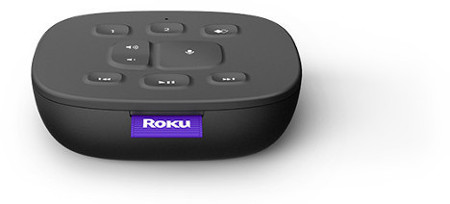
The Roku® Touch is a tabletop remote that lets you start music, use voice commands, or control playback on your Roku device or Roku TV™. It is wireless, battery-powered, and designed to work alongside your handheld Roku remote, not replace it.
You can place Roku Touch anywhere you can hear your Roku device, such as on a kitchen counter, desk, or entryway table.

Note: Roku Touch must be within listening distance of your Roku device. Range can be reduced by thick walls or weak Wi-Fi signal.
Set up Roku Touch
Step 1: Put your Roku device in pairing mode
On your handheld Roku remote, press:
Home > Settings > Remotes & devices > Pair new device > Remote
Step 2: Put Roku Touch in pairing mode
- Remove the battery cover and insert 2 AAA batteries
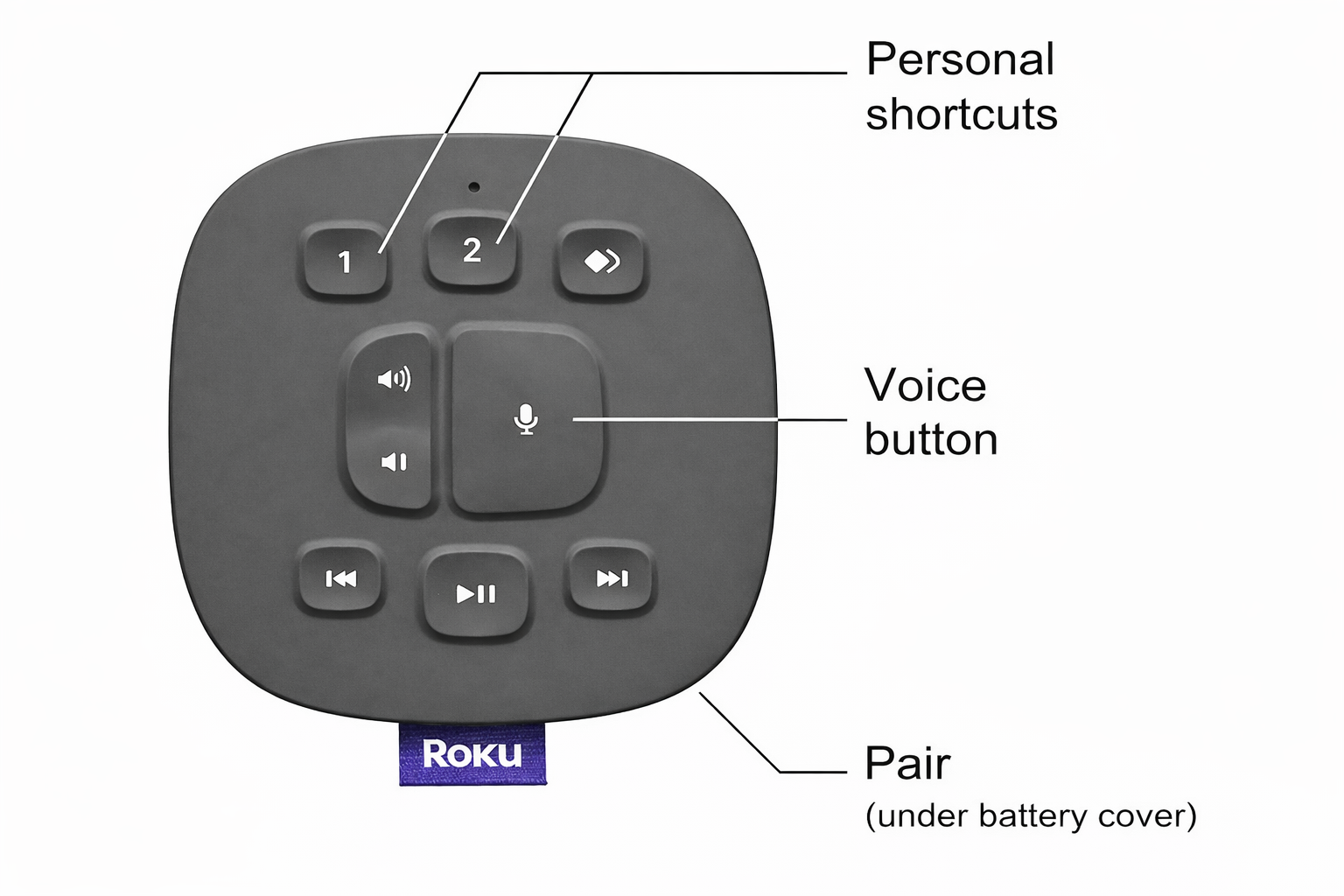
- Press and hold the pairing button (inside the battery compartment) for 5 seconds, until the light inside the compartment flashes
- Roku Touch will announce it is “searching for devices”
- Once pairing is complete, your Roku device will return to the Remotes & devices menu
Use Roku Touch
Voice commands
Press and hold the Voice button and speak naturally. Examples:
- “Play classical music on Pandora”
- “Play Stuff You Should Know on iHeartRadio”
- “Play Today’s Hits on TuneIn”
Note: Pandora and TuneIn require you to sign in with an account. iHeartRadio lets you play free content without one.
Personal shortcuts
You can save a voice command to the shortcut button:
- Hold the Voice button and say a command (e.g., “Play Pandora”)
- After it runs, press and hold the shortcut button until you hear a success tone
- Now, pressing the shortcut button will repeat that command
- You can reassign the shortcut at any time
Troubleshooting
Volume buttons do not work
- When paired with Roku players, Roku Touch volume controls may not work unless your TV, AVR, or soundbar supports HDMI-CEC
- Make sure HDMI-CEC is enabled in your TV settings
Note: Some brands use different names for HDMI-CEC: Sony BRAVIA Sync, LG SimpLink, Samsung Anynet+, etc.
Remote won’t pair
- Check that the batteries are new and installed correctly
- Restart your Roku device and repeat the pairing steps
Remote not responding
- Move Roku Touch closer to your Roku device
- Make sure your Wi-Fi signal is stable. Learn how to troubleshoot Wi-Fi issues.
Related articles
- How to listen to music with voice commands
- How to listen to music when the screen on your Roku TV is off
- Overview of different voice commands
Last updated at 3/3/2026 1:39:08 AM
Was this article helpful?
Related articles
Need more help?
