How to turn Guest Mode on and off on your Roku streaming device
Your guests can confidently use their own app accounts and subscriptions on your Roku® streaming device with Guest Mode. Guests can enjoy free content, live TV, and music from The Roku Channel, CBS News, iHeartRadio, and more, or try out any of the 10,000+ apps that Roku offers. Guest can also add any app they want from the Roku Streaming Channels Store. In Guest Mode, your guests will not be able to access your apps, make unauthorized purchases on your card, or influence your recommendations.
Printable instructions are available to leave out for your guests.This article explains how to turn Guest Mode on and off and how to customize it for your guests. Instructions on how to use Guest Mode to stream content on a Roku streaming device are also available.
How to turn on Guest Mode on and off
To turn on Guest Mode you need a Roku PIN. If you don’t already have one, visit my.roku.com/account/PIN to easily set it up. If you have issues, learn how to create, reset, find, or delete a PIN for your Roku account. When you enable Guest Mode any game data stored on your device will be removed. You can set up Guest Mode on your Roku streaming device or on my.roku.com.
Turn on Guest Mode on
- On your Roku remote, press Home

- Scroll and select Settings
- Select Guest Mode
- Select Enter Guest Mode
- Enter your Roku PIN (or first create a PIN at my.roku.com/account/PIN)
- Select OK and confirm

Note: If Guest Mode is not listed as an option, then it is not available in your region.
Turn Guest Mode off
- If needed, complete the welcome screen flow to get to the Guest Mode home screen
- Scroll down and select Settings
- Select Guest Options
- Select Sign out and clear info
- Enter your Roku PIN
- Select OK
Turn on Guest Mode on my.roku.com
- Sign in at https://my.roku.com/account
- Scroll down to My streaming devices & TVs
- Find your Roku device and select Enable Guest Mode
- Enter your Roku PIN and confirm
How to sign out a guest
Your guests can sign out at any time or will be automatically signed out of all subscriptions and logins on a date they choose. All added apps will be automatically deleted on sign out. If your guest left early or accidentally selected the incorrect sign-out date, you can sign them out remotely with the following instructions:
- Sign in to https://my.roku.com/account
- Scroll down to My streaming devices & TVs
- Find your Roku device and select Sign Guest Out
- Select Yes, sign guest out now
How to customize the Guest Mode welcome screen
By default, your guests will be greeted on the TV with the message "Welcome! Enjoy your stay."
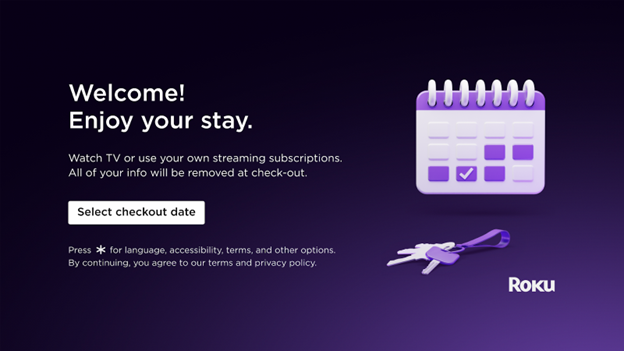
Use the following instructions to customize the Guest Mode welcome screen.
- Sign in to https://my.roku.com/account
- Scroll down to My streaming devices & TVs
- Find your Roku device and select Customize welcome message
- Enter your personalized greeting up to 40 characters and select Publish/Save
Availability
Guest Mode is available in the following countries:
- US
- Canada
- UK
- Latin America
- France
- Mexico
- Australia
Guest Mode is not available in the following countries
- Germany
Note: Depending on the Roku OS version installed on your streaming device, Guest Mode may be called Auto Sign Out.
Last updated at 2/18/2026 3:18:44 AM
Was this article helpful?
Related articles
Need more help?
