How to use Photo Streams on your Roku streaming device
Use Photo Streams to personalize your Roku experience and start sharing special moments with loved ones in different locations. Simply upload photos to your Roku account, set up the screensaver on your Roku streaming device, and enjoy a custom slideshow on the biggest screen in your home. Get ready to show off your family's favorite shots at your next home gathering or invite extended family and friends to upload their photos and create a collaborative screensaver with everyone's favorite memories.
How to create a Photo Stream and upload photos
Using a web browser:
- Visit photostreams.roku.com and sign in
- Click Create Stream or pick an existing stream
- Upload your photos and name your stream. Streams are limited to 1,000 photos in PG, PNG, HEIC, and WEBP formats.
- Share the stream via email or URL

Note: A stream may not allow 1,000 photos if the storage limit for the Roku account has been exceeded.
Using the Roku mobile app (iOS & Android)
- Open the Roku Mobile App and sign in
- Tap Photo Streams and choose Create Stream or an existing stream
- Upload photos and name the stream if you like
- Share the stream via email or link by clicking Share
You can also upload photos straight from your phone’s gallery:
- Pick your photos, tap Share, then choose Roku to add them to a stream
Note: Once you create your first stream, the Photo Streams channel is added to your Roku device, and the screensaver is set to Photo Streams.
View slideshows on your TV
- Press Home
 on your Roku remote
 - Highlight the Photo Streams channel and press OK

- Find the stream you want and select a photo
- Select Slideshow to see all photos
Note: Photos show for 10 seconds each and play in random order.
Set Photo Streams as your screensaver
- Press Home on your Roku remote
- Go to Settings > Themes > Screensavers > Photo Streams
- Select Set as Screensaver
Choose which streams to show
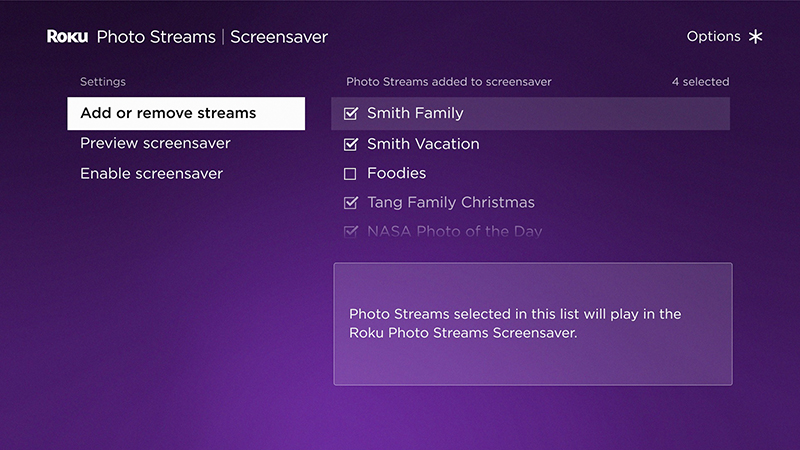
- Photo Streams channel: Go to Photo Streams > Screensaver and check the streams you want
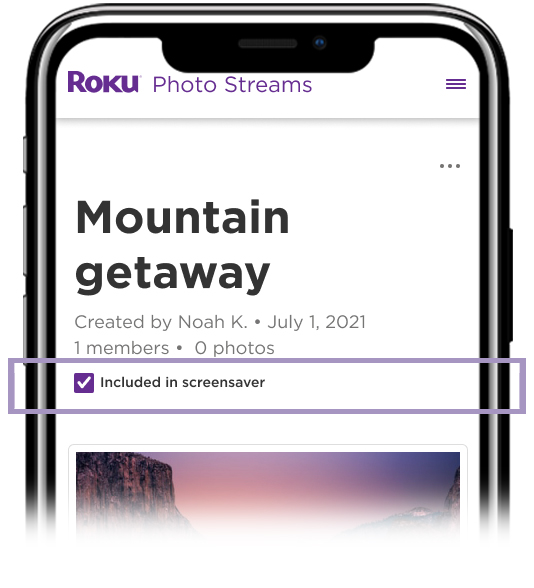
- Roku mobile app: Open your stream and check Included in screensaver
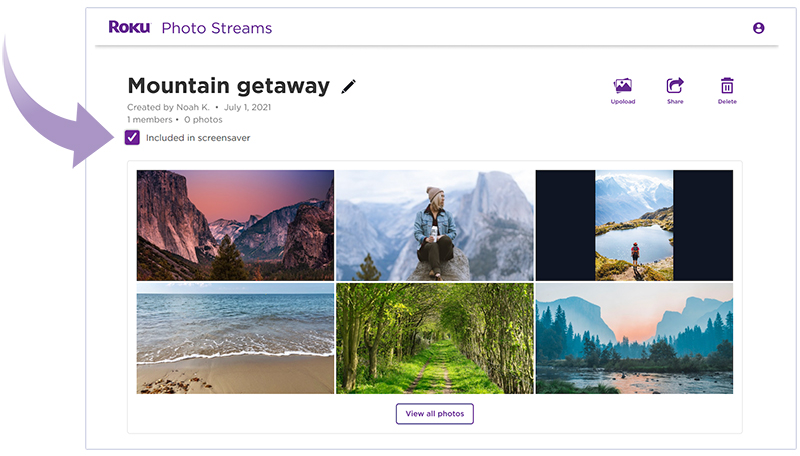
- Web browser: Sign in, pick your stream, and check Included in screensaver
Turn off Photo Streams on a device
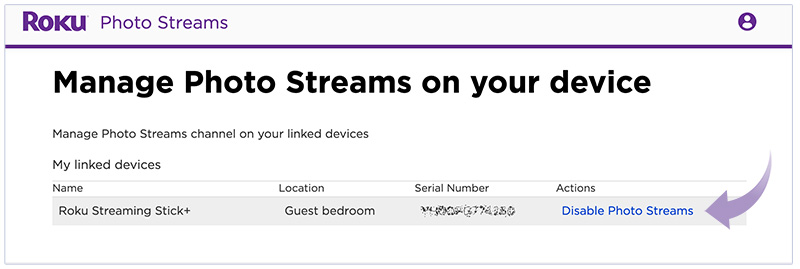
- Go to photostreams.roku.com/settings and sign in
- Find the desired device and choose Disable Photo Streams (or Enable to re-enable the feature
Last updated at 2/19/2026 6:58:44 PM
Was this article helpful?
Related articles
Need more help?
