Why is HDCP 2.2 important to playing 4K Ultra HD or HDR content?
To successfully stream 4K Ultra HD (4K) or High Dynamic Range (HDR) content, all devices connected via HDMI® to your compatible Roku® streaming player must support HDCP 2.2. This includes your TV, an audio/video receiver (AVR), and any other devices connected in between. If even one device does not support HDCP 2.2, then the 4K or HDR movie or TV show can only be viewed in a lower resolution, such as 720p or 1080p.

Note: Only select Roku players support 4K or HDR. Learn about the other requirements for streaming 4K or requirements for streaming HDR.
What is HDCP 2.2?
The latest copy protection technology is called HDCP (High-bandwidth Digital Content Protection) and is used on HDMI connections for digital devices like Blu-ray™ players, cable boxes and Roku streaming devices. HDCP is the copy and content protection standard used by the movie and TV industry. Copy protection/content protection has been around for a long time, and in its early stages was what prevented you from copying commercial VHS tapes. HDCP 2.2 is specifically designed for 4K Ultra HD content, as well as movies and TV shows available with 4K Ultra HD.
What happens if HDCP 2.2 support is not detected?
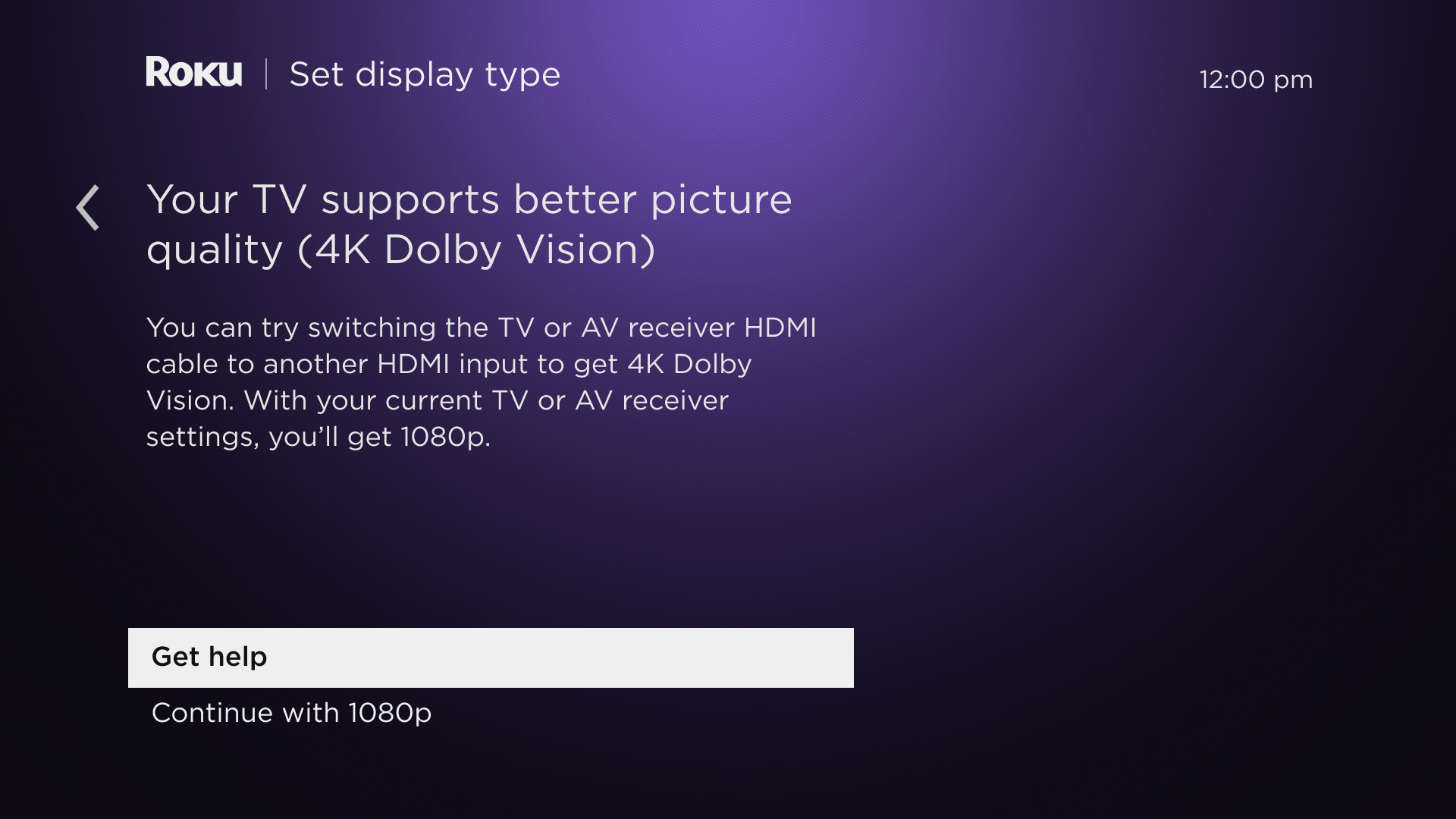
If your Roku player does not detect support for HDCP 2.2, you may see the following message during setup:
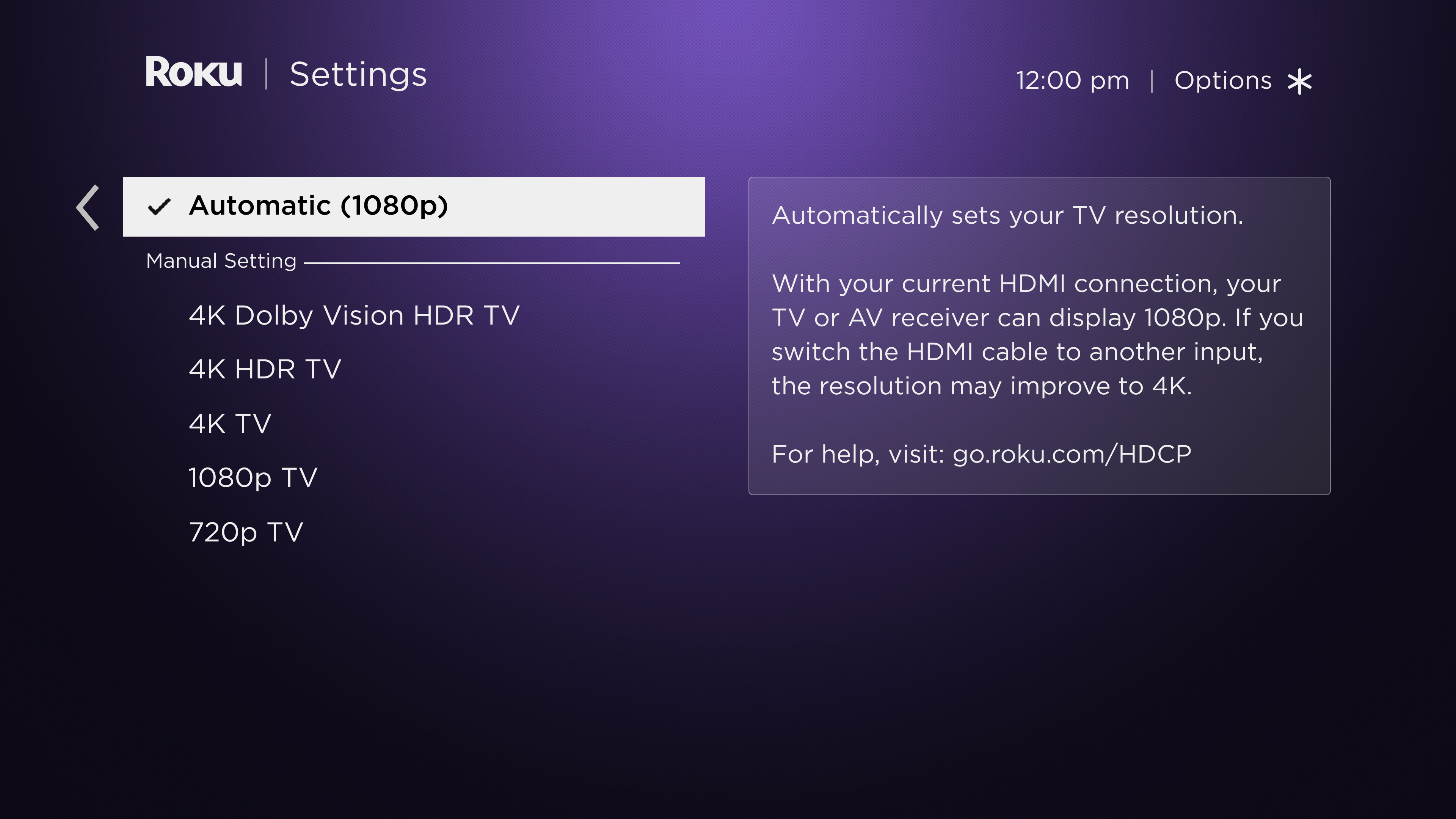
…or you may see the message below when trying to change to one of the 4K or HDR selections in Settings > Display type:
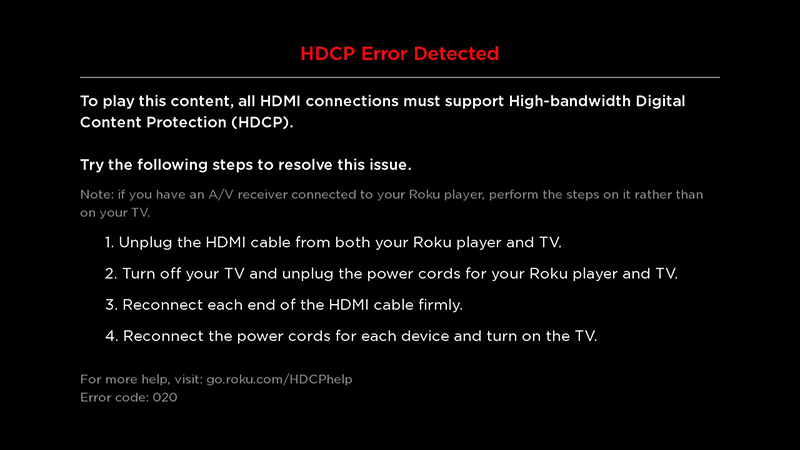
...or you may see the following "HDCP Error Detected" message when attempting to play 4K or HDR content.
How do I avoid this?
Review the following items to make sure your Roku streaming player is set up for HDCP 2.2.
Use Premium High Speed HDMI Cables. Be sure to use Premium High Speed HDMI Cables for each link in the chain. Using a subpar cable for even one link may cause an HDCP 2.2 failure.
Your TV must have an HDMI input that supports HDCP 2.2. Verify that your TV has at least one HDMI input that supports HDCP 2.2. Not all 4K TVs support HDCP 2.2, including early models and some lesser-known brands.
Your AVR must have an HDMI input that supports HDCP 2.2. If you are connecting your Roku player through an AVR, the AVR must also support HDCP 2.2. In fact, every device in the chain between the Roku player and the TV must also support HDCP 2.2. Check the documentation for your AVR to make sure that HDCP 2.2 is supported on the HDMI input you are using.
If you have a 4K-compatible TV or an HDR-compatible TV but your AVR does not support HDCP 2.2, you can still get 4K or HDR video and use your AVR. You just need two connections. Connect your Roku player directly to an HDCP 2.2 input on your TV, and use either ARC (Audio Return Channel) or S/PDIF (if available) to route the audio from the TV back to the AVR.
Tip: If you are using an AVR and want to determine if it is the source of the issue, try removing it from the chain and connect your Roku player directly to an HDCP 2.2 input on your TV. If HDCP 2.2 support is detected in this configuration, there is an issue with the AVR connection. Try a different HDMI cable and input on the AVR if possible.
How do I determine which HDMI inputs support HDCP 2.2?
If your name-brand 4K TV, HDR TV, or AVR was purchased in the past couple of years, there is a good chance it has at least one HDMI input that supports HDCP 2.2. When determining which inputs support HDCP 2.2, start with the obvious – look for the inputs labeled with “HDCP 2.2”.
Note: On some TVs, the HDMI inputs are part of an external box that is attached to the display via special cable. This external box may be behind your TV, or it may be inside a cabinet.
Note: If you are connecting more than one device that requires HDCP 2.2 and you plan to use an HDMI splitter, be sure it also supports HDCP 2.2.
- Single input – When only a single input supports HDCP 2.2, you may see a label next to just that input as seen below:
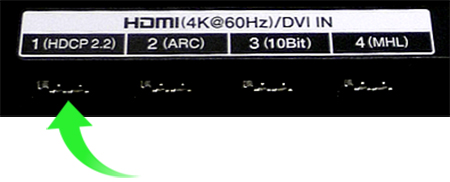
In these cases, assume the remaining inputs do not support HDCP 2.2. Connect your Roku player to the labeled input.Tip: If you are using an AVR and want to determine if it is the source of the issue, try removing it from the chain and connect your Roku player directly to an HDCP 2.2 input on your TV. If HDCP 2.2 support is detected in this configuration, there is an issue with the AVR connection. Try a different HDMI cable and input on the AVR if possible.
- Multiple inputs – When multiple inputs support HDCP 2.2, you may see a single label across several inputs as seen in the following example:
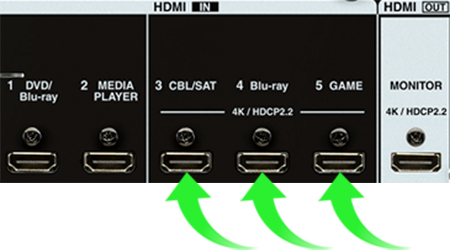
… or you may see an individual label on each input as pictured below.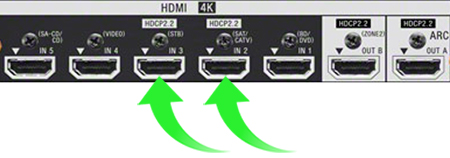
Either way, assume any input that is not labeled as such does not support HDCP 2.2. Connect your Roku player to any of the labeled inputs.
- All inputs – Unfortunately, a device that supports HDCP 2.2 on all inputs may or may not include labeling to indicate this – each brand is different. If you do not see a label but suspect your device supports HDCP 2.2, refer to the owner’s manual or online user’s guide. If you cannot find the HDCP version documented anywhere, contact the manufacturer to inquire further.
Once you determine all HDMI inputs support HDCP 2.2, connect your Roku player to any one of them.
What if I my devices do not support HDCP 2.2?
You can still enjoy HD content. During setup, your Roku player will automatically select 720p or 1080p instead of 4K or HDR. Or you can select 720p or 1080p from Settings > Display type. Detailed steps for changing your display type are available.
Last updated at 2/23/2026 4:32:01 AM
Was this article helpful?
Related articles
Need more help?
