How to set up your Roku streaming player or Streaming Stick (any model)
Learn how to set up your Roku® streaming player or Roku Streaming Stick®.
How to connect your Roku device to a TV
- Use the HDMI cable you got with your Roku player
- Plug one end into your Roku device and the other into an HDMI port on your TV
- If your Roku player is a “stick” (small, plug-in kind), you may need a short HDMI extender

Note: We recommend using the HDMI cable that comes with your Roku device to connect to your TV. If you must replace it, use a High Speed HDMI Cable if your TV only supports 720p and 1080p, or a Premium High Speed HDMI Cable if your TV also supports 4K Ultra HD or HDR.
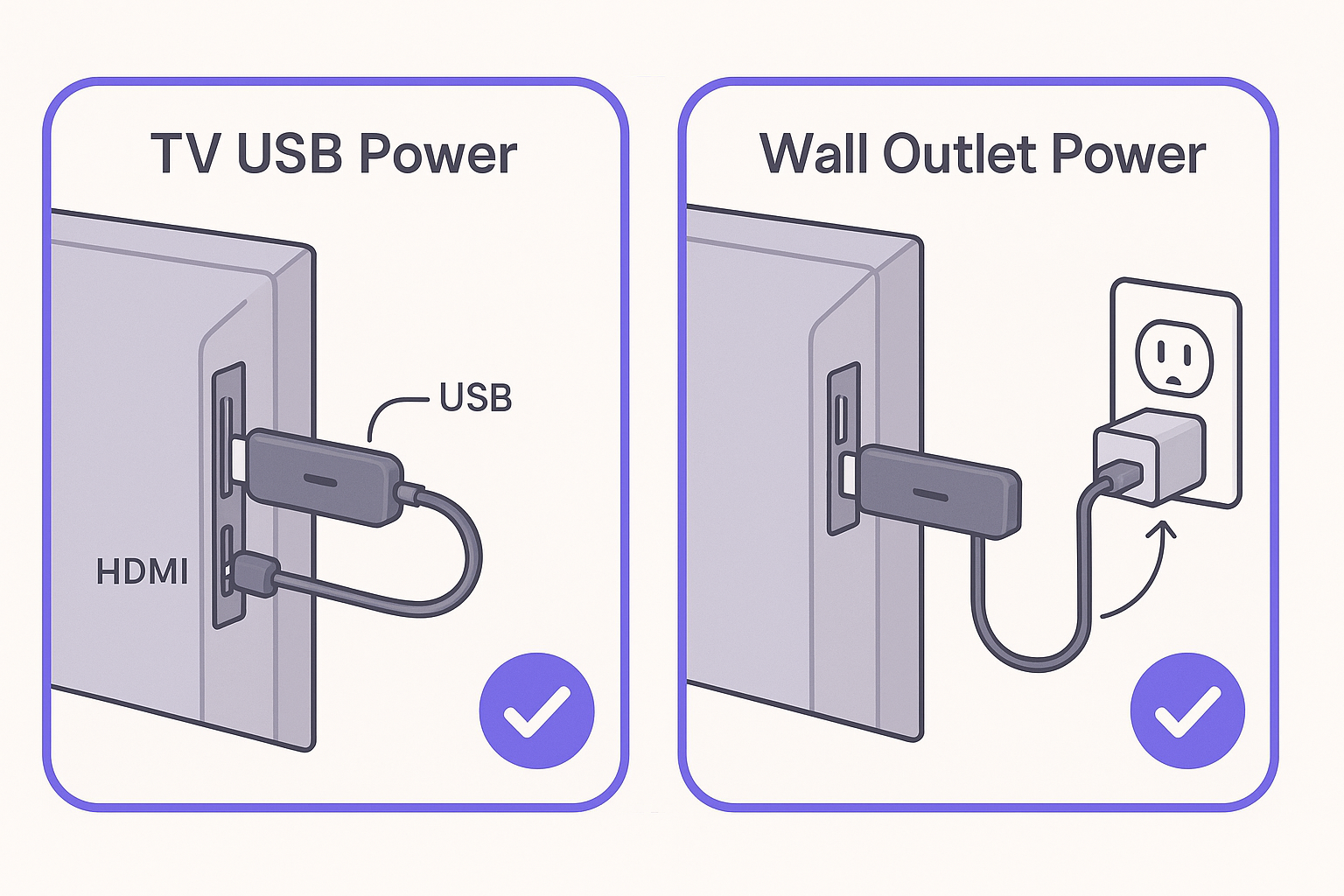
Step 1: Connect to power
- Next, connect your streaming device to a power source. It is important to use the USB cable that came with your Streaming Stick, as using another cable will prevent it from turning on (error 022).
- You can plug it into a USB port on your TV, but sometimes TV USB ports don’t supply enough power
- If you see a low power warning, plug the Roku player into a wall outlet (with the adapter)
- If your Roku device has a light, it will turn on or blink
Step 2: Turn on your TV and select the right input
- Use your TV remote and press the button labeled Input or Source
- Choose the HDMI port number where your Roku is plugged in (HDMI 1, HDMI 2, etc.)
- Wait about 10 seconds for the TV to detect it. Learn what to do if you do not see any picture
Step 3: Set up your Roku remote
- Voice remote (has a microphone or magnifying glass icon): Follow the on-screen directions to pair
- Roku remote: Insert fresh batteries. If it doesn’t work, remove the batteries, wait a few seconds, and then reinsert them.
Step 4: Connect Roku player to the Internet
- Choose your language
- Choose Wireless and select your home Wi-Fi network. Enter the password.
- (Optional) If your Roku device has an Ethernet port (some models do), you can plug it into your router with a cable
- Click Connect
- If the connection fails, try unplugging both your router and Roku player for 10 seconds, then plug back in. Learn what to do if you can't connect to the Internet.
Step 5: Update & set display settings
- Your Roku streaming player will check for software updates. Wait until they install.
- For 4K or HDR, ensure all connections and devices connected support HDCP 2.2. Learn what to do if you see an error.
- Navigate to Settings > Set Display Type and choose Automatic to allow Roku to choose the correct resolution that matches your TV.
Step 6: (Optional) Make your voice remote control your TV
- Some voice remotes can learn to turn your TV’s power and volume on/off
- If you skipped it earlier, you can set this later via Settings > Remotes & devices > Remotes
Note: On some TVs, the remote may control volume but not power, or vice versa.
Step 7: Activate your Roku account
- Follow the on-screen instructions to begin activating your account. You will need another device, such as a phone or tablet, to verify your email.
- Sign in or finish creating a free Roku account. Learn how to activate or create a Roku account if you need help.
Enjoy your Roku player!
With all steps complete, your Roku streaming device is ready to use. You can personalize your device by changing your theme pack or screensaver, and you can use the Roku Channel Store to add new streaming channels, games, and other apps.
Last updated at 3/3/2026 1:11:01 AM
Was this article helpful?
Related articles
Need more help?

Chat with us
Get help from our support bot or connect to an advisor.