How to resolve an issue with your Roku Touch™ tabletop remote
How to fix your Roku Touch™ tabletop remote
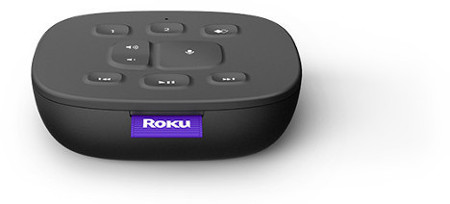
The Roku Touch tabletop remote lets you control your Roku device over Wi-Fi, so you do not need to point it at your TV. Use this guide if your Roku Touch is not pairing, the buttons do not work, or it suddenly stops responding.
Before you start
Make sure:
- Your Roku device is powered on
- Wi-Fi is working in your home
- The remote has working batteries
Restart your Roku device and the remote
This solves most issues.
- Open the battery cover and remove the batteries
- Unplug your Roku device for 5 seconds
- Plug the Roku device back in and wait for the Home screen to appear
- Put the batteries back into the remote
- Wait 30 seconds to see if the remote connects
Pair the remote again
If it still does not work:
- Remove the batteries
- Restart the Roku device (unplug, wait 5 seconds, plug in)
- When the Roku Home screen appears, reinstall the batteries
- Hold the pairing button inside the battery compartment for 5 seconds until the light flashes
- You can also pair by going to Settings > Remotes & devices > Set up a new device > Remote
- Wait up to 30 seconds for pairing
If the light does not flash, replace the batteries and try again.
Replace the batteries
- Remove the old batteries
- Restart the Roku device (unplug, wait 5 seconds, plug in)
- When the Home screen appears, insert new batteries
- Wait 30 seconds for automatic pairing
If you use a Roku Streaming Stick
When using a Roku Streaming Stick that can be connected directly to an HDMI port on your TV, wireless interference from the HDMI connector can affect the remote. Connect your Streaming Stick using an HDMI extension cable. You can request a free cable from Roku.
When to replace the remote
If none of the steps above work, the remote may need to be replaced. Ensure the replacement remote lists compatibility with your Roku model.
Advanced Wi-Fi tips (optional)
Try these only if you are comfortable changing router settings.
Connect to 5GHz Wi-Fi (if available)
- 5GHz usually works better than 2.4GHz
- Note that not all Roku models support 5GHz
Change Wi-Fi channel manually
- If your router is set to "Auto", switch to a specific channel
- Use channels 1, 6, or 11 for 2.4GHz
- Contact your Internet Service provider for help
Avoid DFS channels on 5GHz
Some Roku devices do not support DFS channels. If your Roku device will not stay connected to 5GHz, turn off DFS channels in your router. Contact your ISP for assistance.
If the remote feels hot
If the remote becomes warm or hot to the touch:
- Stop using it
- If charging, unplug the charging cable
- Place it on a hard, non-flammable surface
- Let it cool before touching or removing batteries
Troubleshooting
Why won’t my Roku Touch pair?
Weak Wi-Fi, low batteries, Roku not fully started, or pairing button not held long enough.
Do I need to point this remote at the TV?
No. It uses Wi-Fi.
Does it work without internet?
No. It requires a Wi-Fi network.
The remote worked before and stopped. What happened?
Most common causes are that Wi-Fi changed, your Roku player restarted, or the batteries died. Restart and re-pair the remote.
How long should pairing take?
Up to 30 seconds.
Last updated at 2/24/2026 10:27:42 PM
Was this article helpful?
Related articles
Need more help?
