How to disable auto power savings on your Roku® streaming player
Some Roku streaming players have an auto power savings feature that allows the player to automatically save power under certain conditions. This article describes auto power savings in more detail and outlines steps you can take if you want to disable the feature.
How does auto power savings work?
When auto power savings is enabled and your compatible Roku player is idle for 20 minutes (meaning it is not streaming content or being controlled by a remote or mobile app), it automatically enters a low power mode and attempts to power off the TV it is connected to. While in the low power mode, your player will "wake up" when you do any one of the following:
- Power on your TV
- Press a button on your Roku remote
- Control your player with the free Roku mobile app for iOS® and Android™
- Share content using AirPlay®
- Cast from a mobile app like Netflix® or YouTube®
After your player wakes up, your TV will turn on and a moment later the Roku home screen will appear.
Does my Roku player support auto power savings?
To view the model number, go to the home screen on your Roku player and select Settings > System > About. The models listed below support auto power savings.
| Device | Model |
|---|---|
| Roku Express 4K | 3940 |
| Roku Express 4K+ | 3941 |
| Roku Streaming Stick® 4K | 3820 |
| Roku Streaming Stick 4K+ | 3821 |
| Roku 4 | 4400 |
| Roku Ultra | 4800, 4802, and 4850 |
| Roku Ultra LT | 4801 |
How to disable auto power savings
You can use the following steps to disable auto power savings.
- Press Home
 on your Roku remote
 - Scroll and select Settings
- Select System
- Select Power
- Select Auto power savings
- Uncheck the box next to After 20 minutes of no interaction
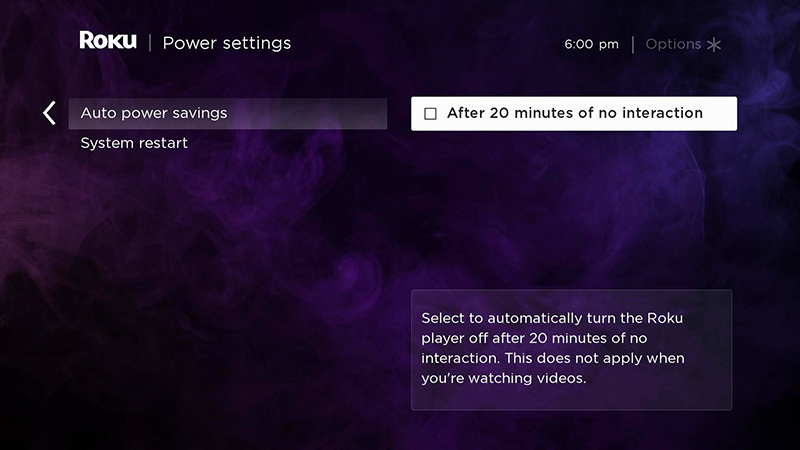
After you disable auto power savings, your Roku player will remain "awake" and ready to be used any time your TV is powered on.
Why does my player not wake up or display a picture on my TV?
If auto power savings is enabled and your player does not wake up or you do not see a picture on your TV, try pressing Home on your Roku remote. If this does not help, try disabling auto power savings as described above.
If you find that your player is waking up but not when you press the Power button  on your Roku remote, you should make sure to set up your remote to control the power and volume on your TV.
What else to try if you want to use auto power savings
If disabling auto power savings resolved your issue in the previous section, but you prefer to use the power-savings feature, there are a couple more things you can try.
Enable 1-touch play on your player
When enabled, a feature called 1-touch play tells your TV to automatically switch its active source/input to your Roku player when any button on your Roku remote is pressed. Open the Settings menu and enable 1-touch play using the steps below.
- Press Home on your Roku remote
- Scroll and select Settings
- Select System
- Select Control other devices
- Check the box next to 1-touch play
Enable CEC on your TV
A feature known as HDMI-CEC (or just CEC) lets devices on the same HDMI connection send commands to each other, which is how your Roku player can turn on your TV or your TV can wake your Roku player. For this to function properly, it is important to check that your TV supports CEC and that the feature is enabled. It is not uncommon for CEC to be disabled by default.
When looking for the setting on your TV, keep in mind that some manufacturers such as Hitachi and Vizio refer to CEC by its proper name, while others like LG, Panasonic, and Sony use brand-specific trade names. For help understanding the various trade names, review the detailed article outlining how several popular TV brands go about enabling CEC.
Last updated at 2/25/2026 3:23:36 AM
Was this article helpful?
Related articles
Need more help?
