How to use USB to connect your Roku streaming device to a wired network
Your Roku® streaming device must have a good internet connection to stream your favorite movies and TV shows. To accomplish this, you can connect it to your wireless network, or if your Roku device and third-party Ethernet adapter, you can connect it to your wired network.
This article provides information about compatible Roku devices and Ethernet adapters and explains how you can connect your devices to your wired network.
Is my Roku device compatible?
Not all Roku devices support using an Ethernet adapter to connect to your wired network. Refer to the chart below for a list of Roku streaming devices that support an external third-party Ethernet adapter.

| Device | Model |
|---|---|
Roku Streaming Stick, Streaming Stick Plus | 3840X, 3830X |
Roku Express | 3960, 3960RS |
Roku Express 4K | 3940 |
Roku Express 4K+ | 3941 |
| Roku Streambar® SE | 9104R |
| Roku Streambar | 9102 |
| Roku Streambar Pro | 9101R2 |
| Roku Smart Soundbar | 9101 |
| onn.™ • Roku Smart Soundbar | 9100 |
What Ethernet adapters are supported?
When you are looking for an Ethernet adapter that is compatible with your Roku streaming device, use the following guidelines to narrow your search.
- Speed: Streaming high-resolution content (like 4K HDR movies with Dolby Atmos) typically requires no more than 25 Mbps. Look for an adapter that only supports 10/100 Mbps speeds. Adapters that also support 1000 Mbps will not work.
- Chipset: Find an adapter that has an AX8877X or SMSC95XX chipset. This information is typically available with the manufacturer specifications.
- Interface: An adapter with a standard USBType A connector is needed for your Roku Streambar or soundbar. An adapter with a micro USB (or USB-C for Roku Streaming Stick and Streaming Stick Plus) connector is needed for your streaming player.
The third-party adapters below have been tested and verified with your compatible Roku device.
| Compatible streaming device | Tested adapters |
|---|---|
| Roku Express Roku Express 4K Roku Express 4K+ | |
Roku Streambar SE Roku Streambar Roku Streambar Pro Roku Smart Soundbar onn. • Roku Smart Soundbar |
How to make the wired connection
Connect an Ethernet adapter to your streaming player
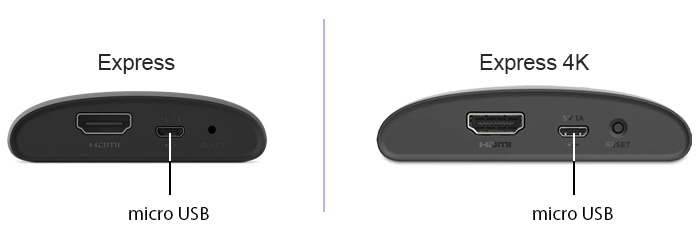
Use the following steps to connect a compatible Ethernet adapter to your Roku Express 4K, or Express 4K+.
- Disconnect the USB power cable from the USB port on your streaming player
- Plug your Ethernet adapter into the USB port on the back of your device
- Insert one end of a network cable into the Ethernet port on your adapter
- Connect the other end of the network cable into your router
- Connect your Ethernet adapter to a power adapter
- Plug the power adapter into a wall outlet
You are now ready to configure your streaming player for a wired internet connection.
Connect an Ethernet adapter to your Streambar
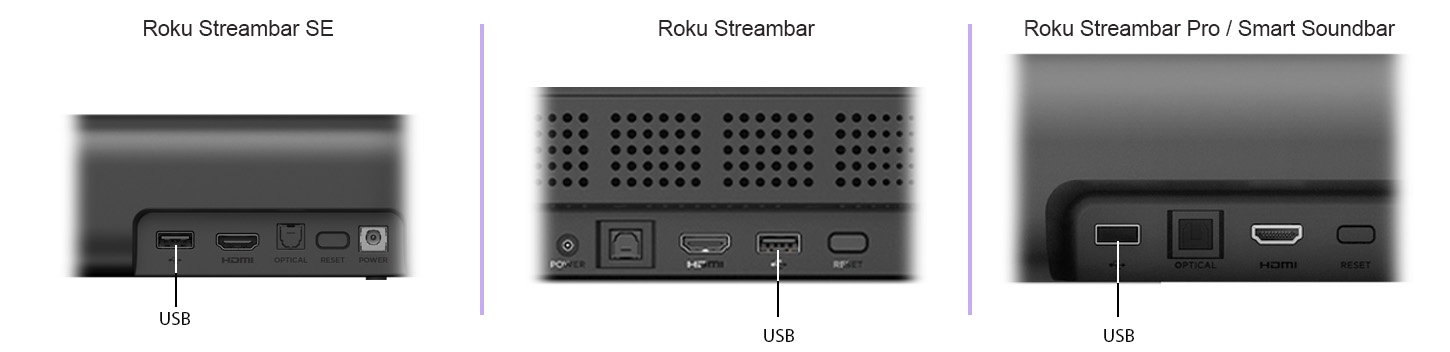
Use the following steps to connect a compatible Ethernet adapter to your Streambar.
- Plug your Ethernet adapter into the USB port on the back of your Streambar
- Insert one end of a network cable into the Ethernet port on your adapter
- Connect the other end of the network cable into your router*
You are now ready to configure your Streambar for a wired internet connection.
How to configure your Roku device
After the physical connection is made, you can configure the network connection during the initial setup of your Roku streaming device or you can do it at any time from the Settings menu.
Initial setup
If you are setting up your Roku device for the first time, you need to follow the on-screen setup process described in the setup articles below.
- Set up your Roku Express
- Set up your Roku Express 4K
- Set up your Roku Express 4K+
- Set up your Roku Streambar SE
- Set up your Roku Streambar
- Set up your Roku Streambar Pro or Smart Soundbar
Settings menu
If your Roku device is already set up with a wireless network connection, use the steps below to configure your device from the Settings menu.
Press Home

on your Roku remote
Scroll and select Settings
Select Network
Select Set up connection
Select Wired
Why is the Wired option not available?
When a compatible Ethernet adapter is detected, your Roku streaming device will automatically show the Wired option on the Network Connection Type screen. If you do not see the Wired option, refer to the previous sections in this article to check the following:
- Make sure you are using a supported adapter based on the guidelines provided earlier in this article.
- Make sure you are using a compatible Ethernet adapter
If your adapter and device are compatible, try the following troubleshooting steps.
- Unplug your Roku device from the power outlet
- Remove and reattach the Ethernet adapter
- When the adapter is firmly connected, power on your Roku device and try again
*A note on terminology:
To access your network and ultimately the internet, you will typically connect to a device called a router but it may also be referred to as a wireless router, wireless access point, home gateway or cable modem. In some cases, your internet service provider (ISP) may have provided you with a single integrated device that includes a cable modem and a router, or you may have purchased a stand-alone router from a company such as Linksys, NETGEAR, ASUS, Belkin or D-Link. In this article, the term router is used as a generic term to refer to the network device that your Roku device must connect to access the internet. For more information refer to the documentation provided by your ISP or router manufacturer.
Last updated at 3/24/2026 3:27:40 AM
Was this article helpful?
Related articles
Need more help?
