How to check the connection on your Roku streaming device
Your Roku® streaming player or Roku TV provides you with access to stream audio and video from the Internet. For this to work, your Roku device must maintain a good connection to your network. You can check the quality of this connection from the Settings menu on your Roku device at any time.
When to check your connection
- If your Roku player won’t finish setup or keeps saying it can’t connect
- Your shows and movies are always buffering, look choppy, or won’t start. Your Internet may be slow, or the signal is weak.
- Apps won’t open or content won’t load, and you see a Not connected message
- During activation, you are stuck on Downloading. This means your connection may be dropping.
- If you see network errors on screen, you may have poor coverage
How to check your connection
- Press Home
 on your Roku remote
 - Scroll and select Settings > Network > Check connection
- The device will test whether it sees your network and whether it can reach the Internet. You’ll see a green check mark next to each successful item. When the test is complete, you will see a pop-up with connection results.

Tip: If a stronger wireless signal is detected, you will see an on-screen message suggesting you connect to a recommended network. If the recommended network requires a different password, you will be prompted to enter one.
What to do if you see a red "X" wireless connection failure
This means Roku can’t reach your router or network. Try:
- Return to the Network menu, select Set up connection, and try to connect your Roku device to your network.
- If you are uncertain that you are selecting the correct network, get help finding the wireless network name and password.
- If you continue to have problems, learn what to do if your Roku device cannot access your home network.
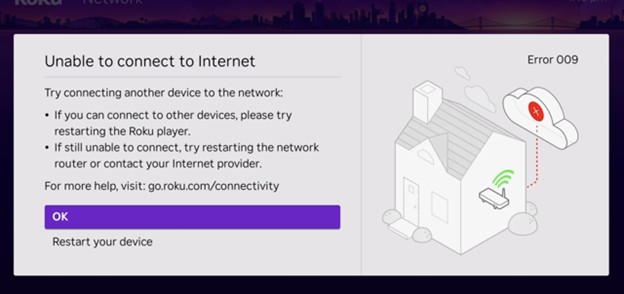
Help connecting (if the network is OK but you can’t reach the Internet)
This means your Roku device is connected to your router, but there is no Internet access.
Try:
- Open a web browser on another device (phone or computer) and visit a public website (e.g., www.roku.com). If it doesn’t load, you likely have an ISP outage.
- Confirm the Roku is connected to the correct Wi-Fi network.
- Restart your Roku device and your router. Unplug your Roku device from power, wait 30 seconds, then plug it back in. Do the same for your router.
- Contact your Internet service provider (ISP) to see if there’s an outage or something blocking your access.
Understanding connection results
You can view the latest connection test via Settings > Network > About.
- Excellent – Strong, stable signal. Streaming should be smooth with no buffering.
- Good – Reliable for most streaming. 4K or high-quality videos might buffer once in a while.
- Fair – Weak signal. You may notice pauses or drops in video quality. Move your Roku device closer to the router or remove walls/obstacles.
- Poor – Very weak signal. Frequent buffering or disconnects likely. Restart Roku device and router, move them closer together, or use a wired connection.
Internet download speed:
Shows whether your connection can support smooth streaming. Typical requirements:
- Standard Definition (SD): 3 Mbps
- High Definition (HD): 5 Mbps
- 4K Ultra HD: 25 Mbps or more
Note: If speed is “Good” but video still stutters, other devices may be using too much bandwidth. Also, apps like Netflix or Disney+ may have their own speed minimums, so check their requirements too.
Advanced fixes
- Many fixes begin with a full restart of both the Roku device and router. If you need help restarting your router, contact your ISP.
- If your router supports both 2.4 GHz and 5 GHz networks, try switching to the other.
- If your Roku player or TV has an Ethernet port, try using a wired connection as it’s more stable than Wi-Fi.
- Make sure your Roku device's software is up to date (Settings > System > System update).
- In extreme cases, reset your Roku to factory defaults, but only after trying everything else.
*A note on terminology:
To access your network and ultimately the internet, you will typically connect to a device called a router but it may also be referred to as a wireless router, wireless access point, home gateway or cable modem. In some cases, your internet service provider (ISP) may have provided you with a single integrated device that includes a cable modem and a router, or you may have purchased a stand-alone router from a company such as Linksys, NETGEAR, ASUS, Belkin or D-Link. In this article, the term router is used as a generic term to refer to the network device that your Roku device must connect to access the internet. For more information refer to the documentation provided by your ISP or router manufacturer.
Last updated at 3/24/2026 2:04:06 PM
Was this article helpful?
Related articles
Need more help?
