How to change the theme pack to adjust the look of the Roku® interface
From the color and style of the menus to the image that appears in the background to the screensaver and navigation sounds, a theme pack defines the overall look and feel of the Roku interface. Changing the theme pack is a simple way to personalize your Roku experience with a single selection. A default theme pack is included with your Roku streaming player or Roku TV™, while additional theme packs are available for free download from the settings menu on your Roku device.
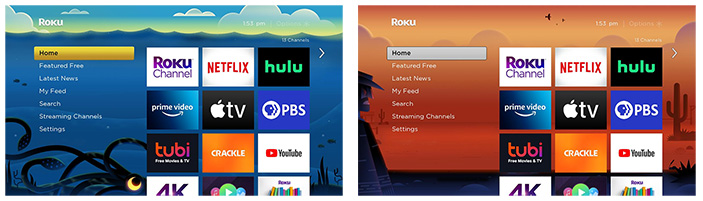
How to browse new theme packs or change the current theme pack
You can browse and change theme packs from the Settings menu using the steps below.
- Press Home
 on your Roku remote
 - Scroll and select Settings
- Select Theme
- Select Theme packs to browse the available options. When you see a white check mark, that theme pack is already installed on your Roku device. A green check mark designates the active theme pack.
- Tip: When browsing lists or tile grids, press Rewind
 or Fast forward
 on your Roku remote to jump up or down one page at a time.
- Tip: When browsing lists or tile grids, press Rewind
- Highlight a theme pack and press OK
 on your remote to open the description and details
 - If the theme pack is installed, you can select Set theme pack to switch to the wallpaper, screensaver, and navigation sounds all at once
- If the theme pack is not installed, you can see a preview by selecting View screenshots
- To install a new theme pack, select Get theme pack
- Note: If you have a Roku account PIN, you will be required to enter it. If you do not have a PIN and wish to keep other members of your household from adding theme packs, learn how to create a PIN for your Roku account.
- After the new theme pack is downloaded and installed, you can select Set theme pack to switch the wallpaper, screensaver, and navigation sounds all at once.
Once your Roku device is using the new theme pack, you can change individual elements such as wallpaper, screensaver, or navigation sounds. To do this, open the Theme menu using steps 1 through 3 above, and then go to Wallpapers, Screensavers, or Navigation sounds to browse and choose individual options.
Seasonal themes
On various occasions throughout the year such as Valentine's Day or Halloween, Roku releases seasonal themes that only appear for a short period of time; e.g. 3 days. Your Roku device will automatically display a seasonal theme and automatically switch back after it expires.
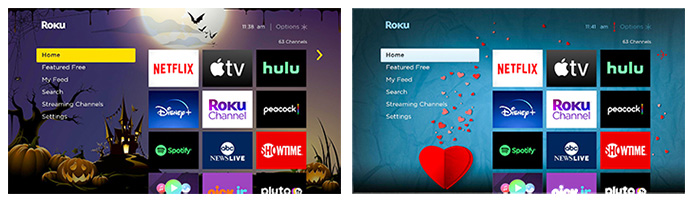
Seasonal themes are enabled by default. You can disable them using the following instructions.
- Open the Themes menu using steps 1 through 3 from above
- Select Seasonal themes
- Select Off to disable seasonal themes (or select On to enable them)
Other ways to personalize the Roku interface
In addition to selecting a theme pack, you can further personalize your Roku device by:
Last updated at 2/19/2026 7:35:41 PM
Was this article helpful?
Related articles
Need more help?
