How to cast apps like YouTube or Netflix from your phone to a TV
You can of course launch apps directly from your Roku streaming player or Roku TV™, but on some occasions, you may want to direct, or cast, to your TV what you are already watching on your mobile device. You can do this wirelessly with supported apps like YouTube and Netflix by opening the casting icon  on your phone or tablet and selecting your Roku device. The app will launch automatically on your Roku device and playback will begin.
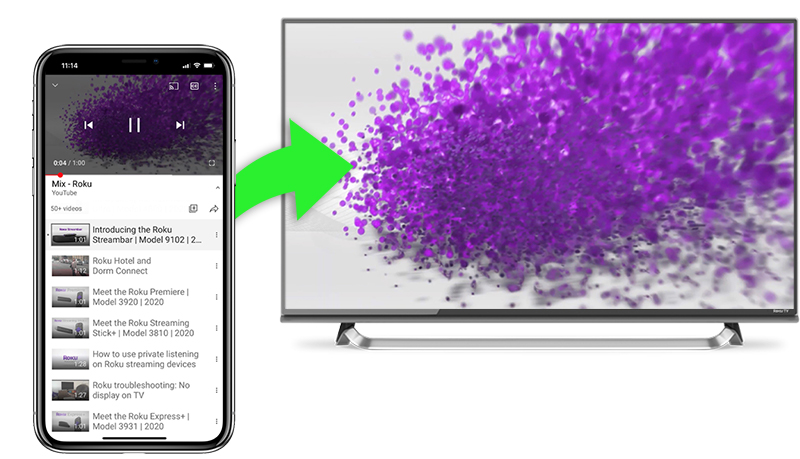
To use casting, the supported app must be installed on both your mobile device and your Roku streaming device. You must also make sure to connect your phone or tablet to the same wireless network as your Roku device.
Are casting and screen mirroring the same?
Even though the terms “casting” and “screen mirroring” are commonly interchanged in the industry, there are differences when using them with your Roku device.
- What content you can send. When casting, you can only watch content available from a mobile app that specifically supports casting. Screen mirroring allows you to view content from any app installed on your mobile device.
- What you see on your TV. With casting you only see playback of the selected piece of content, whereas with screen mirroring, you see the entire screen of your mobile device including buttons and menus – every action is mirrored on your TV.
- How you control playback. Casting gives you the option to use your mobile device for control or you can choose to use your Roku remote. During a screen mirroring session, all actions are controlled on your mobile device.
- Power state of your phone or tablet. Once playback begins, casting lets you use your mobile device to do something else or you can power it off entirely. Screen mirroring requires that your mobile device remain powered on for the duration of playback.
- Supported mobile devices. Casting is supported on most mobile devices – if you see a casting icon in an app, you may be able to send content to your TV (but not in all cases). Screen mirroring is limited to compatible Android™ and Windows® devices.
To learn more about replicating the screen from your compatible mobile device on your TV, review the detailed article about screen mirroring.
How to cast from a supported app
To begin casting, you need to install the app and matching mobile app and start playback. Refer to the instructions below for help.
- If not already installed, add the app to your Roku device.
- Install the matching mobile app on your phone or tablet.
Launch the app on your mobile device. You do not need to open the matching app on your Roku device to begin casting.
Select the casting icon from inside the mobile app.
With some apps, the casting icon may not appear until you begin playback on your mobile device.
From the list of available devices on your phone or tablet, select your Roku device.
The app will launch automatically on your Roku device and playback of the content will begin.
The app will launch automatically on your Roku device and playback of the content will begin.
During playback, you can use your mobile device to find and begin casting another program, do something entirely different, or turn it off completely – all without affecting playback on your Roku device.
Last updated at 3/10/2026 11:43:05 PM
Was this article helpful?
Related articles
Need more help?

Chat with us
Get help from our support bot or connect to an advisor.