Why can't I open the Streaming Store on my Roku streaming device or Roku TV?
If you're unable to open the Streaming Store on the home screen of your Roku streaming device or Roku TV, it's probably either a network issue or a problem with how your Roku device is linked to your Roku account.
Identify and resolve a network issue
Accessing the Streaming Store on your Roku streaming player or Roku TV requires a network connection. If you see the message below when attempting to open the Streaming Store, your Roku device may be unable to connect to your network.
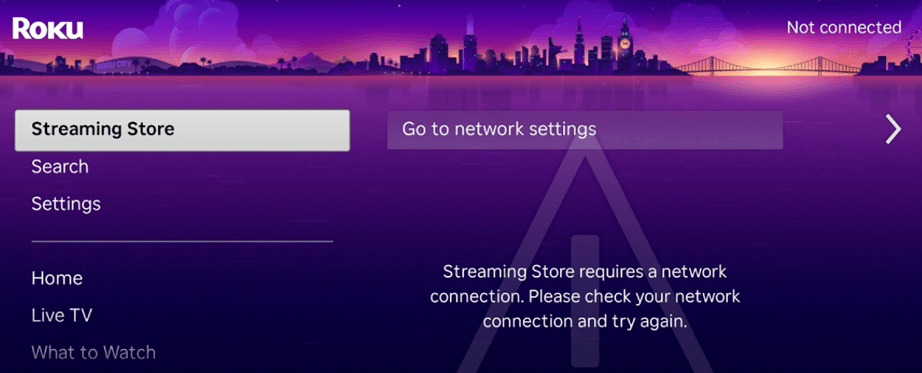
Before you begin troubleshooting, restart your Roku device. You can either unplug the power cable, wait a moment, and then reconnect it, or you can use the following steps to restart it from the Settings menu.
- Press Home
 on your Roku remote
 - Select Settings > System > Power (if you do not see a Power submenu, skip to the next step) > System restart
If you continue to see the message after performing the restart, it's safe to assume your Roku device cannot connect to your network. This may be expected if you recently switched your internet service provider, replaced a network device like a router or modem, or moved to a new residence. In these cases, the configuration of the network typically changes. Regardless of the issue, you can use the articles below to help identify and connect to your network, check the connection, and resolve network issues.
Check that your Roku device is linked to your Roku account
When you set up your Roku player or Roku TV to stream movies and TV shows over the internet, you're asked to sign in or create a Roku account to activate your device. In doing so, your Roku device gets linked to your Roku account, which stores what apps you've installed, as well as your preferences and settings.
If you see the message below when you attempt to open the Streaming Store, your Roku device was removed from your account and is no longer linked.

To resolve the issue, select Get Started from the message above and complete the activation process to link your Roku device to your account. If you prefer, you can factory reset your Roku device and follow along with the initial guided setup process.
Last updated at 3/18/2026 11:56:04 AM
Was this article helpful?
Related articles
Need more help?

Chat with us
Get help from our support bot or connect to an advisor.