Add, update, or remove the payment method in your Roku account
Add a payment method to your Roku account
On the Roku website:
- Sign in to my.roku.com
- Select Payment methods
- Enter your payment information and select Save
On your Roku device:
- Press Home
 on your Roku remote
 - Select Settings
- Select Payment method
- Select Add payment method and provide the required information
- For a credit or debit card: enter your payment information in each field as it appears on your credit or debit card and select Continue
- For Paypal: an email with a link will be sent connecting to your PayPal account
- For Apple Pay: either choose an email with a link or scan the QR code on your TV to connect to your Apple Pay account
Accepted payment methods:
Choose from a variety of options:
- Credit or debit card
- Apple Pay
- PayPal
- Cash App Pay
- Prepaid gift cards if the payment merchant (e.g., Visa, Discover) is accepted in your geographic region
Update the payment method in your Roku account
On the Roku website:
- Sign in to my.roku.com
- Select Payment methods
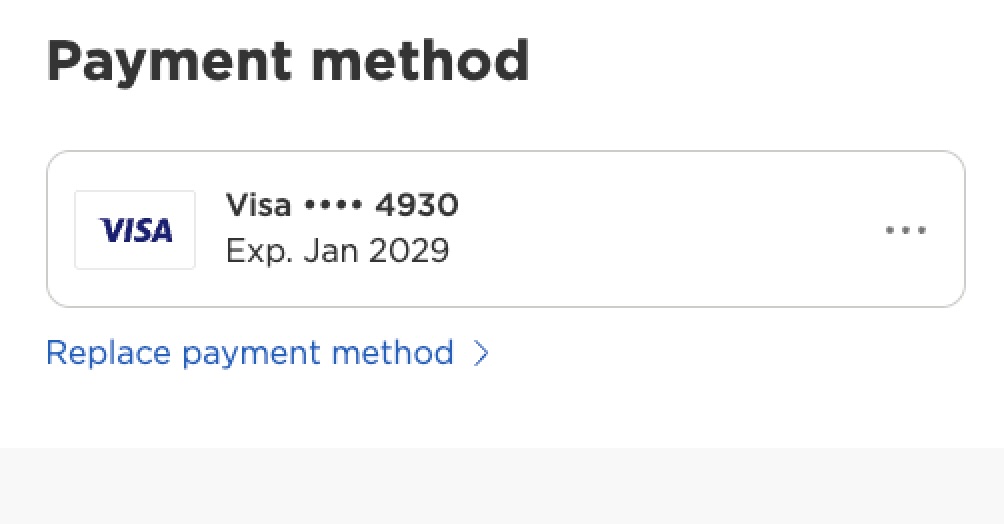
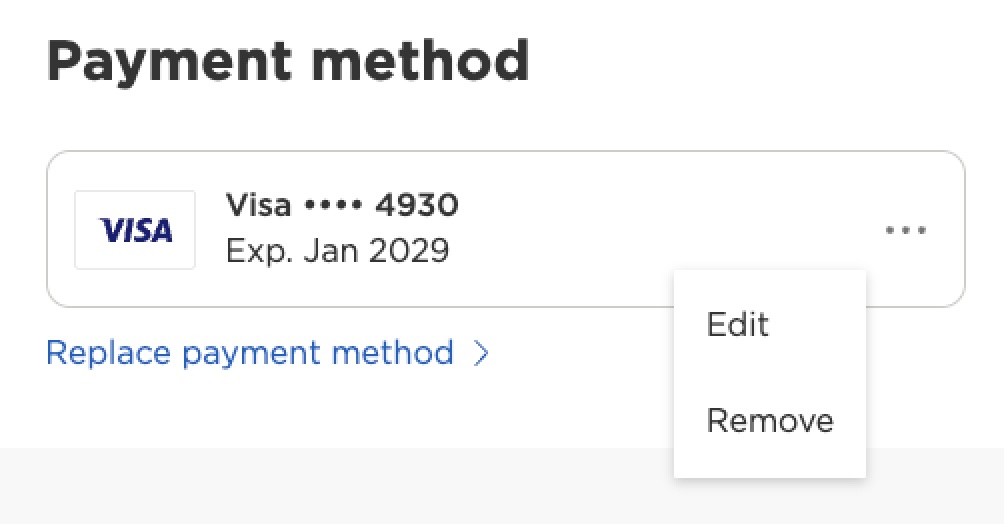
- Select the 3 dots on the right to make updates or select ‘Replace payment method’ to add a new payment method
- Select 'Edit' to update your payment method or 'Remove' to delete it
- Enter your updated information in the form and select 'Save'
On your Roku device:
- Press Home on your Roku remote
- Select Settings
- Select Payment method
- Select Update payment method
Remove the payment method from your Roku account
You can only remove the payment method from your Roku account on the Roku website.
- Sign in to my.roku.com
- Select Payment methods
- Select the 3 dots on the right to remove your payment method
- Select 'Remove'
Once your payment method has been removed, you’ll be prompted to update your payment information the next time you make a purchase.
Note: Before your payment method can be removed, you must cancel or turn off auto-renew for any active subscriptions billed through Roku.
Troubleshooting
If you run into more issues while adding or updating a payment method to your Roku account, try the following:
- Make sure you entered card numbers correctly
- Try a different card or PayPal account
- Make sure your card has not expired or needs to be updated
- Try a different web browser such as Chrome, Safari, or Firefox
- To add Apple Pay, only use Safari (Apple Pay is currently not supported on other browsers)
- Confirm your Roku device is connected to the internet by going to Settings > Network > Check connection
Message on your Roku device asking you to update your payment information
If you see a message that says, 'Your payment information needs to be updated before you can complete the process,' it means that Roku is unable to process or charge the payment method in your Roku account. This could be because your card has expired, information is incorrect, you've reached your credit limit, or other reasons. To resolve the issue, you need to update your payment method in your Roku account
Other Roku account and subscription resources
If you have questions aside from Roku payments, such as about your Roku account or subscriptions, view the following resources for help:
Last updated at 2/17/2026 11:47:54 PM
Was this article helpful?
Related articles
Need more help?
