How to set up your Roku Indoor Smart Plug SE
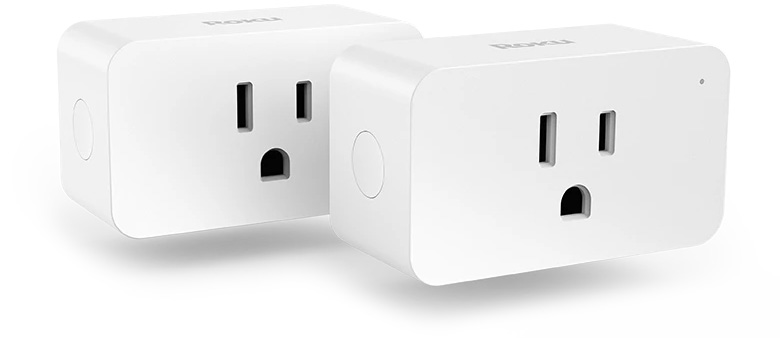
A Roku® Indoor Smart Plug SE lets you turn a light, fan, or other electrical device on or off anytime, from anywhere. Your smart plugs are easy to set up and offer helpful automation features like schedules and rules. You can even sync groups of smart plugs to power on an entire room at once.
Simply download and install the free Roku Home mobile app and use it to connect your smart plugs to your wireless network. You will be controlling and automating the smart home devices in your home in no time.
What you need for setup
In addition to each Roku Indoor Smart Plug SE, you will need the following:
- Power: Your smart plugs needs to connect to a 120V/15A power outlet.
- Wi-Fi®: Your plugs need a wireless network connection with WPA/WPA2 security standard.
- Smartphone or tablet: You will need to download and install the Roku Smart Home mobile app on your iOS® or Android™ mobile device to set up and control your smart plugs.
- Bluetooth: Enable Bluetooth® on your mobile device to set up your smart plugs.
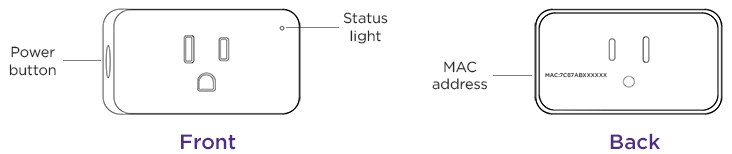
Before you begin, familiarize yourself with your smart plugs including the location of the status light. It is also important to make note of the MAC addresses which are required should you need to contact Roku Customer Support.
Where to install your indoor smart plugs
Your smart plugs can output up to 120V/15A of power when connected to a wall outlet in your home with many uses, including:
- Control your lights: Turn your smart plugs on or off from anywhere to power your lights on and off.
- Save electricity: Set a schedule for each smart plug to control when your device turns on or off to conserve energy.
- Reset your Wi-Fi router: Connect your router to a smart plug and power it off and on again from anywhere.
If you use a wall outlet that is controlled from a light switch, the smart plug will return to its last state when the light switch is turned on.

Note: The Roku Smart Plug SE is designed for indoor use only and is not weatherproof. Outdoor use voids the warranty.
Getting started
When you are ready, insert your indoor smart plug into a 120V/15A power outlet.
You can view the tutorial video below or check out the Quick Start Guide or follow along with the remaining steps in this article.
Quick Start Guide
 Roku Indoor Smart Plug SE (model PS1000)
What does the status light mean?
It is important to understand what the status light means as you power on your smart plugs and continue with the setup process.
| During setup | Status |
|---|---|
| BLUE - Slowly flashing | Connecting to Wi-Fi |
| BLUE - Quickly flashing | In pairing mode |
| BLUE - Solid | Connected and working |
| No light | Socket power is off |
Install the smart home app
The Roku Smart Home mobile app is a free application for iOS and Android that lets you set up, configure, and control your Roku home monitoring system, cameras, video doorbells, plugs, bulbs, and light strips. You can download the smart home app from the appropriate link below.

Connect your indoor smart plugs
Before you get started, make sure your smartphone or tablet has Bluetooth enabled and is connected to your 2.4GHz Wi-Fi network (e.g., MyNetwork_2.4GHz). Next, launch the Roku Smart Home app and create a new Roku account, or enter the username and password for your existing account. After you sign in, perform the steps below to connect each smart plug.
Add your smart plug
- Tap the plus sign
 from the navigation bar and select Add device
 - Select Lights & power and choose Indoor Smart Plug
- If you have not already done so, plug in your smart plug for it to enter pairing mode.
- If the status light is not flashing blue, press and hold the power button until it begins to flash. Then tap Next.
- Tap the plus sign
Connect to Wi-Fi
- Your 2.4GHz wireless network should be listed in the Wi-Fi network name pull-down
- Learn how to identify and connect to your 2.4GHz network
- Enter your password and tap Next
Finish setup
- The status light turns solid blue and your smart plug is ready to use
- Name your smart plug and press Finish
With the Wi-Fi connection, you will be able to control your smart plugs remotely. If you are using a smart plug without Wi-Fi, you can still turn devices on and off manually using the power button on the side of the smart plug.
Using your indoor smart plugs
When you are ready to learn more, check out some of the great features your Roku Indoor Smart Plug SE offers.
Last updated at 3/13/2026 4:32:29 PM
Was this article helpful?
Related articles
Need more help?
