Getting to know your Roku Voice Remote Pro
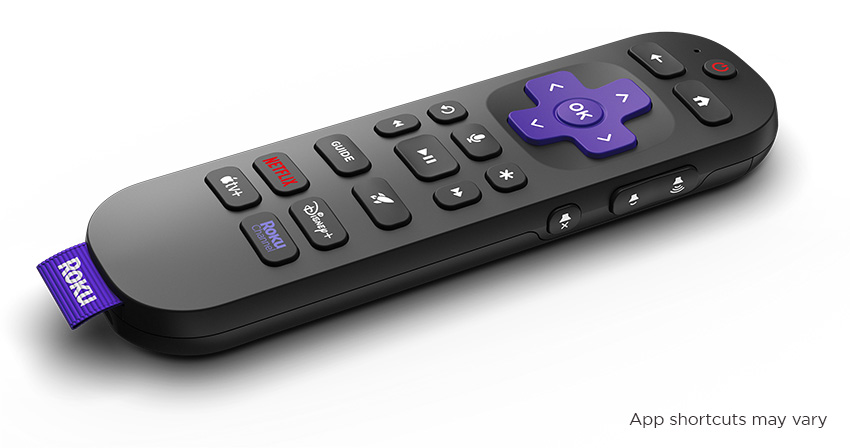
This article provides setup instructions and troubleshooting assistance along with information about using the various features for both versions of the Roku Voice Remote Pro.
How to set up and pair your Roku Voice Remote Pro
Review the steps below to pair your Roku Voice Remote Pro and set up your remote for TV control.
Pair your voice remote
Use the following steps to restart your streaming device.
- Remove the power cable from your streaming device
- Wait at least 5 seconds
- Re-connect the power cable
- Wait for your streaming device to power on, and the Home screen to appear on your TV
- On your remote, press and hold the Back
 and Home
 buttons for 5 seconds, or until you see the status light begin to flash.
When your streaming device finds your voice remote, an on-screen confirmation message will appear.

Tip: Visit the article with more detailed instructions and tips on how to set up and pair your Roku voice remote.
Set up TV control
When your Roku Voice Remote Pro is paired to a Roku streaming player, you can set up TV control with the following steps.
- Press Home on your Roku voice remote
- Scroll and select Settings
- Select Remotes & devices
- Select Remotes
- Select Voice Remote Pro
- Select Set up remote for TV control
- Follow the on-screen prompts to complete TV control set up
Tip: For more help with TV control, visit the article with detailed instructions on how to set up your voice remote to control a TV.
Is my Roku device compatible?
Your Roku Voice Remote Pro can be set up to control any Roku player, Roku Streambar® or soundbar, or Roku TV™ model shipped since 2017, along with a few older devices.
Your Roku streaming device must be running Roku OS 9.4 or higher. Go to Settings > System > About to check the software version or learn how to check for software updates on your streaming device.
Note: If your remote is not working, learn how to fix your Roku remote.
How to charge your Roku Voice Remote Pro
To charge your Roku Voice Remote Pro, connect the small USB-C or micro-USB end of the USB charging cable to the charging port on your remote and then connect the other end to a standard USB power adapter.
Review the following tips about charging your voice remote.
- Your Roku device displays an on-screen message when the rechargeable lithium-ion battery in your remote is getting low on power
- Your voice remote can be used while charging
- The status light flashes slowly when charging and turns solid when complete
How long does the battery last?
Review the battery estimates below for your specific remote.
- Roku Voice Remote Pro: From empty, a full charge takes 3 hours and typically lasts 2 months. Using Headphone Mode will drain the battery more quickly.
- Roku Voice Remote Pro (2nd edition): From empty, a full charge takes 5.5 hours and typically lasts 3 months.
How to use your Roku Voice Remote Pro
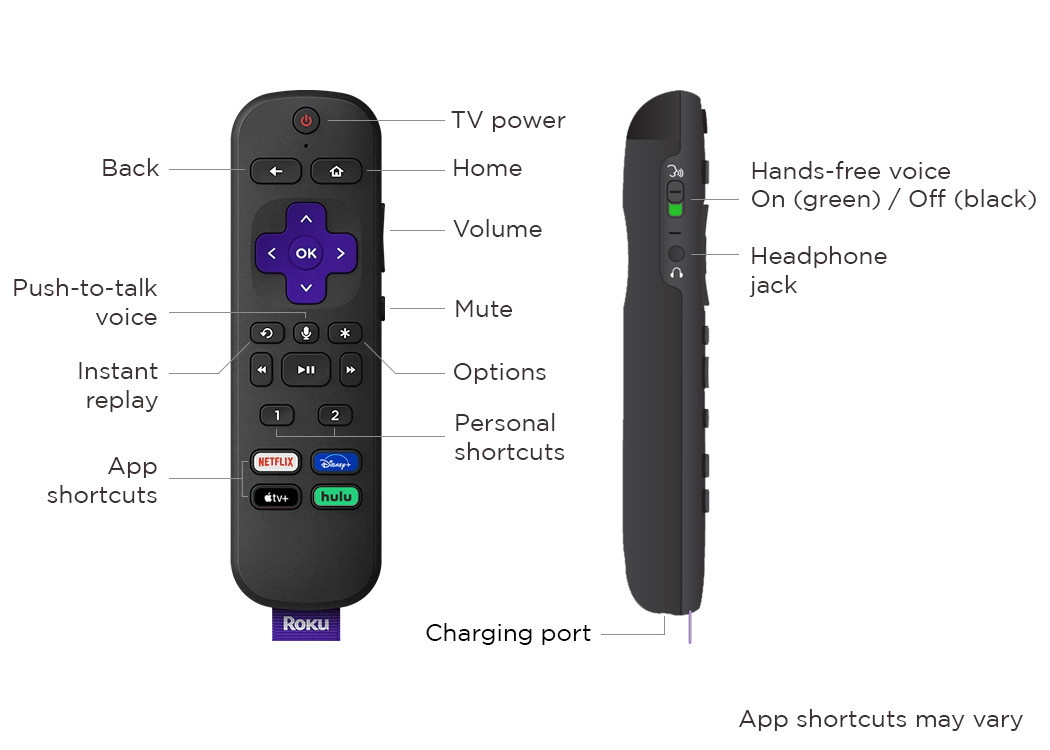
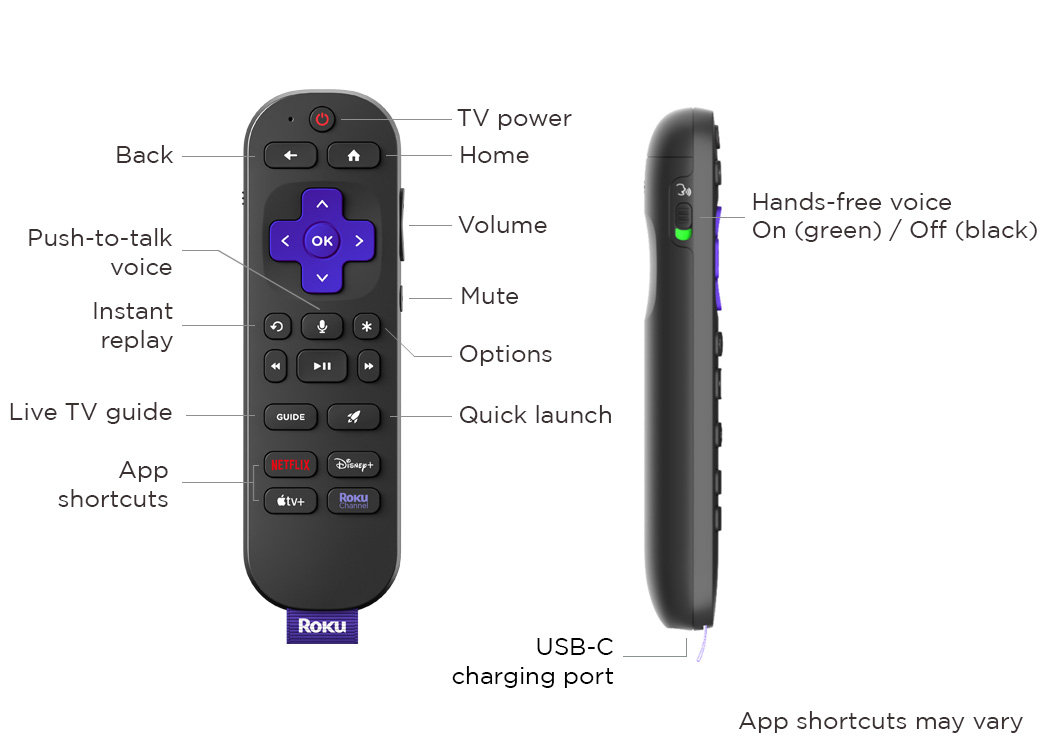
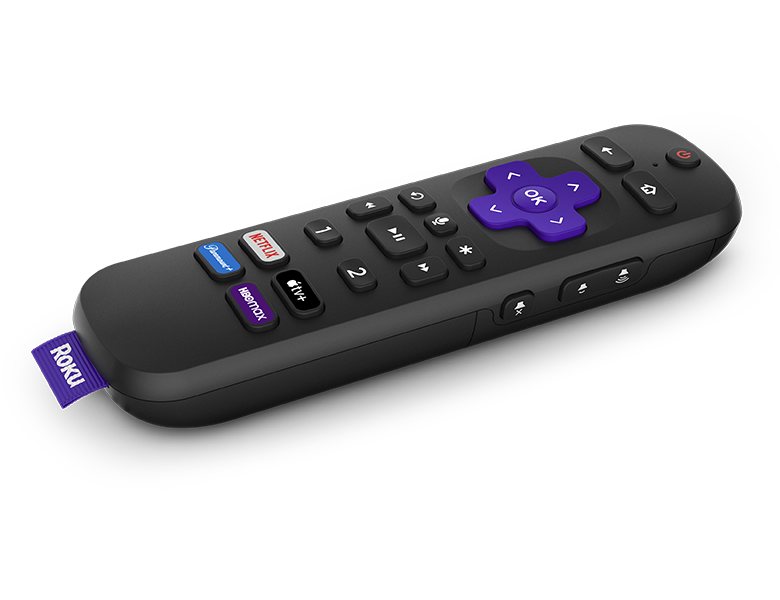
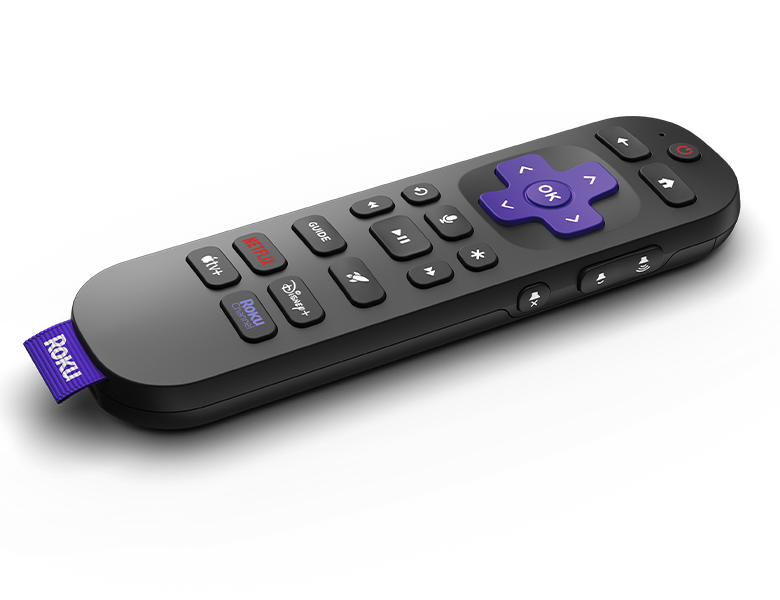
As you learn about using the various features available with your Roku Voice Remote Pro or Roku Voice Remote Pro (2nd edition), refer to the diagrams below to better understand the layout of your specific remote.
Roku Voice Remote Pro diagram
Roku Voice Remote Pro (2nd edition) diagram
Roku voice remote features
 Push-to-talk voice
All models have a voice button that allows you to search and control your streaming device with your voice. Simply press and hold the button and say a command like "search for comedies", "turn it up", or "launch The Roku Channel" in a conversational tone at normal volume. After you release the button, your streaming device will carry out your request, delivering you to the Roku Search screen or elsewhere within the Roku interface. For additional details, find out how to use the voice button for search and control or browse examples of various voice commands you can use.
 Hands-free voice
With a Roku Voice Remote Pro, you can use voice commands without pushing a button or handling your remote. Simply move the slider to 'green' to turn on hands-free voice, keep the remote nearby, and say a command like "Hey Roku, show me the news", "Hey Roku, turn captions on", or "Hey Roku, pause". For more help, learn about using hands-free voice for search and control or learn about the types of voice commands you can use.
 TV controls
Voice remotes with TV controls have dedicated buttons you can use to power on/off your TV and adjust volume. Some models also have a dedicated mute button. For help, learn how you can set up your voice remote to control your TV.
 Personal shortcuts
Create a personal shortcut and with the press of a single button, you can launch a popular streaming channel, open the Live TV guide, issue an often-used voice command, and more. Simply press and hold the '1' or '2' button for 5 seconds to create your first personal shortcut. To learn more, read the detailed article about creating a personal shortcut button.
 Quick Launch button
Personalize shortcuts to open any app, turn on closed captions, and more with the quick launch button. To learn more, read the detailed article about using the Quick Launch button.
 Live TV button
Start watching free live TV and local news with just one press. To learn more, read the detailed article about how to find TV listings using Live TV Channel Guide.
 Lost remote finder
Voice remotes with lost remote finder have a built-in speaker that plays a sound when you trigger the feature from your streaming device or the free Roku mobile app. If you have a Roku Voice Remote Pro and have hands-free voice turned on, you can say “Hey Roku, where’s my remote?” and it will play a sound letting you quickly find it. To get more help, review the detailed article about using lost remote finder.
 Headphone mode
When you do not want to disturb others nearby, plug your headphones into the audio jack on the side of select voice remotes and listen to your favorite entertainment while the speakers in the TV mute automatically. Use the buttons on the side of your remote to adjust volume and unplug your headphones when you want to turn off the feature. For more help, learn how you can use headphones with your remote for Headphone Mode.
 Backlit buttons
Always know what you are about to press with easy-to-see backlit buttons.
Compare Voice Remote Pro models
 |  | |
|---|---|---|
| Push-to-talk Voice | ||
| Hands-free Voice | ||
| TV Controls | ||
| Personal Shortcuts | ||
| Quick Launch Button | ||
| Live TV Button | ||
| Lost Remote Finder | ||
| Headphone Mode | ||
| Backlit Buttons |
Troubleshoot your Roku Voice Remote Pro
For additional help solving an issue with your Roku Voice Remote Pro or one of its features, refer to the detailed articles below:
- Setup and charging: How do I resolve issues with my voice remote?
- TV controls: Why is my voice remote not controlling my TV?
- Voice: Why is a voice command not recognized?
- Personal shortcuts: Why can I not create a personal shortcut?
- Lost remote finder: How do I change the lost remote finder sound?
- Headphone Mode: How do I resolve issues with Headphone Mode?
Last updated at 3/3/2026 2:05:41 AM
Was this article helpful?
Related articles
Need more help?
