Display content from your phone or tablet on a nearby TV with screen mirroring. Replicate, or mirror, the screen of your phone, tablet, or computer onto your TV screen. Display web pages, videos, photos, music, and more to your Roku® streaming device.
To use screen mirroring, first enable the feature on your Android™ or Windows® device, then request a connection to your Roku device. Once connected, you will see your mobile screen on your TV.
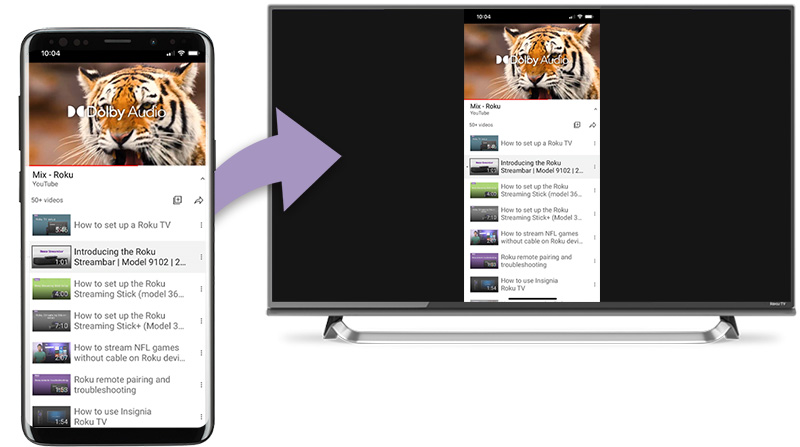
How to start a screen mirroring connection
Refer to the instructions below to start the screen mirroring connection on your Android or Windows device and then continue to the next section to confirm the screen mirroring connection on your Roku streaming device.

Tip: You can change how your Roku device appears in the list by setting the name and location.
How to screen mirror from an Android device
The steps below are for screen mirroring from a Samsung® Android phone. Your exact steps may vary depending on your Android phone model.
- On your Android device, pull down the status bar and tap Smart View. You may need to swipe to find the option.
- Select your Roku device from the Smart View menu to start the connection
- Follow the instructions on your Roku device to allow screen mirroring
Tip: Go to the "Does my Android device support screen mirroring?" section at the bottom of this article for help determining if your Android device supports screen mirroring.
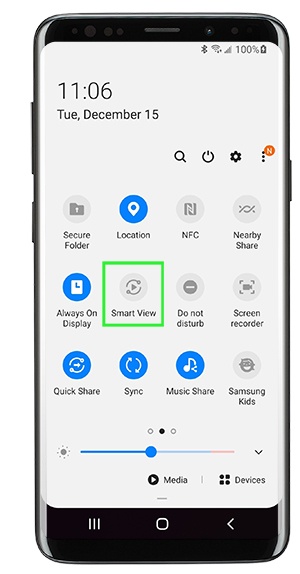
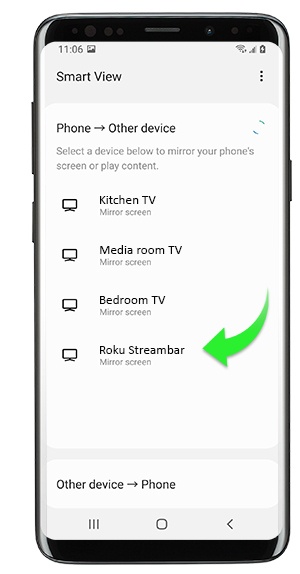
How to screen mirror from a Windows 10 computer
Use the following steps to connect your Windows 10 device to your Roku streaming device.
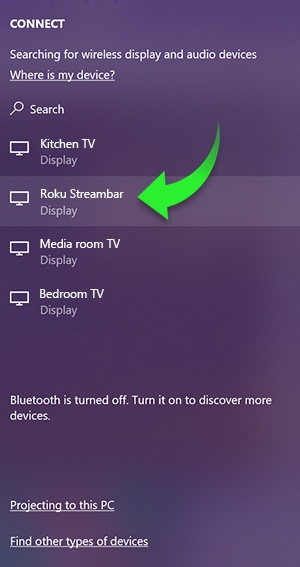
- From the taskbar on your Windows device, open the Action center
- Select the Connect button
- Select your Roku device from the list of wireless display and audio devices to start the connection
- Follow the instructions on your Roku device to allow screen mirroring
Note: If you are unable to find the Action center on your Windows device, you can also view the list of wireless display and audio devices from the Settings menu. Go to the Start menu on your Windows device and select Settings > System > Display > Connect to a wireless display.
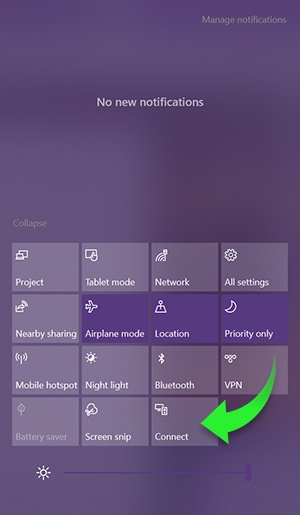
How to screen mirror from a Windows 11 computer
Use the following steps to connect your Windows 11 computer to your Roku streaming device and start screen mirroring.
- On your computer keyboard, press Win +K to open Quick Settings
- Click Connect to a wireless display
- Select your Roku device from the list of wireless display devices to start the connection
- Follow the instructions on your Roku device to allow screen mirroring
How to screen mirror from your iPhone, iPad, or Mac
Apple devices support AirPlay which lets you stream, control and share content from your iOS® device to your compatible Roku streaming device. You can watch movies, TV shows, and family videos, listen to popular music, or browse vacation photos. You can even mirror exactly what you see on your Apple device.
For more details and instructions, read the article about using AirPlay with your Roku device.
How to confirm the screen mirroring connection
Once you establish a connection between your Android or Windows device to your Roku streaming device, a screen mirroring request will appear on your TV screen. Using your Roku remote, select an option to allow the request.
- Always allow: Always allow content from the device to be screen mirrored to your Roku device without displaying the on-screen prompt during each future attempt. This adds the device to a list of allowed devices.
- Allow: Allow content from the device to be screen mirrored on your Roku device for the current session.
- Block: Block the current attempt and do not allow the device to connect to your Roku device.
- Always block: Always block an attempt from the device, and do not display an on-screen prompt for future attempts. This adds the device to a list of blocked devices.
After you accept a request and a screen mirroring connection is established, you can browse your Android or Windows device on the TV and watch content from the apps installed on that device. When you are playing content, use your Android or Windows device to play, pause, fast forward, and rewind.
When you want to stop using screen mirroring, you can simply press Home on your Roku remote and continue using your devices as you normally would. You can also deselect or disconnect your Roku device from the screen mirroring menu on your Android or Windows device to stop the connection.
Does my Roku device support screen mirroring?
Most current generation Roku streaming players and Roku TV models support screen mirroring. Some exceptions are listed below. To find the model of your Roku device, go to Settings > System > About.
- Roku Express: Screen mirroring is supported on models 3960, 3930, and 3900, but not on model 3700.
- Roku Express+: Screen mirroring is supported on models 3931 and 3910, but not on model 3710. On model 3910, screen mirroring is only supported on the HDMI output, and not on the composite, or A/V output.
Does my Android device support screen mirroring?
In general, if your device is running Android version 10.0 or later (and is not a Google branded device running OS 6.0 or later, like a Google Nexus or Pixel), it likely supports screen mirroring.
Common terms for screen mirroring include:
- Smart View
- Quick Connect
- SmartShare
- AllShare Cast
- Wireless display
- Display mirroring
- HTC Connect
- Screen casting
- Cast
If you are not certain your device supports screen mirroring, refer to the manufacturer's website or contact them directly. You can also try an internet search using the phrase “screen mirroring” along with your device's brand and model.
What other ways can I share content from my mobile device?
Other ways to share content from your mobile device include Apple AirPlay, and casting. Learn more about different ways to display media from your phone on your TV.
Last updated at 2/19/2026 6:57:30 PM
Was this article helpful?
Related articles
Need more help?
