Your Roku® voice remote control connects to your Roku streaming player or Roku TV™ system through a wireless process called pairing. Once paired, you can use all features, including Roku voice search. If you are setting up a Roku Touch® tabletop remote control, see Connecting and using your Roku Touch.
How to identify your Roku remote control
- Voice remote control: Has a voice button near the purple directional pad, with a microphone or magnifying glass icon.
- Simple remote control: No voice button.

Note: If unsure, check Tips for identifying your Roku remote.
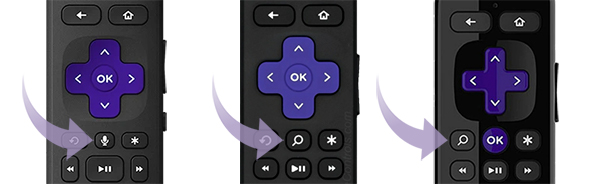
How to pair your Roku remote control during TV or player set-up
If your device came with a Roku voice remote control, follow the on-screen instructions during initial set-up to pair it. If you need help, see the steps below for putting your remote control in pairing mode.
Put your Roku device into pairing mode
Option 1: From Settings (requires another working Roku remote control or mobile app)
- Press Home on the working remote or in the Roku mobile app
- Go to Settings > Remotes & devices > Add devices > Remote > Continue
- Follow on-screen instructions
Option 2: Restart your Roku player or TV (no second remote control required)
- Unplug the power cord
- Wait at least 5 seconds
- Plug it back in
- When the Home screen appears, follow the steps to put your voice remote into pairing mode
Note: If you don’t have a remote, you can control your device with the Roku mobile app.
Putting your voice remote control into pairing mode
How to sync your Roku remote control with a pairing button:
- Found on the back or under the battery cover
- Press and hold for five seconds until the status light flashes
How to sync your Roku remote control without a pairing button:
- Press and hold the Back + Home buttons for five seconds until the status light flashes
If pairing fails, make sure that both the streaming device and remote control are in pairing mode simultaneously. For additional help, see How to fix your Roku remote control.
Using your Roku voice remote control
Voice controls:
- Push-to-talk: Press the voice control button, say a command, then release the button. Example: ‘Search for comedies’ or ‘Launch The Roku Channel.’
- Hands-free (Roku Voice Remote Pro): Turn on the slider to green, then say commands out loud. Example: ‘Hey Roku, show me the news.’
TV controls:
- Certain remote controls can control power and volume and mute the sound on your TV. Learn how to set up.
Shortcuts:
- Assign personal shortcuts with the 1 or 2 buttons.
- Quick launch button can open apps or toggle subtitles.
Other features:
- Live TV button: Access free live TV. Learn how.
- Lost remote control finder: Makes a sound via the remote control or mobile app.
- Headphone mode: Plug in headphones to mute TV speakers. Try it.
- Backlit buttons: See what you’re pressing in the dark.
Note: The voice remote does not need to be pointed directly at your Roku device.
Troubleshooting
- Remote control not pairing? Make sure that both the device and remote control are in pairing mode at the same time.
- Try restarting your streaming device and repeating the steps.
- If still not working, check for interference from other electronics, obstacles or the distance from the device.
- As a last resort, use the Roku mobile app to control your device.
Last updated at 7/9/2026 3:19:31 PM
Was this article helpful?
Related articles
Need more help?
