How to set up your Roku® streaming player for surround sound
What you need for surround sound
- A Roku player that supports surround sound such as Dolby Digital™ or DTS
- TV, soundbar, or receiver that supports surround sound
- Premium High-Speed HDMI cable (recommended)
- Supported audio formats (your Roku and sound system must support at least one)
Supported audio formats
Roku players can pass through:
- Stereo
- Dolby Digital
- Dolby Digital Plus
- (Some models) Dolby Atmos pass-through
- DTS (on supported models)
If your device only supports stereo, you will not hear surround sound.
Best way to connect your Roku player for surround sound
Option 1: TV supports surround sound
- Roku player > TV (HDMI)
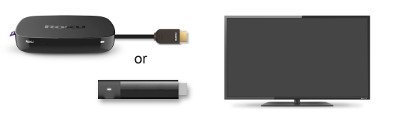
Option 2: Soundbar or receiver has HDMI
Some AVRs and soundbars are designed to be a single point where you can switch audio and video between your devices connected via HDMI (e.g., Roku player, cable box, game console). Refer to the manufacturer documentation to determine if your AVR or soundbar has this capability.
- Roku player > Soundbar/Receiver (HDMI IN)
- Soundbar/Receiver > TV (HDMI OUT)

Option 3: TV and sound system support ARC
ARC allows sound to travel back to your sound system from the TV.
- Roku > TV (HDMI)
- TV HDMI-ARC > Soundbar/Receiver HDMI-ARC

Troubleshooting
No sound or only stereo audio?
Try:
- Settings > Audio > Digital output format
- Switch from Auto to Custom
- Select the surround sound format your sound system supports, like Dolby Digital or DTS
- Check that all cables are firmly connected
- In streaming apps, choose 5.1 audio (example: Netflix > English 5.1)
- Turn Roku Volume Modes Off. This can force stereo.
- Restart your TV and sound system
No video?
- Make sure your TV is set to the HDMI port where your Roku is plugged in
- Ensure HDMI cables are secure
- If your Roku player connects through a soundbar or receiver:
- Roku player should plug into an HDMI input on the soundbar/receiver
- Another HDMI cable should go from the HDMI output on the soundbar/receiver to the TV
- Learn what to do if you can't see picture
Can't get 4K or HDR picture?
Make sure:
- You are using Premium High-Speed HDMI cables
- The HDMI port supports HDCP 2.2 / HDMI 2.0
- You’re using the TV input that supports 4K/HDR. Some TVs label them as 4K UHD, ARC, or Enhanced HDMI.
- You may need to enable your TV's input for HDR. The steps can vary based on TV brand. Contact the manufacturer and learn more about setting up HDR with your Roku player.
Still hearing stereo sometimes?
- Some content is stereo only
- Some apps only offer 5.1 on certain titles
- Your TV or soundbar may not support the audio format
Last updated at 3/3/2026 1:10:52 AM
Was this article helpful?
Related articles
Need more help?
