My Roku TV keeps restarting or is stuck on the logo screen
If your Roku TV keeps restarting, gets stuck on the logo screen, or loops during setup, this guide can help you get your TV working again.
Step 1: Identify issue
Follow this guide if your TV is doing one of the following:
- Shows the Roku or TV brand logo, then restarts again
- Screen stays dark and the power light flickers repeatedly
- Restarts while setting up (for example, after choosing a language, connecting to Wi-Fi, or signing in)
These issues usually mean the TV’s software didn’t load correctly or got stuck while updating.
Step 2: Try a simple restart or factory reset first
- To restart, unplug your TV from power for 60 seconds
- Plug it back in and turn it on
- If that doesn't work, Factory reset the TV
- Depending on your TV model, use one of these reset methods:
- Models with a Reset button: Press and hold the small recessed Reset button on the back of the TV for about 12 seconds, then release.
If your TV restarts before you can reach those options, move to the next step.
Step 3: Try Recovery Mode
Recovery Mode can help reinstall the Roku software. It’s a deeper reset that clears all data and reloads the Roku software.
To start Recovery Mode:
- Find the Reset button on the back or bottom of your TV
- Some TVs have a small pinhole; use a paperclip to press it
- Press and hold the Reset button for at least 20 seconds
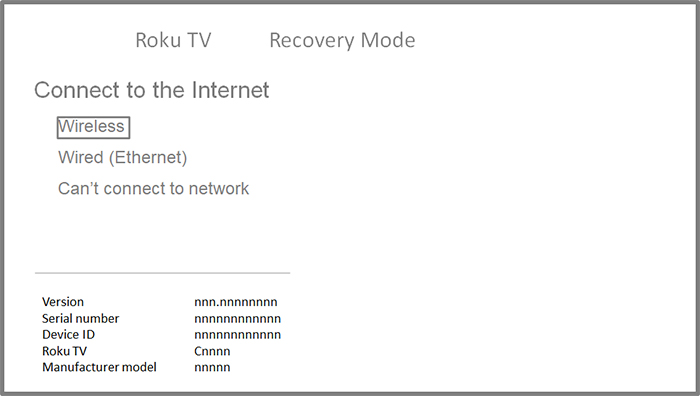
- Release the button when the TV restarts and shows a screen that says Recovery Mode
- If your TV doesn’t show this screen after 30 seconds, it may not support Recovery Mode or may need to be replaced. Contact Roku Support or your TV manufacturer for repair or replacement options.
Once you see Recovery Mode:
- Use your remote to pick your language
- Select Wireless to connect to Wi-Fi

Note: Some Wi-Fi passwords with special symbols (like $) may not work. If that happens, change your Wi-Fi password or try a mobile hotspot.
If you cannot connect to Wi-Fi: Update using a USB drive
If your TV can’t connect to Wi-Fi during Recovery Mode, it's possible to update your TV using a USB drive. Follow the steps on this page to do so.
Step 4: Can’t start Recovery Mode?
If your TV won’t go into Recovery Mode or still restarts after reinstalling software, contact Roku Support or the TV manufacturer if it’s made by a brand like TCL, Hisense, etc. Learn how to tell who manufactured your TV. Be prepared to check the device ID on the back of the TV or its box to help with troubleshooting.
Last updated at 3/13/2026 6:49:08 PM
Was this article helpful?
Related articles
Need more help?
