How to resolve an issue with private listening
Why does video stop and start?
If you activate private listening when video is already playing, playback will stop and restart as the video is synchronized with the audio in your headphones. To avoid this behavior, connect your headphones and activate private listening before you start streaming the movie or TV show.
Why is the headphone icon missing from the mobile app?
To activate (and deactivate) private listening on the mobile app, you can tap the headphones icon on the Remote screen.
If you do not see the headphones icon, it is likely caused by one of the following:
- You are running an old version of the Roku mobile app
- Your Roku device does not support mobile Headphone Mode
| If you have installed the latest version of the Roku mobile app and the headphone icon still does not appear, your Roku device does not support mobile private listening. | 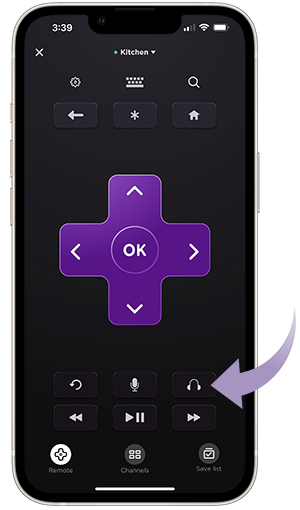 |
How many listeners can use private listening at one time?
When you need support for multiple listeners, use private listening on the Roku mobile app. Up to four mobile devices can be connected to a single Roku device for private listening.
Why is private listening not working on my Streambar®?
Private listening is only supported on your Roku Streambar when using its built-in streaming player. Private listening is not supported on this product when using an external device such as a game console, Blu-ray™ player, or cable/satellite set-top box; or when using a Bluetooth® device such as a smartphone or computer.
How to troubleshoot an audio issue
When using private listening with the Roku mobile app, review suggestions for the audio issues described below to help troubleshoot.
No audio is heard
- Confirm that volume is not muted or too low to hear.
- When using wired headphones, check that they are firmly plugged in.
- When using Bluetooth® headphones for mobile private listening, confirm that they are paired and connected to your phone or table. For help, visit the website for the manufacturer of your mobile device and/or headphones, or contact them directly.
- If you have more than one Roku device, go to the Devices page (in the Roku mobile app) and make sure you are connected to the correct device.
Audio is out of sync
If you notice that sound does not match the picture on your TV when using Bluetooth headphones for mobile private listening, make sure the latest version of the Roku mobile app is installed and then use the steps outlined below to adjust the audio delay.
- Open the Roku mobile app
- Tap Remote
 from the navigation bar
 - Tap the Headphone icon
 to activate private listening
 - Tap the Gear icon
 to open the Controls menu
 - Tap Adjust audio delay
- Tap Get started and follow the on-screen instructions
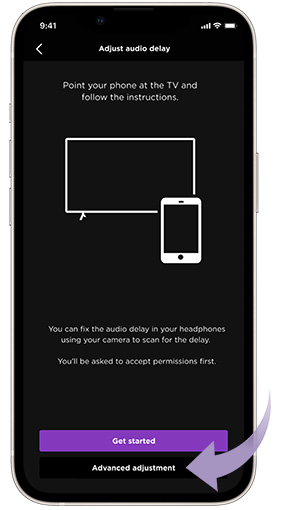 | If audio remains out of sync, repeat steps 1 through 5 above, and then select Advanced adjustment to access a slider bar you can use to fine-tune synchronization. |
Audio stutters and pops
If audio momentarily drops, stutters, or pops, or you continue to hear other audio issues, try the suggestions below.
- When using wired headphones, check that they are securely connected by removing and firmly reinserting them.
- When using Bluetooth headphones for mobile private listening, try re-pairing them to your phone or tablet. For help, visit the website for the manufacturer of your mobile device and/or headphones, or contact them directly.
- Check that your headphones are working properly by listening to them on another device.
- Stop and resume the movie or TV show you are watching.
- If you are using the Roku mobile app, turn private listening off and back on again. If restarting the private listening session like this does not work, close and reopen the Roku mobile app and try again.
- Restart your Roku device by unplugging the power cable, waiting a moment, and then reconnecting it.
- If possible, try a different pair of headphones.
If audio problems continue, check your network
Because audio for private listening uses the same wireless network as other devices in your home, it is possible that traffic to/from other devices on the network are impacting the quality of the audio. While using private listening, make sure no other devices on the wireless network are downloading or streaming music or video.
If you are still having audio problems, try the following:
- Unplug the power from your Roku device.
- Restart your router* by unplugging the power cable from the router, waiting 10 seconds and re-connecting. If possible, check the instructions from your ISP or router vendor as restarting may require that you press a reset button on the device. This will momentarily disconnect your Roku device and your mobile device from the network. Wait a few minutes while your router re-establishes the internet connection.
- Reconnect the power cable to your Roku device.
Pro networking tips
The following suggestions should only be attempted if you are familiar with the topic and comfortable working with your networking equipment.
- Check the user manual for the router or contact the router manufacturer to see if your router supports 5GHz. If it is supported, make sure the 5GHz network is enabled, then go to Settings > Network > Set up connection > Wireless and connect your Roku device to the 5GHz wireless network (e.g., MyNetwork_5GHz). You will also need to connect your mobile device to the same 5GHz wireless network.
- Check the user manual for your router or contact the manufacturer to see if it supports Wi-Fi Multimedia (WMM). Disabling this feature may improve audio performance.
*A note on terminology:
To access your network and ultimately the internet, you will typically connect to a device called a router; but it may also be referred to as a wireless router, wireless access point, home gateway or cable modem. In some cases, your internet service provider (ISP) may have provided you with a single integrated device that includes a cable modem and a router, or you may have purchased a stand-alone router from a company such as Linksys, NETGEAR, ASUS, Belkin or D-Link. In this article, the term router is used as a generic term to refer to the network device that your Roku device must connect to access the internet. For more information refer to the documentation provided by your ISP or router manufacturer.
Last updated at 3/25/2026 7:18:57 PM
Was this article helpful?
Related articles
Need more help?
