What to do if you see an “HDCP Error Detected” message or a purple screen
When devices used for watching movies and TV shows are connected using HDMI® cables, each device must support the copy and content protection known as HDCP. If your Roku® streaming player detects that the HDMI link with your TV, audio/video receiver (AVR), or soundbar does not support HDCP, an "HDCP Error Detected" message or purple screen like those seen below may be displayed.
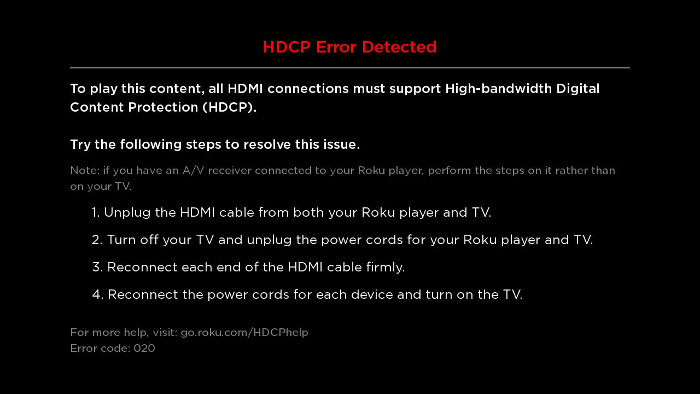
Similarly, if you are watching The Roku Channel on your computer with an external monitor, and it detects that either the monitor or HDMI cable does not support HDCP, an "HDCP Error Detected" message may appear.
This article explains how to troubleshoot and resolve the issue if an HDCP error is detected when using your Roku player or when watching The Roku Channel on an external computer monitor.
What is HDCP?
HDCP is the copy and content protection standard used by the movie and TV industry. Copy protection/content protection has been around for a long time, and in its early stages was what prevented you from copying commercial VHS tapes. The latest copy protection technology is called HDCP (High-bandwidth Digital Copy Protection), and it is used on HDMI connections for digital devices like Blu-ray™ players, cable boxes and Roku streaming devices. It is also used when watching Hollywood content on an external monitor connected to a computer.
If you are streaming 4K Ultra HD (UHD) or HDR content on these devices, a newer version of the copy protection technology, known as HDCP 2.2, is required. Learn more about HDCP 2.2 and why it is important to playing 4K UHD or HDR content.
What to do if you see "HDCP Error Detected" on your Roku player
If you see the "HDCP Error Detected" message or purple screen when you are specifically trying to stream 4K UHD or HDR content on your Roku player, you should review the instructions and requirements for:
If you see either error screen when attempting to watch any content on your Roku player, perform the following set of steps to help resolve the issue.
- On both your Roku player and TV, AVR, or soundbar, unplug each end of the HDMI cable.
- Power off your TV, AVR, or soundbar, and unplug its power cord.
- Remove the power cord from your Roku player.
- Reconnect both ends of the HDMI cable, making sure each connector is attached firmly and securely.
- Reconnect the power cord to your TV, AVR, or soundbar, and your Roku player and wait for both devices to power on (you may also need to press the power button on your TV, AVR, or soundbar remote).
- Try viewing the content again.
If the issue continues after attempting the instructions above, try the additional suggestions below.
- Try a different HDMI input on your TV, AVR, or soundbar.
- Try using a different HDMI cable (less than 6 feet if available), just to make sure the cable you are currently using does not have any defects.
- If you are using an HDMI switch, AVR, or soundbar, try connecting your Roku player directly to your TV.
- Note: Not all HDMI switches support HDCP. To check your device, review online documentation, or contact the manufacturer for more information.
- Try another TV that supports HDCP, if possible.
- If you are using a computer monitor, try using a TV that supports HDCP, if possible.
- Try using different display settings on your Roku player. You can find these settings under Settings > Display type.
- If you are seeing the "HDCP Error Detected" message or purple screen for the first time after setting up your Roku player, ensure that your TV and/or AVR or soundbar supports HDCP. Review online documentation for each device, or contact the equipment manufacturer for more information.
What to do if you see "HDCP Error Detected" on your computer
If you see the "HDCP Error Detected" message when trying to watch The Roku Channel on your external computer monitor, disconnect the HDMI cable to your external monitor and try watching the same content on your computer screen if possible (e.g. a laptop screen). If the content plays without issue on your computer screen, try reconnecting the HDMI cable making sure each connector is attached firmly and securely. If you continue to see the "HDCP Error Detected" message, try the suggestions below.
- Try a different HDMI input on your external monitor, if available.
- Try using a different HDMI cable (less than 6 feet if available), just to make sure the cable you are currently using does not have any defects.
- Try another external monitor that supports HDCP, if possible.
- Try connecting your computer to a TV that supports HDCP, if possible.
- If you are seeing the "HDCP Error Detected" message for the first time after connecting your computer to your external monitor, ensure that both devices support HDCP. Review online documentation for each device, or contact the equipment manufacturer for more information.
Last updated at 2/18/2026 3:18:17 AM
Was this article helpful?
Related articles
Need more help?
