How to find the serial number or device ID for your Roku® device
Every Roku streaming player, Roku audio device, and Roku TV™ has a unique serial number and device ID that you may need when contacting Roku for customer support or product service. You can find the serial number or device ID on the physical device itself, from the Settings menu, or on the original packaging. For some products, you can also find this information using the free Roku mobile app for iOS® and Android™.
On the physical device
Roku player or Roku audio device
Each Roku player and Roku audio device has its serial number or device ID printed on the bottom or back of the product. On some, the information is printed onto a product label that is attached to the player or audio device. On others, the information is printed directly onto the player or audio device.
- Note: If you have a Roku Streaming Stick®, it can be difficult to distinguish which side is the bottom versus the top. Check all sides of your Streaming Stick when looking for the serial number or device ID.
Roku TV
Placement of the serial number or device ID varies by manufacturer, but you can often find this information on the back of your Roku TV. If you cannot easily locate the serial number or device ID, get more help on the support website for the manufacturer of your TV.
From the Settings menu
Roku player, Roku Streambar, or Roku TV
If you have a Roku player, Roku Streambar®, or Roku TV and your device is in use, you can open the Settings menu using the steps below to find the serial number and device ID.
- Press Home
 on your Roku remote
 - Scroll and select Settings
- Select System
- Select About
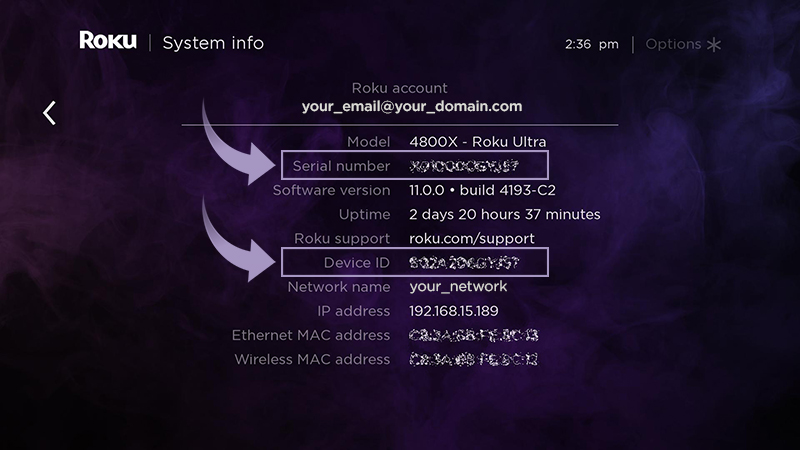
The About screen lists a lot of information about your Roku device. Look for the fields labeled Serial number and Device ID (highlighted below).
On the original packaging
Roku player or Roku audio device
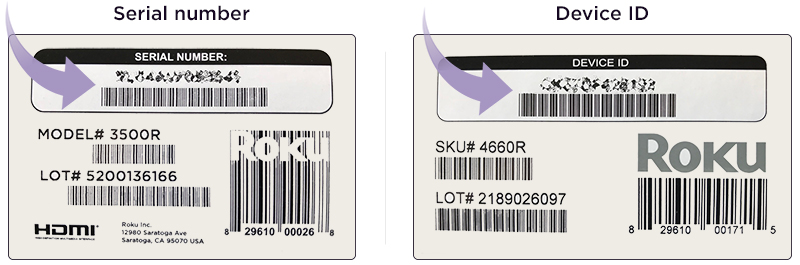
If you have the original packaging for your Roku player or Roku audio device, the serial number or device ID can be found on the product label near the UPC code.
Roku TV
If you have the original box your Roku TV was packaged in, carefully examine all sides for the serial number or device ID. If you have trouble finding it, visit the help pages for the manufacturer or contact them directly.
In the Roku mobile app
Roku player, Roku Streambar, or Roku TV
If not already installed on your mobile device, download the free Roku mobile app for iOS and Android. To use the Roku mobile app, make sure your mobile device is connected to the same wireless network as your Roku player, Roku Streambar, or Roku TV. Follow the instructions below to view the serial number and device ID.
- Launch the Roku mobile app
- Select Devices
 on the bottom navigation bar
 - Tap on the device you wish to connect to. Learn what to do if you do not see your device.
- Tap Options ••• next to the connected device
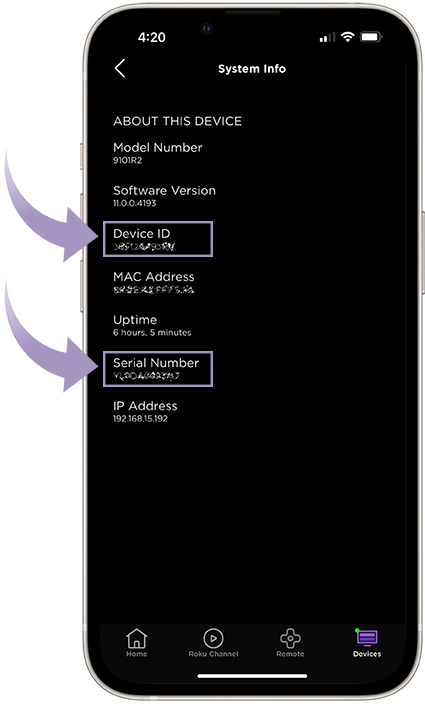
- Tap View System Info to see the Serial Number and Device ID
Last updated at 2/18/2026 3:18:26 AM
Was this article helpful?
Related articles
Need more help?
