How to find your Roku remote using the lost remote finder feature
A feature called lost remote finder can help you locate your compatible Roku® remote the next time it gets stuffed behind a couch cushion or misplaced somewhere else in your home. When you trigger the feature from a hands-free voice command, the free Roku mobile app for iOS® and Android™, your Roku streaming device, or your TV powered by Roku OS, your remote plays a sound so you can quickly find it.
This article helps you determine if your remote supports lost remote finder and explains how to use the feature and adjust its settings.
Does my remote work with lost remote finder?
Lost remote finder is supported on any Roku voice remote with a built-in speaker, such as the Roku Enhanced Voice Remote and Roku Voice Remote Pro (2nd edition). To determine if your voice remote is compatible, look for small speaker holes on the back of your remote. If you do not see any speaker holes and wish to use lost remote finder, you can purchase an upgraded remote on the Roku accessories store.

Tip: For more help identifying your remote, learn more about the different types of Roku remotes and their features.
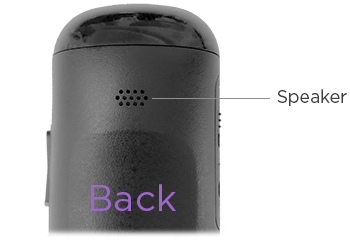
How to trigger lost remote finder
You may be able to trigger lost remote finder using a hands-free voice command, the Roku mobile app, or the lost remote finder button on your Roku streaming device.
After you trigger lost remote finder, your remote plays a sound for up to 60 seconds. When you locate your remote, press any button to stop the sound. Your remote will not play the lost remote finder sound if the alkaline batteries are dead or the rechargeable battery is too low, or if the remote is out of range of your wireless network.
Trigger lost remote finder with hands-free voice command
If you have a Roku Voice Remote Pro or Roku Voice Remote Pro (2nd edition), you can trigger lost remote finder by saying "Hey Roku, where's my remote?" in a clear and direct conversational tone. If hands-free voice was not turned on when your remote was misplaced or your remote could not hear your command, you must use one of the other methods to trigger the feature.
Tip: For help using hands-free voice, read more about how you can use your voice to search and control your Roku device.
Trigger lost remote finder in the Roku mobile app
After you install the free Roku mobile app on your phone, you can open it and trigger lost remote finder in one of the following ways.
Use the following steps to trigger the lost remote finder in the app.
- Select the Devices
 icon from the navigation bar
 - Tap on your Roku device to connect to it
- Next to your connected device, tap the three dots
 and select Ping Remote
Alternatively, you can use the mobile app like a remote to activate the lost remote finder in the Settings menu.
- Select the Remote icon
 from the navigation bar to control your Roku device
 - Press HOME
 to go to Home screen on your streaming device
 - Select Settings
- Select Remotes & devices
- Select Remotes
- Select your remote
- Select Find remote
Trigger lost remote finder on your streaming player
Some devices, such as Roku Ultra, have a physical lost remote finder button located on the top or side of the player. Press this button to trigger lost remote finder.
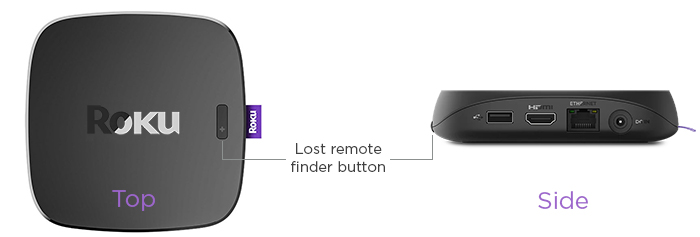
Trigger lost remote finder on your TV powered by Roku OS
There are various methods of triggering the lost remote finder on your TV powered by Roku OS. Follow the instructions below that match your TV. Note that some Select Roku TVs do not have a button control and only have a power button.
If your TV has a single button control:
- Press the button to open the Inputs menu
- Press the button again until you highlight Find Remote
If your TV has a three button control:
- Press the middle button to open the Inputs menu
- Press the button again until you highlight Find Remote
If your TV has a joystick-style control:
- Move the joystick to the left or right to open the Inputs menu
- Move the joystick right to scroll down and highlight Find Remote
If your TV has a column of labeled panel buttons:
- Press the INPUT button to open the Inputs menu
- Press the INPUT button again until you highlight Find Remote
If you have a Roku Pro Series TV:
- Press the Find My Remote button located on the right side of the TV (located above the power button).
Note: The panel button(s) on some models might be difficult to find. If the location is not obvious, check the bottom center of your TV behind the status indicator LED, or the back panel of your TV near the lower right or left side.
How to change the lost remote finder sound
From the Settings menu on your Roku device, you can change the sound your remote plays when the feature is triggered using the steps below.
- Press Home
 on your Roku remote
 - Scroll and select Settings
- Select Remotes & devices
- Select Remotes and then select your voice remote
- Select Change remote finder sound
- As you move up and down the list, remain on a selection for a moment to hear a sample played on your TV speakers. When you find a sound you like, press OK
 to download it to your remote.
 - To hear the new sound played on the speaker in your remote, select Preview remote finder sound.
Note: Not all remotes support changing the remote finder sound.
Last updated at 2/19/2026 7:58:16 PM
Was this article helpful?
Related articles
Need more help?
