How to turn on Bluetooth pairing and connect your phone to your Roku device
Getting started streaming Bluetooth® audio to your Roku® streaming device is just two simple steps – pairing your smartphone, tablet, or computer the first time and then connecting your device whenever you want to use it. The Bluetooth app on your Roku device will automatically launch once you start playing music, podcasts, or other audio.
Which Roku devices are compatible?
You can connect a Bluetooth-capable smartphone, tablet, or laptop to the following Roku devices.
How to pair your Bluetooth device
Before you can begin streaming Bluetooth audio, you need to pair your smartphone, tablet, or computer to your compatible Roku streaming device. Roku devices save pairing information, even when your devices are powered off, so usually you only need to pair your Bluetooth device one time.
Use the following instructions to start the pairing process on your Roku device.
- Press Home
 on your Roku remote
 - Scroll and select Settings
- Select Remotes & devices
- Select Smartphones & tablets
- Select Add a new smartphone or tablet
To complete the pairing process, follow the steps below when you see the pairing screen on your smartphone, tablet, or computer
- Open Bluetooth settings on your smartphone, tablet, or computer
- Make sure Bluetooth is turned on
- Wait a moment for your Bluetooth device to scan for devices and discover your Roku device
- Select your Roku device from the list of available devices
After you complete the pairing process, your Roku device will appear in the list of paired devices on your smartphone, tablet, or computer. In addition, your Bluetooth device will appear under Smartphones & tablets on your Roku device.
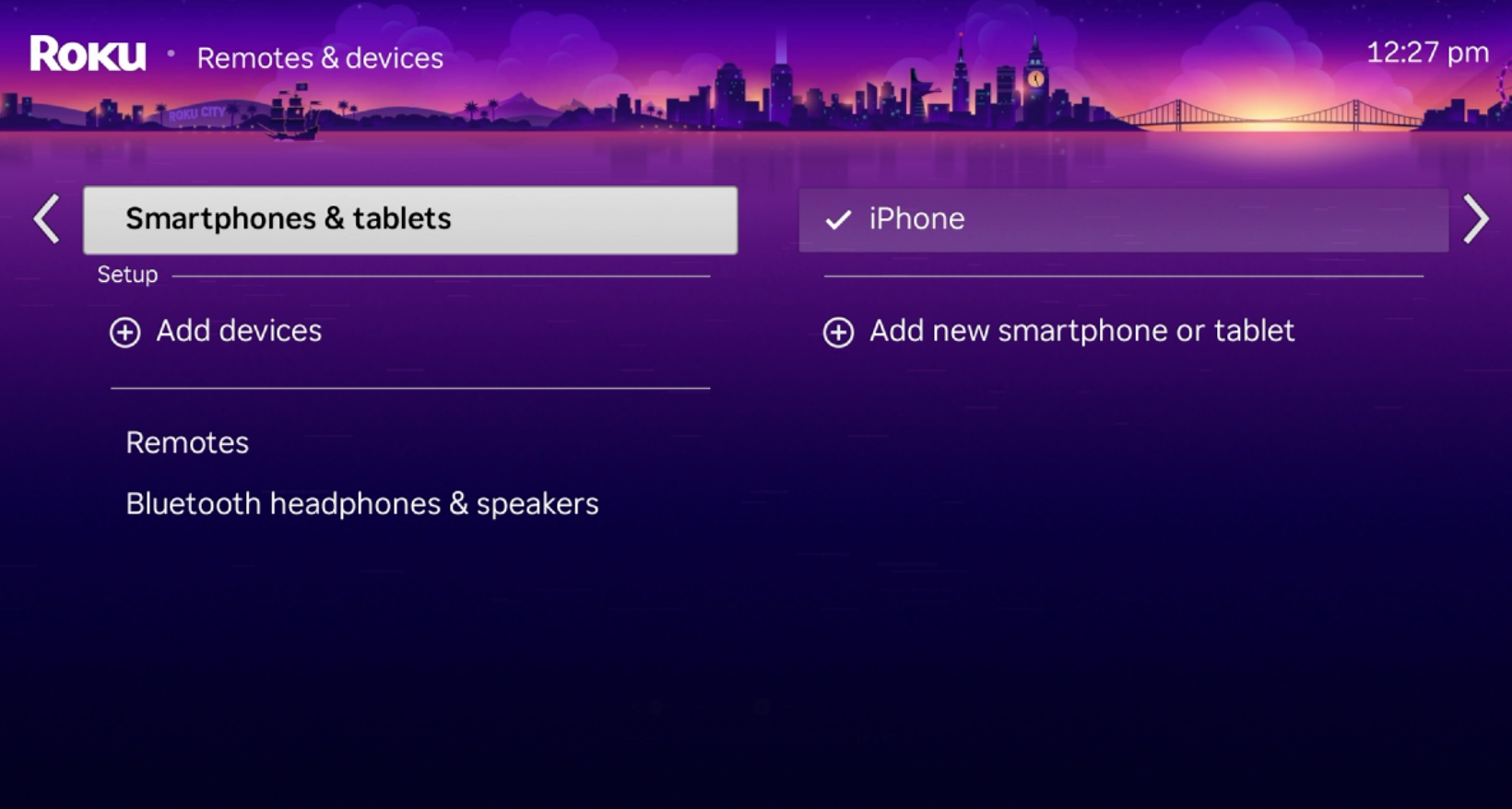
How to connect your Bluetooth device and stream audio
When you initially pair your Bluetooth device, it may also connect automatically to your Roku device. When it is connected, you will see a check mark next to your Bluetooth device. A similar indicator should also appear on your smartphone, tablet, or computer in the list of paired devices near the name of your Roku device. Once you see that your smartphone, tablet, or computer is connected, you are ready to begin streaming Bluetooth audio.
Stream audio over Bluetooth
- Once your Bluetooth device is connected, begin playing audio on your smartphone, tablet, or computer.
- The Bluetooth app on your Roku device will automatically launch.
- As you listen to audio streaming from your Bluetooth device, the Bluetooth app will display information about the content streaming.
- To stop streaming Bluetooth audio, just exit the Bluetooth app on your Roku device or disconnect your Roku device from the Bluetooth settings menu on your smartphone, tablet, or computer.
Manually connect your Bluetooth device
Use the following steps to connect your Bluetooth device if it isn't automatically connected
- Open the Bluetooth settings on your smartphone, tablet, or computer.
- Select your Roku device from the list of paired devices.
How to fix Bluetooth audio issues
Refer to the articles below for help with any Bluetooth streaming issues.
- If you encounter any issues during setup, learn more about what to do to resolve problems when connecting a Bluetooth device.
- If you do not hear sound from your Roku device, adjust the volume with your Roku remote, or press and hold the Voice button
 on a voice remote and say something like "volume 20" or "turn up the volume".
 - If you continue to have problems, learn what to do if your Bluetooth device is connected but no sound is heard.
How to turn off the TV screen while using Bluetooth
Enable a feature called Fast TV Start to stream audio even when the screen is off. Learn about Fast TV Start to understand other ways you can use your TV when the screen is off.

Note: Fast TV Start uses significantly more power than normal standby and overrides default power settings.
When using any other Roku streaming device you can simply power off your television using your TV remote and Bluetooth audio will continue playing. You can also begin playing Bluetooth audio on your smartphone, tablet, or computer when the TV screen is already off. Just make sure to connect your Bluetooth device to your Streambar or soundbar before you begin.
How to disconnect a Bluetooth device
Use the steps below when you want to disconnect your smartphone, tablet, or computer. When you disconnect a Bluetooth device, it remains in the list of Bluetooth devices on your Roku device and is simply disconnected from the current Bluetooth session.
- Press Home on your Roku remote
- Scroll and select Settings
- Select Remotes & devices
- Select Smartphones & tablets
- Select your Bluetooth device
- Select Disconnect
Note: If your device is not currently connected, you will not have the disconnect option.
Once your Bluetooth device is disconnected, you will not be able to stream Bluetooth audio to your Roku device until you re-connect it as described in this article.
How to remove or forget a Bluetooth device
When you forget a Bluetooth device, it is removed from the list of Bluetooth devices on your Roku device. You typically will not forget a Bluetooth device unless it was replaced or connected temporarily.
Use the following steps to forget a Bluetooth device:
- Press Home on your Roku remote
- Scroll and select Settings
- Select Remotes & devices
- Select Smartphones & tablets
- Select your Bluetooth device
- Select Forget this device
If you want to stream Bluetooth audio from the forgotten device again, you will need to pair it again using the instructions provided earlier in this article.
Which Bluetooth devices can I connect?
You can connect a Bluetooth-capable smartphone, tablet, or computer to a compatible Roku streaming. You can also use the Roku mobile app for Headphone Mode.
Before you can pair or connect your Bluetooth-capable device, you must first turn on, or enable Bluetooth on that device. Depending on the brand and model of your device, this may be done in the settings menu or a shortcut area from a 'Bluetooth' submenu. Typically you can click the icon with the following symbol: 
If you need help, refer to the online documents or help articles available on the manufacturer's support site. Links for some common brands are listed below:
- Apple: support.apple.com
- Google: support.google.com
- HUAWEI: consumer.huawei.com/en/support/
- Lenovo: support.lenovo.com
- LG: lg.com/us/support
- Microsoft: support.microsoft.com
- Motorola: support.motorola.com
- Samsung: samsung.com/us/support/mobile/phones
Help setting up a Roku device
You must set up your Roku device before you can use it for Bluetooth streaming. Refer to the articles below for set up instructions.
Last updated at 2/13/2026 4:51:48 AM
Was this article helpful?
Related articles
Need more help?
