How to adjust the look of the Roku interface by choosing a theme
Changing the theme is one of the ways you can personalize your Roku experience. From the color and styles of the menus to the image that appears in the background, a theme defines the overall look of the Roku interface. Several themes are included with your Roku® streaming player or Roku TV™, while others may be downloaded from the Roku Channel Store.
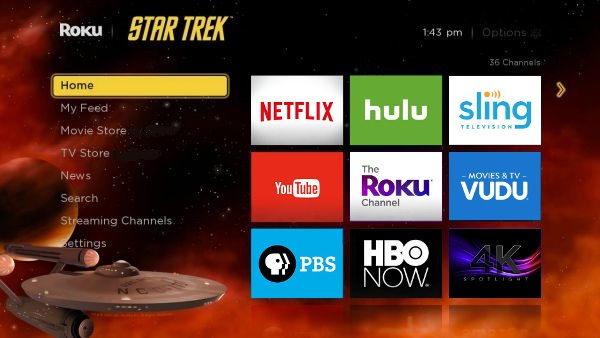
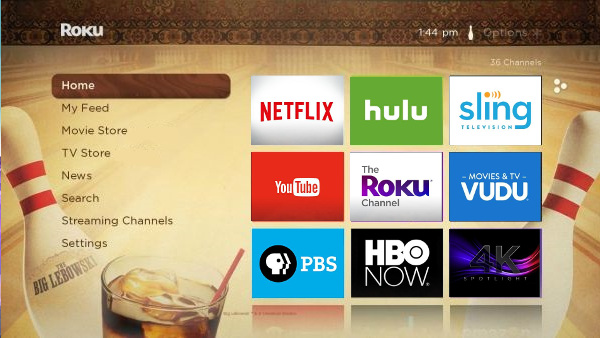
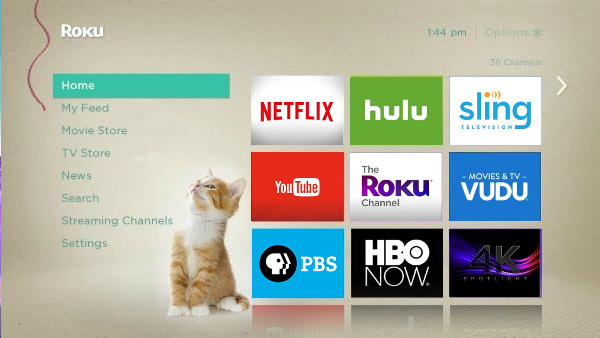
How do I change the theme?
The theme can be changed from the Settings menu on your Roku device.
- Press the Home button
 on your Roku remote.
 - Scroll up or down and select Settings.
- Select Themes to open the Themes menu.
- Select My themes.
- Move through the list of installed themes for a preview.
- To change the theme, press the OK button
 on your remote.
You will be returned to the My themes menu after the new theme downloads and installs.
Seasonal and featured themes
On various occasions throughout the year, Roku releases seasonal or featured themes such as Thanksgiving or Halloween, that only appear for a short period of time; e.g. 3 days. Your Roku device will automatically display a seasonal or featured theme and automatically switch back after it expires.
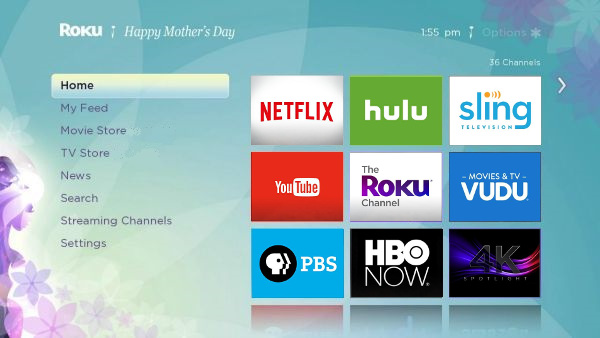
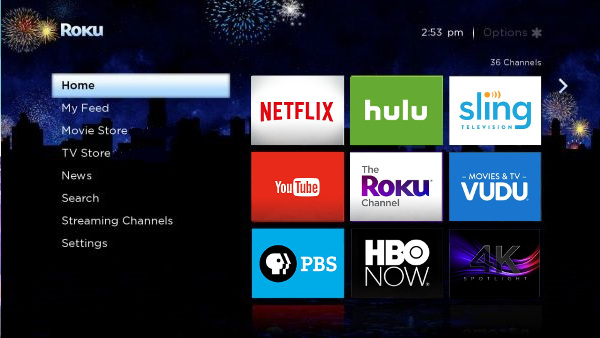
You can disable seasonal and featured themes by opening the Themes menu using steps 1 - 3 above, then selecting Custom Settings and then enabling or disabling featured themes.
How do I find and install new themes?
New themes can be found in the Themes category of the Roku Channel Store. The steps for adding a theme are the same as those for adding a channel to your Roku streaming device. You can also change the screensaver on your Roku streaming device to further personalize your Roku device.
Last updated at 2/19/2026 7:35:43 PM
Was this article helpful?
Related articles
Need more help?
