When you are using a compatible Roku® device, you can also connect a smartphone, tablet, or computer via Bluetooth®, a wireless communication technology that allows devices to exchange data over short distances (typically less than 30 feet). When a Bluetooth device is connected and playing audio, the Bluetooth channel on your Roku device automatically launches letting you listen to music, podcasts, or other audio streamed from apps installed on your Bluetooth device.
In rare cases, you may find the Bluetooth channel opens unexpectedly when your Bluetooth device connects and begins playing audio without you having initiated any action. This article explains how you can manually disconnect your Bluetooth device each time this happens or turn off the Bluetooth auto-play feature altogether.
Manually disconnect your Bluetooth device
When you disconnect a smartphone, tablet, or computer from your compatible Roku device, it remains in the My paired devices list as it is merely disconnected from the current Bluetooth session. You can use the steps below to manually disconnect your Bluetooth device should the Bluetooth channel open unexpectedly.
- Press the Home button
 on your Roku remote.
 - Scroll up or down and select Settings.
- Select Remotes & devices, followed by Bluetooth devices.
- Select your Bluetooth device by name.
Note: The name that appears in the list is acquired from your Bluetooth device. You can typically change this name by accessing the settings menu on your smartphone, tablet, or computer. Refer to the manufacturer's online documentation for help.
- Select Disconnect.
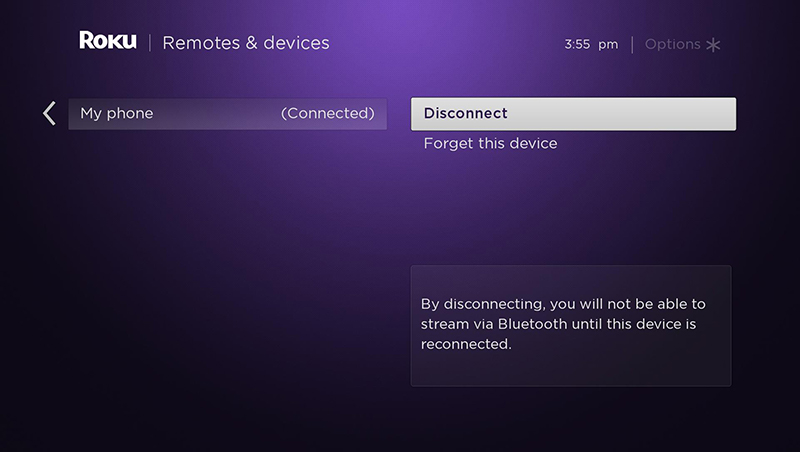
Once your Bluetooth device is disconnected, the Bluetooth channel will not launch automatically, and you will not be able to stream Bluetooth audio to your Roku device. You must re-connect your smartphone, tablet, or computer when you want to stream Bluetooth audio again.
Turn off Bluetooth auto-play
You can turn the Bluetooth auto-play feature off (or on) only when the Bluetooth channel is open.
- If it is not already open, launch the Bluetooth channel on your Roku device.
- Press the Star button
 on your Roku remote to access playback options.
 - Scroll up or down and highlight Bluetooth auto-play.
- Switch the setting to Off (or On).
Last updated at 2/13/2026 4:54:10 AM
Was this article helpful?
Related articles
Need more help?
