How to use your Roku voice remote with headphones for Headphone Mode
Some Roku® streaming devices include a voice remote with a built-in headphone jack. When the room is noisy or people nearby do not want to be disturbed, you can listen to the audio from your Roku streaming device with earbuds, earphones, or headphones using a feature called Headphone Mode.
You can use the Roku device comparison chart to determine which current-generation products include a remote that supports Headphone Mode. If your remote does not have a headphone jack, you can still use Headphone Mode with the free Roku mobile app for iOS® and Android™.Only one Roku voice remote can be connected to a Roku device and use Headphone Mode at a time. If you have a Roku Streambar®, Roku Streambar Pro, or Roku Smart Soundbar, Headphone Mode is only available when using its built-in streaming player. Headphone Mode is not supported when using an external device such as a game console, Blu-ray™ player, or cable/satellite set-top box; or when using a Bluetooth® device such as a smartphone or computer.How to use Headphone Mode with your Roku remote

Warning: Do not put on your headphones until the volume is at a safe level.
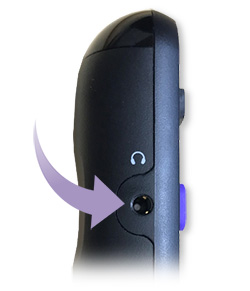
Find the built-in headphone jack on the side of your Roku remote and then follow the instructions below to start using headphones or earbuds with your remote.
- Plug in your headphones firmly into the headphone jack on your remote
- A headphone icon
 will appear on your television screen to indicate Headphone Mode is active
 - Begin streaming a movie or TV show
- Before using your Roku remote with headphones, hold your headphones near your ears, but do not put them on yet
- Adjust the audio level using Volume down
 and Volume up
 on your remote
 - When the volume is at a safe level, put on your headphones and adjust the volume if necessary
When Headphone Mode is activated, you will not hear audio from your TV speakers. When you want to disable Headphone Mode, unplug your headphones completely. Audio will automatically return to your TV speakers at the previous volume.
Tip: To help extend battery life on your voice remote, unplug your headphones when not in use.
How to fix Headphone Mode issues with your Roku remote
If you are experiencing connectivity or audio issues while using your Roku remote with headphone, learn how to solve problems with Headphone Mode.
Last updated at 2/24/2026 10:27:50 PM
Was this article helpful?
Related articles
Need more help?
