How do I rename a Roku® streaming device?
When you setup and activate your Roku streaming player or Roku TV™, you can name your device to help identify it easier in your Roku account, the Roku mobile app, or when using screen mirroring. This is particularly helpful when you own more than one Roku device.
If you wish to rename your Roku device after the initial setup process, you can do so from your Roku account or the Roku mobile app using the instructions below.
From your Roku account
You can manage your Roku devices by signing in to your Roku account.
- Go to my.roku.com from your computer or smartphone.
- If you are prompted, sign in to your Roku account.
- If you cannot sign in to your Roku account, learn what to do if you have forgotten your email address or password.
- If you cannot sign in to your Roku account, learn what to do if you have forgotten your email address or password.
- Scroll down and find My linked devices.
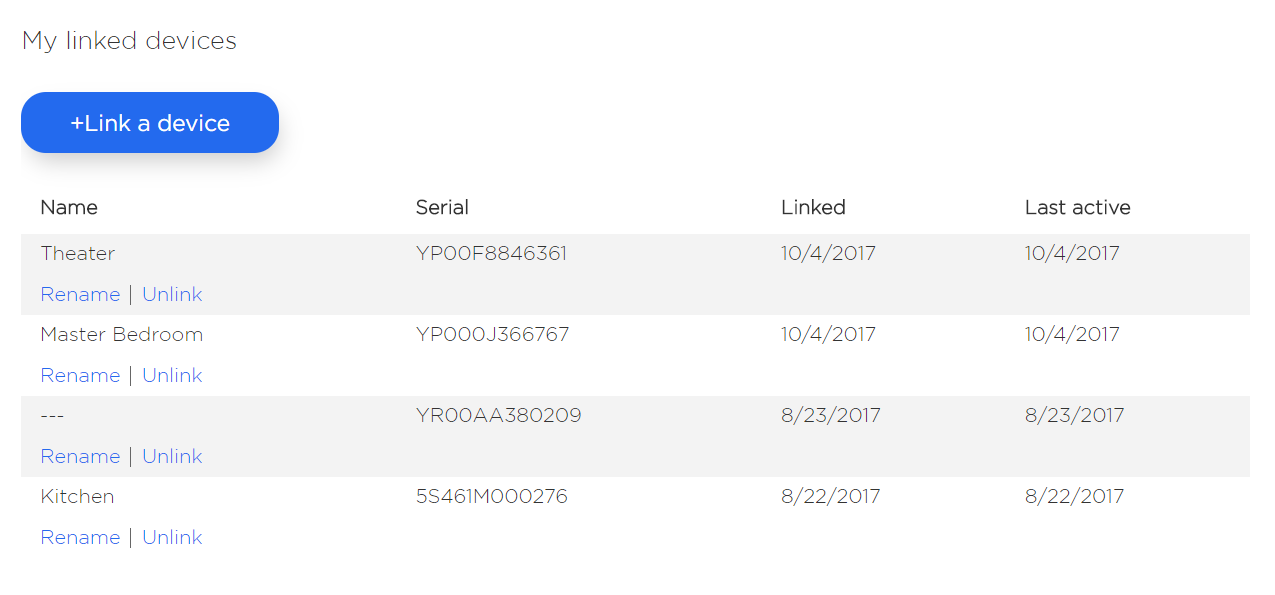
If you have named your device then the name appears in your list of devices, if not, the device can only be identified from the serial number.- Tip: You can find the serial number of your Roku device by visiting Settings > System > About.
- Tip: You can find the serial number of your Roku device by visiting Settings > System > About.
- Select the Rename link to provide a new name for the associated Roku device, and then confirm.
From the Roku mobile app
The Roku mobile app is a free application for iOS® and Android™ devices that turns your mobile device into a control center for your Roku streaming device. To use the Roku mobile app, you must connect your mobile device to the same wireless network as your Roku device. If you have more than one Roku device, you can choose which to control from the device discovery screen. Renaming your Roku devices helps to identify the correct device.
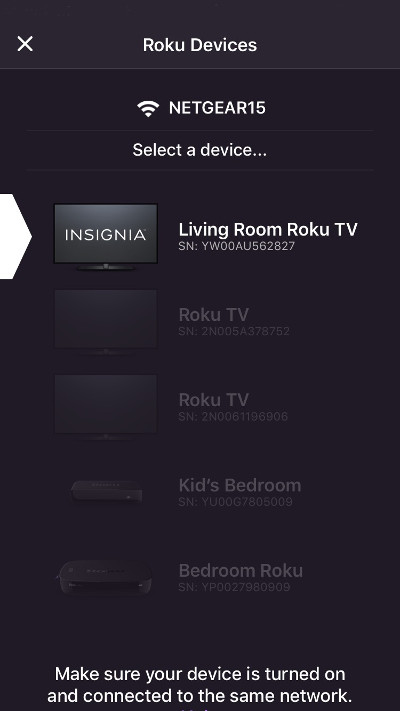
To rename a Roku device:
- Launch the Roku mobile app.
- Select the Settings icon
 from the bottom navigation bar.
 - Select Edit Name.
If you need to rename a different Roku device, then select Switch Roku Device and choose the Roku device you wish to rename.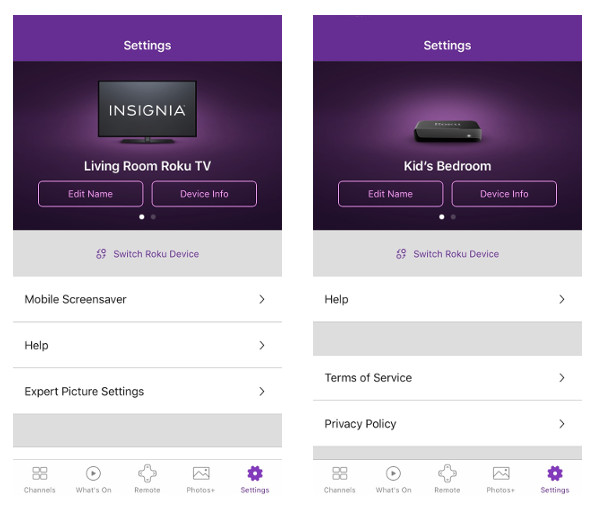
Last updated at 2/18/2026 3:17:58 AM
Was this article helpful?
Related articles
Need more help?
