How to set up your Roku TV
Your Roku TV™ comes with Roku® OS built in, offering a complete smart TV experience that lets you access your favorite movies and shows, plus live broadcast TV. It includes features like More Ways to Watch, Live TV Pause, and The Roku Channel.
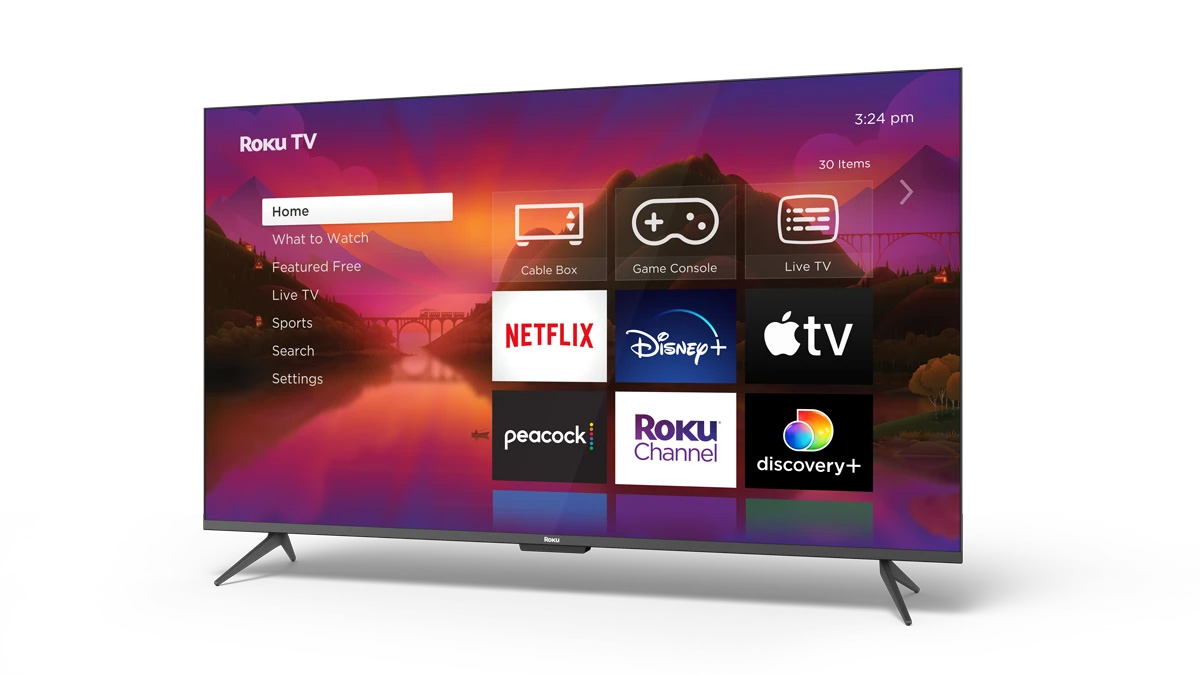
Roku TV setup and user guides
Refer to the Roku TV User Guide for in-depth instructions on completing the Guided Setup, connecting other devices to your TV, using features, and configuring settings.
What you’ll need for setup:
- Your Roku TV and remote
- Power outlet
- Wi-Fi network name and password
- (Optional) Additional devices like a cable box or game console
1. Unbox and power on
- Remove the TV from the box and attach the included stands, or mount it to the wall
- Plug in the power cord
- Use the Power
 button on your Roku remote to turn on the TV
 - After the startup screen, the Guided Setup process will begin automatically

Note: Apply sufficient pressure while turning the stand screws until they self-thread into the plastic.
2. Prepare the Remote
Depending on your remote type:
- If it has a battery pull-tab, remove it
- If it requires batteries, insert fresh, matching batteries
- If it’s rechargeable, it’s ready to use out of the box
3. Pair the Remote (if required)
Some Roku TVs come with a voice remote that needs to be paired.
- Follow the on-screen instructions to complete the pairing process
- Detailed instructions are also available to help you set up and troubleshoot your Roku voice remote.
4. Select your language
- Use the directional pad to scroll through the list of available languages
- Press OK
 to select your preferred language
Tip: To enable the screen reader (English only), press the Star button four times quickly.
5. Choose your country and mode
- Select the country where you’re using the TV
- Select Set up for home use, unless you are configuring the TV for a store demo
6. Connect to Wi-Fi
- Choose your wireless network from the list
- Enter your password. You can select Show password to confirm what you're typing
- If your network isn’t listed, choose Scan again
- Once connected, the TV will automatically download the latest Roku OS updates and restart
Note: For more assistance, get help finding your wireless network and password.
7. Activate and link your Roku account
- When prompted, sign in to your existing Roku account or create a new one (free)
- Activation links your Roku TV to your account and lets you use the channel store, purchase subscriptions, and personalize your TV
- If you experience issues, refer to Roku’s activation troubleshooting guide
Optional: Connect additional devices
If prompted by the Guided Setup:
- Connect devices such as a cable box, Blu-ray player, game console, or sound system to the HDMI or AV ports
- Turn on each device so the TV can detect it
- Assign a name and icon to each input using the on-screen options. You can choose from preset names or create a custom one
You can also add or change connected devices later by going to Settings > Remotes & Devices > Add Devices
Optional: Set up live TV (antenna only)
If you plan to watch over-the-air shows and movies:
- Connect an HD antenna to the Live TV input on the back of your TV
- Use the directional pad to select the Live TV tile from the home screen
- You will be prompted to scan for available channels. Follow the on-screen instructions to complete the scan.
Optional: Set up cable or satellite TV
To watch broadcast cable or satellite TV:
- Connect your cable receiver to an HDMI input on the back of your TV
- Turn on both the receiver and the TV
- Use the Directional pad on your remote to select the correct input
- You may need to wait a moment to receive a signal. If you need more help, contact your provider.
Customize your experience
Now that your TV is set up, you can:
- Download your favorite streaming apps
- Customize your home screen and theme
- Adjust TV settings for gaming, sound, and display preferences
- Set up parental controls or voice search options via the Roku mobile app
Last updated at 3/3/2026 9:47:47 PM
Was this article helpful?
Related articles
Need more help?
