Set up your Roku® streaming player for 4K HDR
With 4K resolution and HDR (High Dynamic Range), movies and shows look better with brighter colors and more detail. There are different types of HDR, like HDR10, HDR10+, Dolby Vision™, and HLG. Not all Roku players or TVs support every format of HDR, so it's important to check your devices first. This guide will walk you through everything you need to set up your Roku player and TV correctly, so you can start enjoying better picture quality.
What you need for HDR and 4K picture
- A 4K HDR TV with an HDMI 2.0 port and HDCP 2.2 support
- A Roku player that supports 4K and HDR
- A Premium High Speed HDMI® Cable (unless using a Roku Streaming Stick, which plugs directly into the TV)
- 4K HDR content from a supported streaming service (look for the 4K or HDR logos)
Set up audio/video connections
All connected devices like your TV, soundbar, or receiver, must support HDMI 2.0 and HDCP 2.2, or 4K HDR won't work. Check the following:
- Confirm your other devices support HDMI 2.0. Contact the manufacturer if you're unsure.
- Check your TV inputs support HDCP 2.2. Check the TV manual or contact the manufacturer for help.
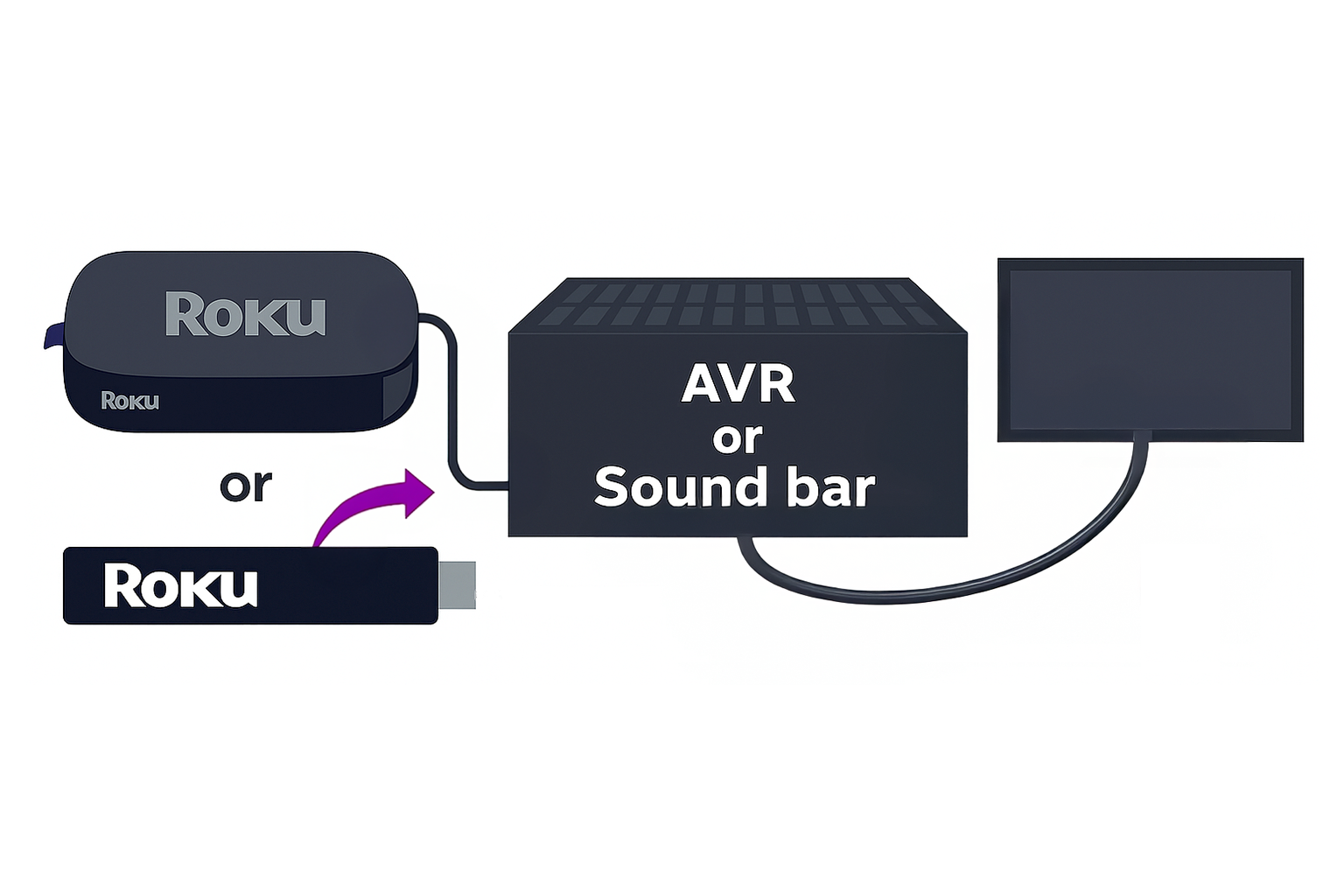
Connect through a soundbar or AVR
- Connect your Roku player to the HDMI input on your soundbar/AVR that supports HDMI 2.0 & HDCP 2.2
- Connect soundbar/AVR to your TV using a premium high speed HDMI cable
Why is my TV's picture quality still not in 4K/HDR?
If you still aren't seeing higher quality picture, check the following:
- TV HDMI settings: Some TVs need 4K and HDR turned on for each HDMI port. Reach out to the manufacturer for help.
- Check device compatibility: All devices in the setup (TV, Roku, soundbar, other devices) must support HDMI 2.0 and HDCP 2.2.
- Software update: Make sure your TV’s software is up to date.
- Check if the movie or show is in 4K or HDR: Only certain shows have 4K and HDR, even if your streaming service supports it. Check for logos in the streaming app.
- Try a different cable: Make sure your HDMI cable is Premium High Speed.
Additional troubleshooting
- Restart your Roku player: Navigate to Settings > System > Power > System Restart to reset your player.
- Try a different display setting: If you are seeing a grey picture or are having display issues, navigate to Settings > Display Type and switch from 4K HDR to 4K or 1080p.
Last updated at 2/19/2026 7:36:05 PM
Was this article helpful?
Related articles
Need more help?
