How to set up your Roku Express 4K
What’s in the box
- Roku Express 4K streaming player
- Roku remote
- Premium High-Speed HDMI cable
- USB power cable & power adapter
- Adhesive mounting strip
- Batteries for remote
Download the Quick Start Guide
Setup steps
1. Connect to your TV
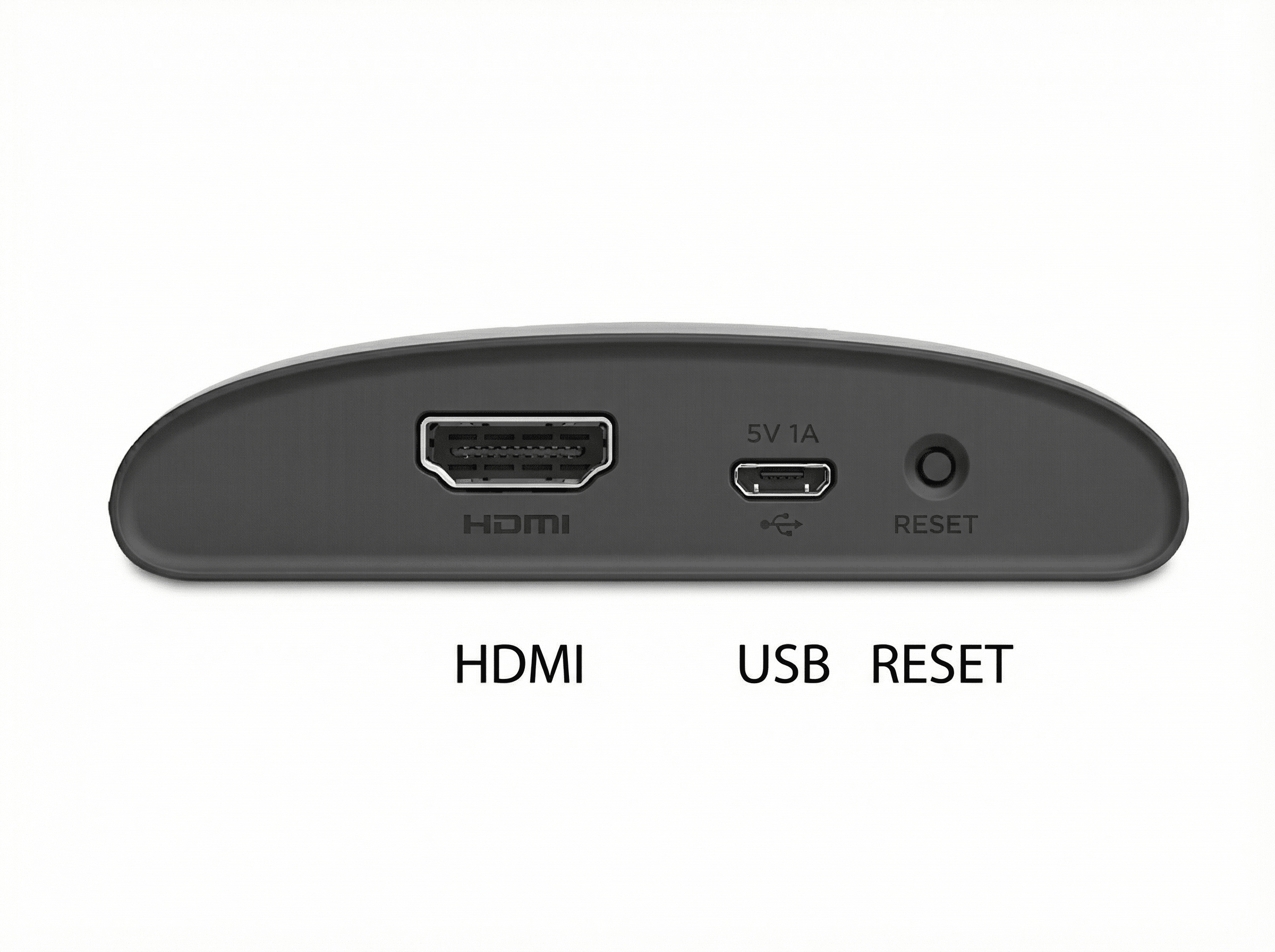
- Plug your Roku Express 4K into your TV’s HDMI port
- Connect the USB power cable and plug it into a USB port on the TV OR a wall outlet (recommended for best performance)
- Use your TV Remote to select the correct HDMI input by pressing Input or Source. The Roku logo should appear
- (Optional) Secure the player using the included adhesive strip
2. Prepare your remote
- Slide open the remote’s battery cover and insert the batteries
- Make sure your remote has a direct line of sight to your Roku player so it can pair.
If your remote isn’t working, try restarting your Roku player by unplugging it for 10 seconds then plugging it back in. Learn more about remote troubleshooting.
3. On-screen setup
Choose a language
Select your preferred language.

Note: Some streaming apps may not support all languages.
Connect to the internet
- Wireless: Select your Wi-Fi network and enter the password
- If you don’t see your network, select Scan again
- Select Show password if you want to see what you’re typing
- Wired: Connect a compatible Ethernet adapter to the micro USB port
Choose Connect when you're finished. If you can't connect, restart your router, then unplug your Roku device, wait 10 seconds, then plug it back in. Learn more about how to troubleshoot Wi-Fi connectivity.
Download updates
Your Roku player will install the latest software and restart. Let it finish.
Display settings
Roku will auto-detect the best display resolution for your TV (HD, 4K, HDR). You can change this later under Settings > Display type.
If your TV supports 4K/HDR but Roku doesn't detect it, make sure:
- The HDMI cable is firmly connected
- The port supports HDCP 2.2
- HDR is enabled on your TV’s HDMI input
- Contact your TV manufacturer for help
4. Create & activate your Roku account
- Enter your email on the screen to receive an activation link
- Check your spam/junk folder if you don’t see it
- Or choose Activate with QR code and scan it with your phone
Follow the link to create or sign in to your Roku account and finish setup.
Roku never charges activation or support fees. If you see such requests, they are scams.
Enjoy your Roku player!
You’re ready to stream! Customize your Roku with themes, screensavers, and new channels from the Streaming Store.
Troubleshooting tips
No picture on TV
- Check HDMI connection
- Select the correct HDMI input on your TV
- Try another HDMI port or cable
- Try the steps outlined here
Red light on your Roku player
- Solid red = device is overheating. Unplug and let the device cool.
- Flashing red = not getting enough power. Plug your Roku player into the wall with the included power adapter.
Wi-Fi issues
- Connect to the correct network and re-enter password
- Select Scan again if the network isn’t visible
- Restart your router and modem
- See this article for more help
Poor HDR or 4K picture
- Update your TV’s software
- Enable HDR for the HDMI TV input your Roku uses. This process differs by TV brand. Learn more and contact the manufacturer for help.
- Use the included Premium High-Speed HDMI cable
- On your Roku player, navigate to Settings > Display Type and try switching between 4K HDR and 4K
That's it. Enjoy streaming in stunning 4K!
Last updated at 3/3/2026 2:16:39 AM
Was this article helpful?
Related articles
Need more help?
